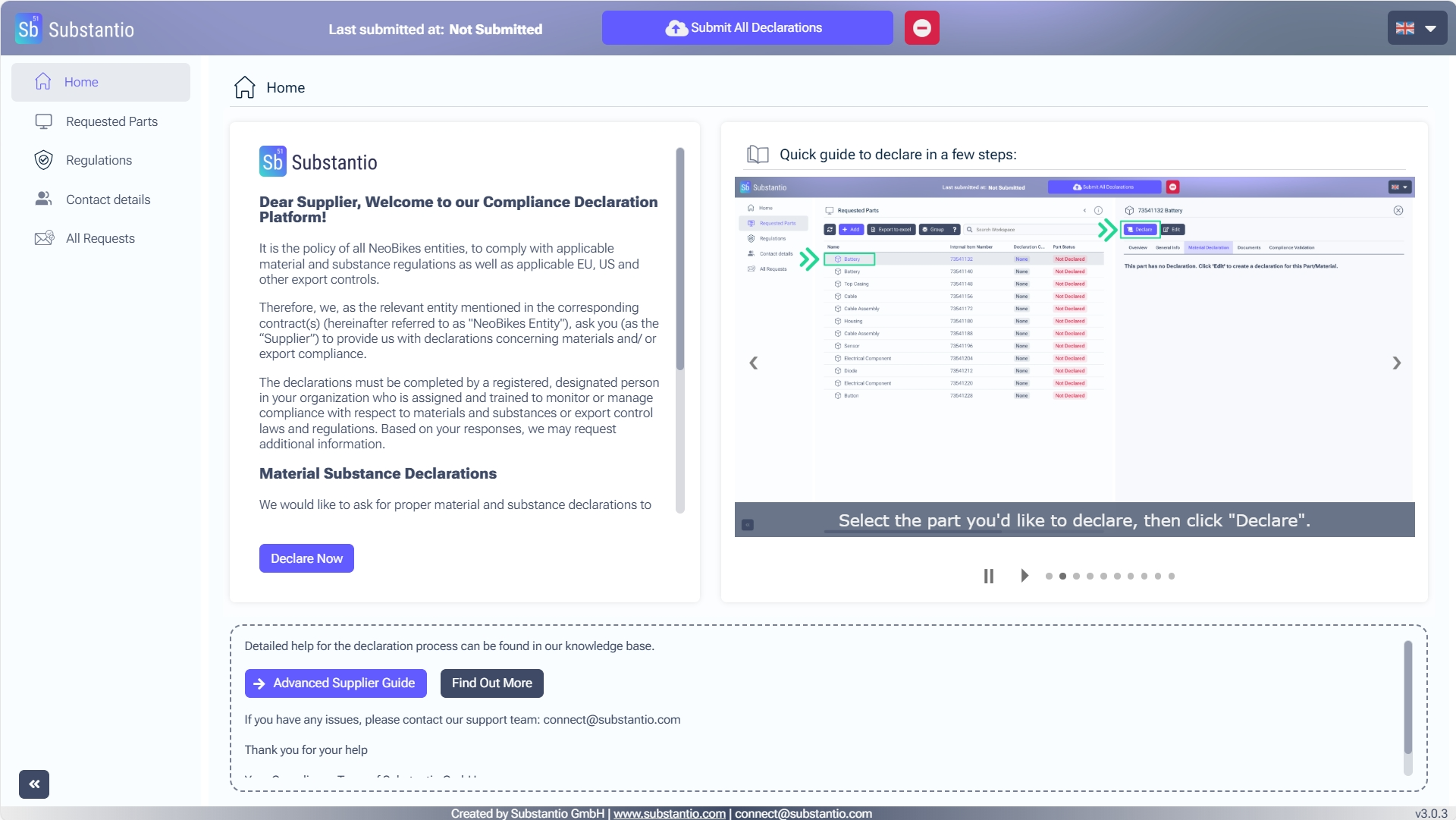
You accessed the Substantio platform via the link of your customer's email for substance compliance. Respond to the requests from your customer by clicking the Declare now button.
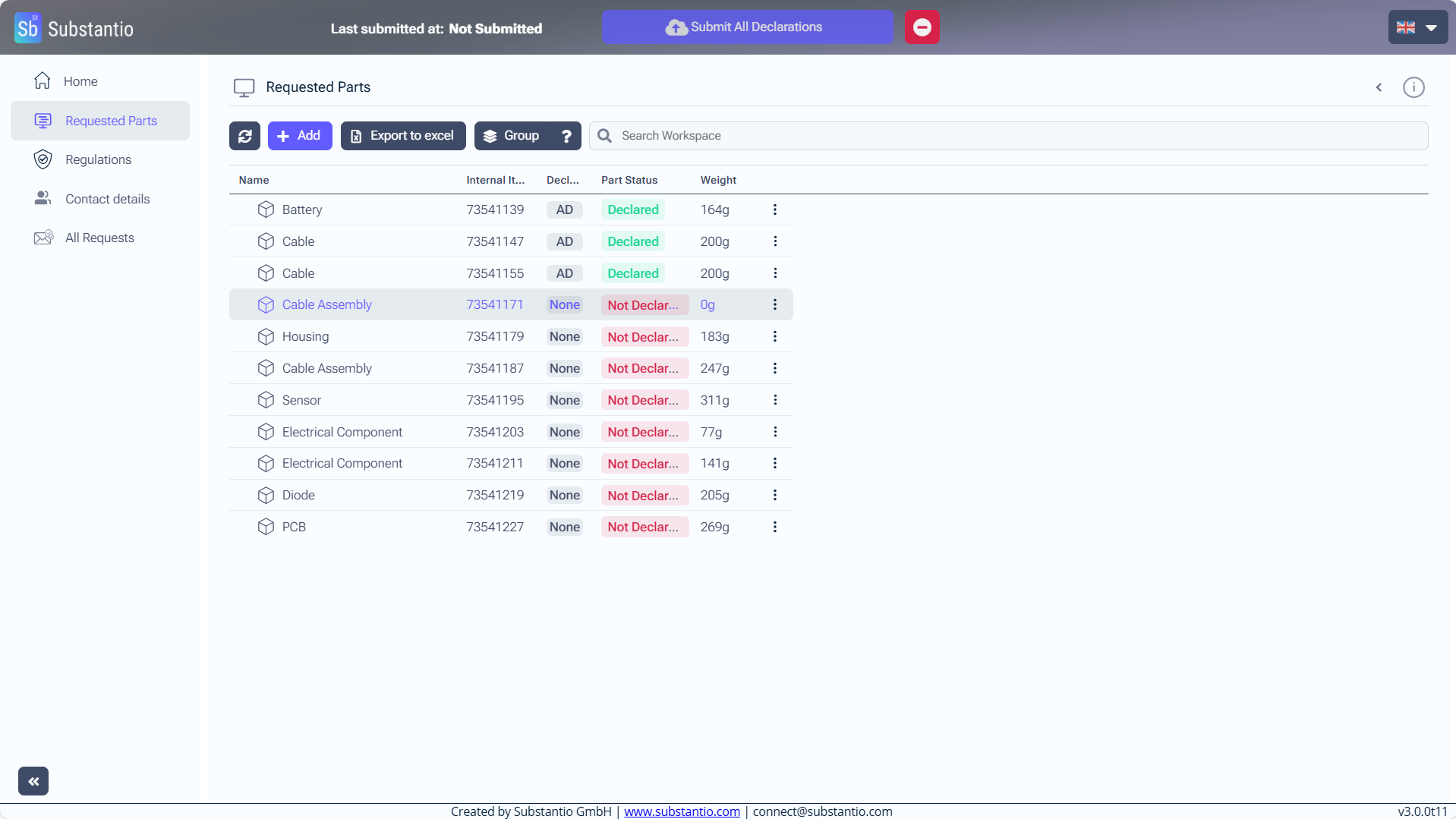
To review a requested part, select its name to open a details panel on the right side of the screen.
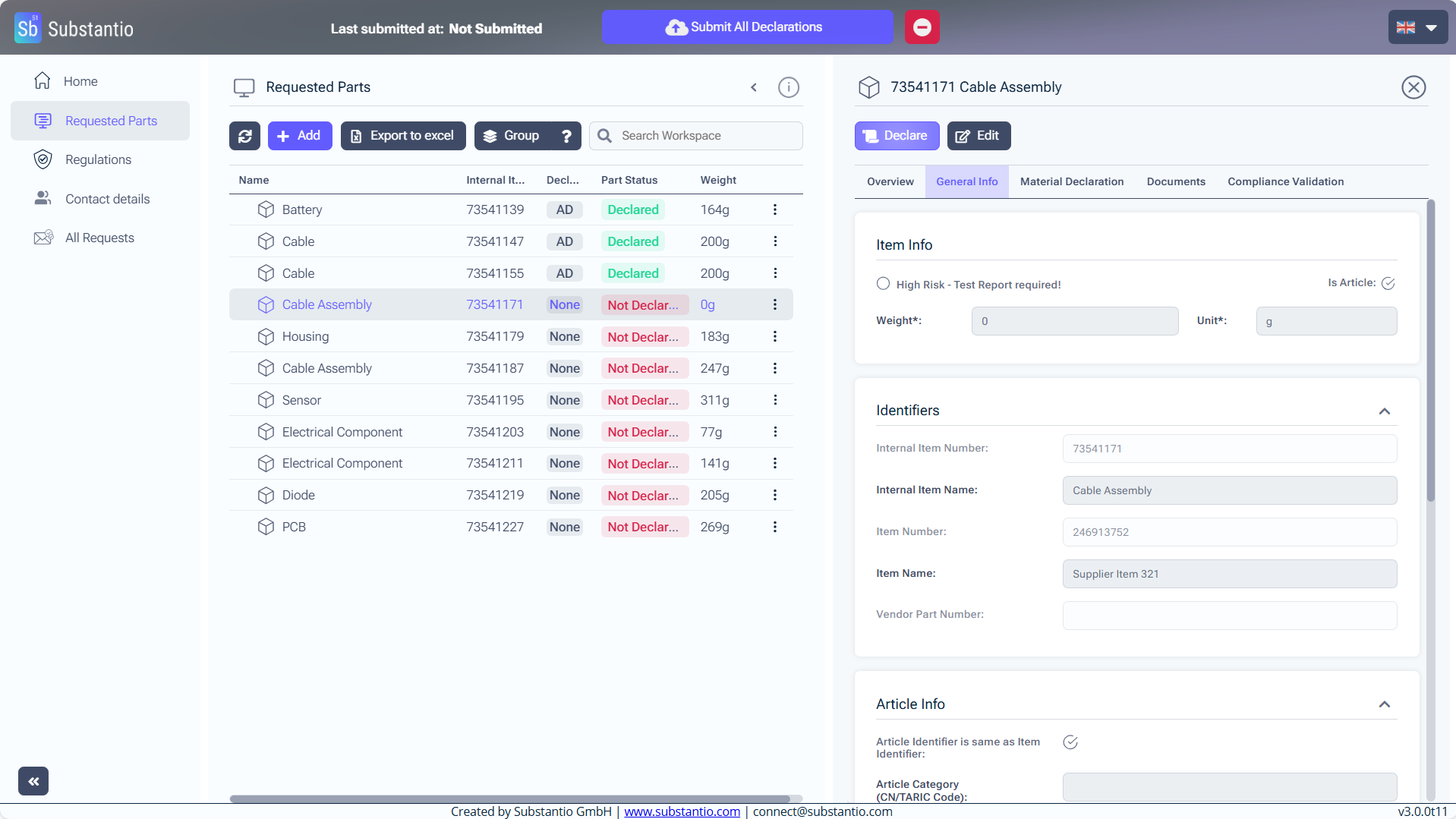
To start entering your data for the selected part, click the Declare button.
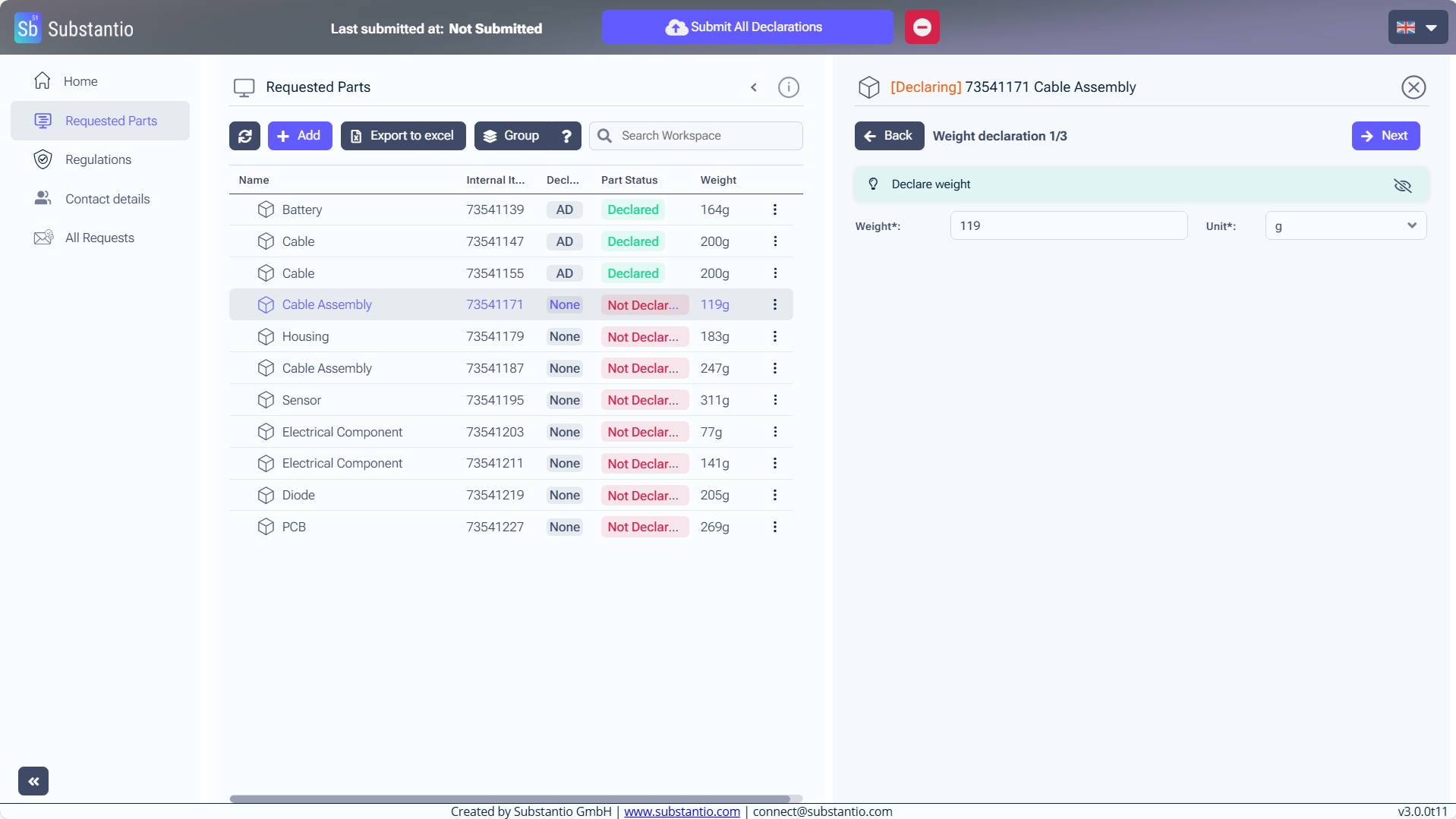
Enter the weight of the part in the designated field. This provides a summary of the total material used for compliance reporting.
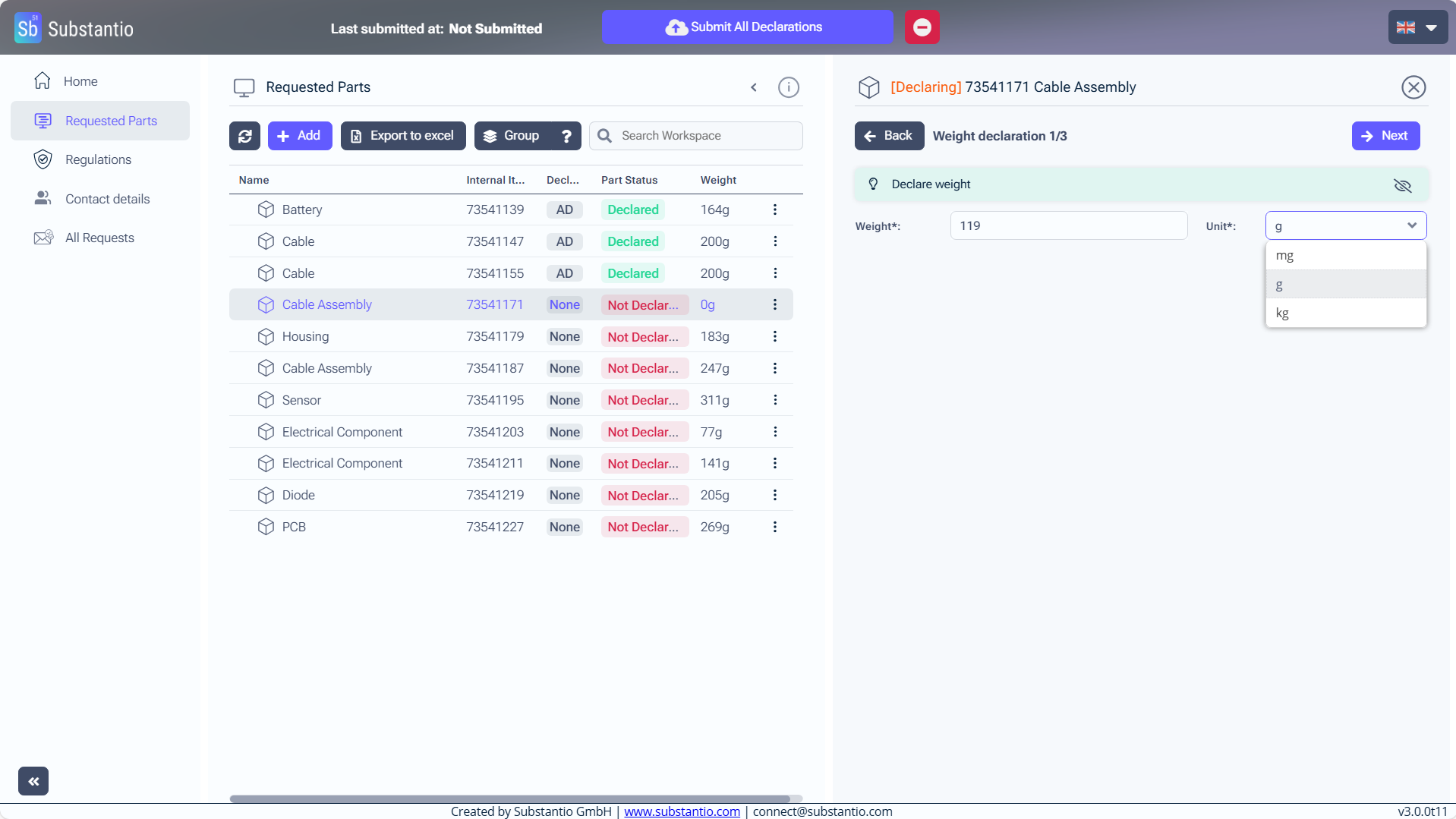
Choose the correct unit of measurement from the dropdown menu.
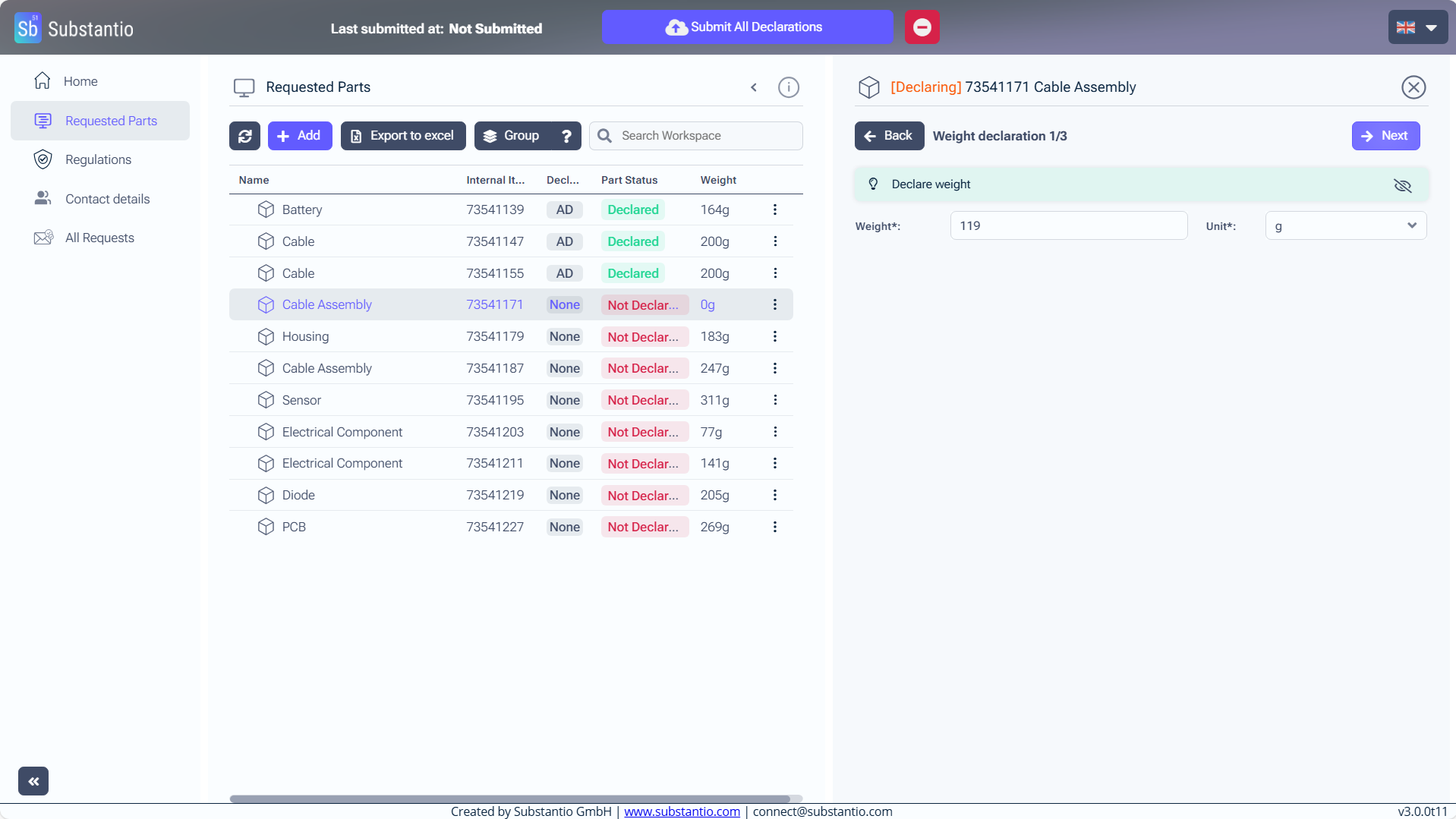
Click the Next button to continue with the declaration process.
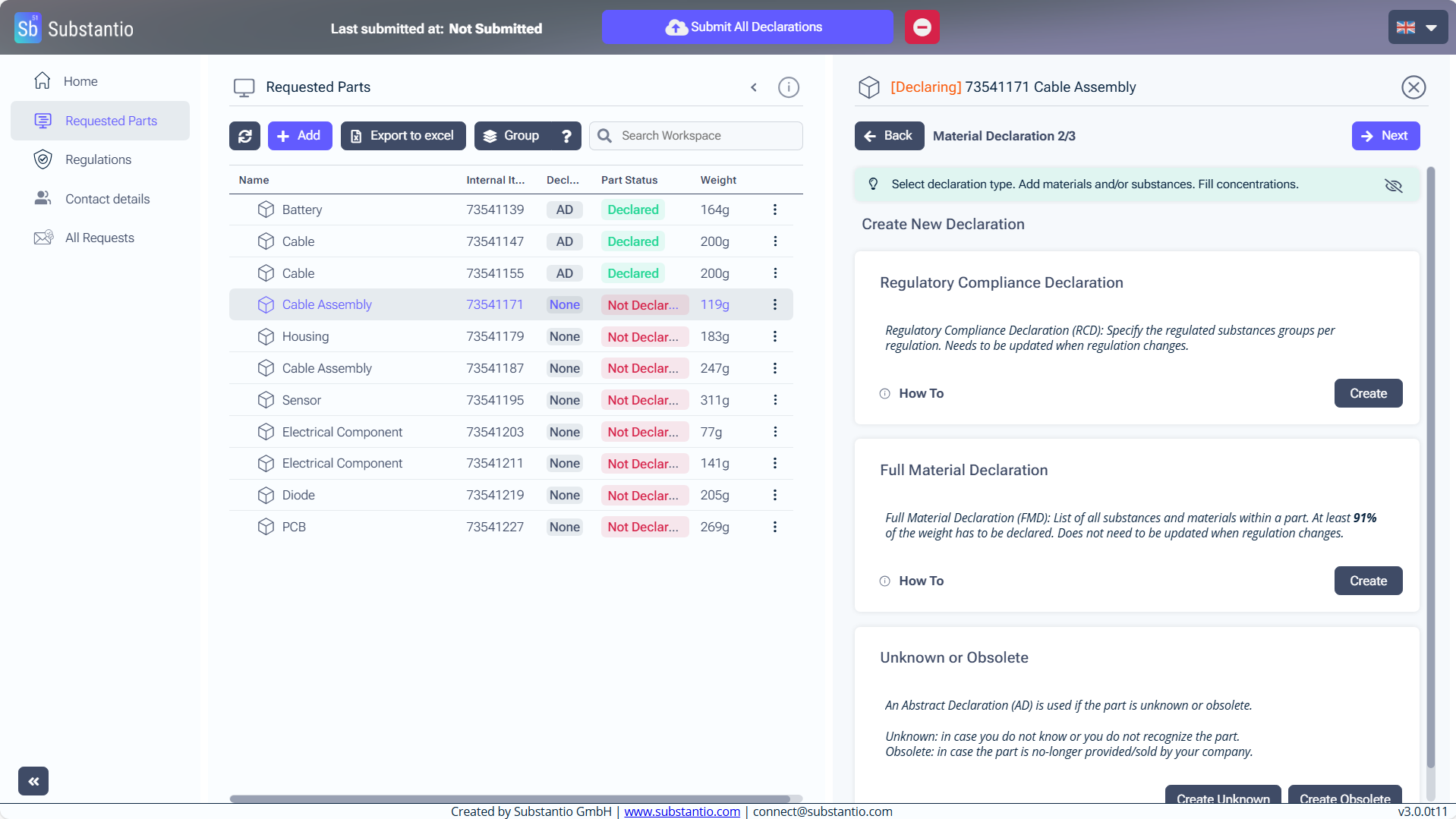
The Regulatory Compliance Declaration (RCD) section allows you to indicate which regulated or restricted substances are present in your product. Click the Create button to get started.
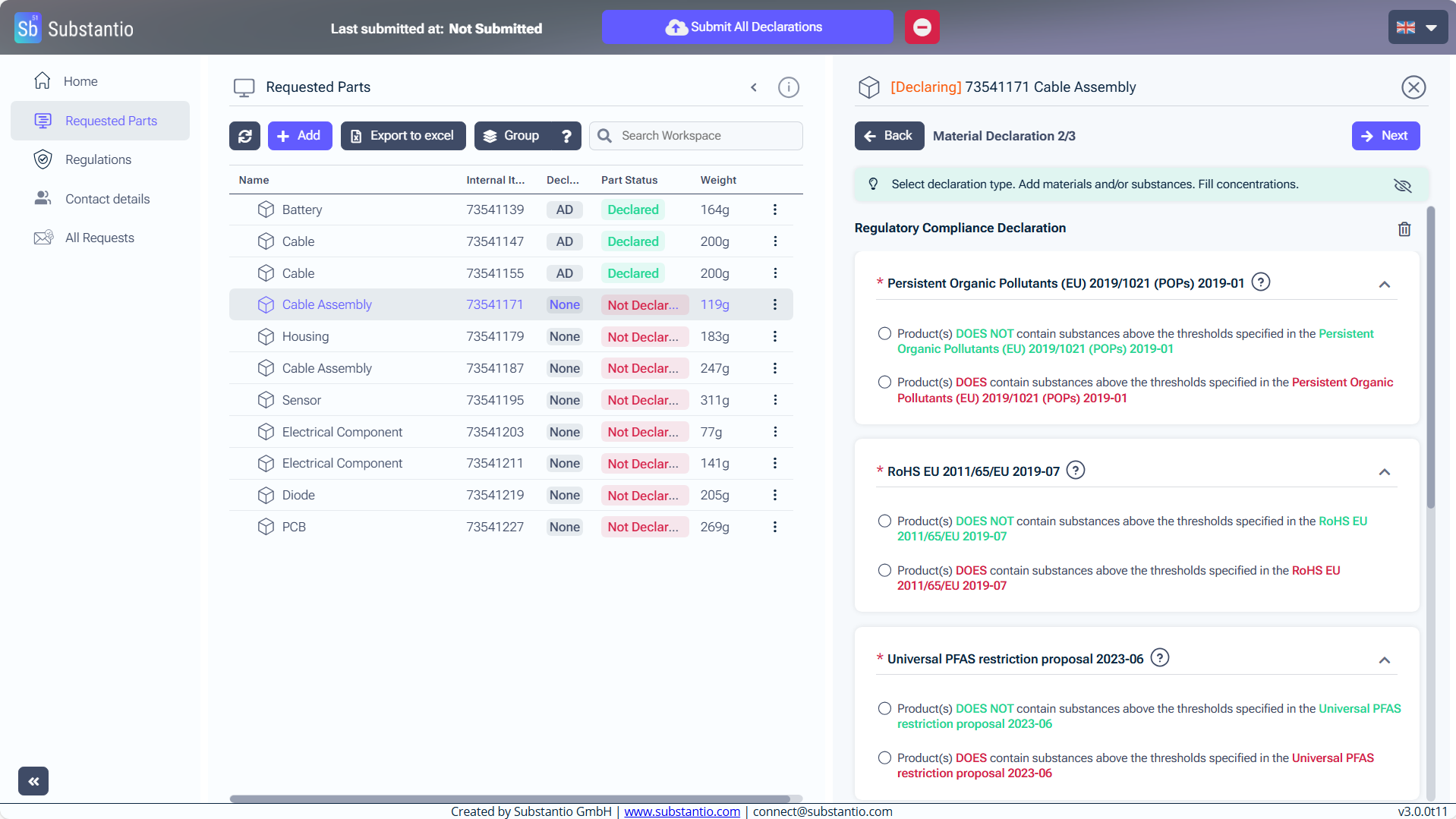
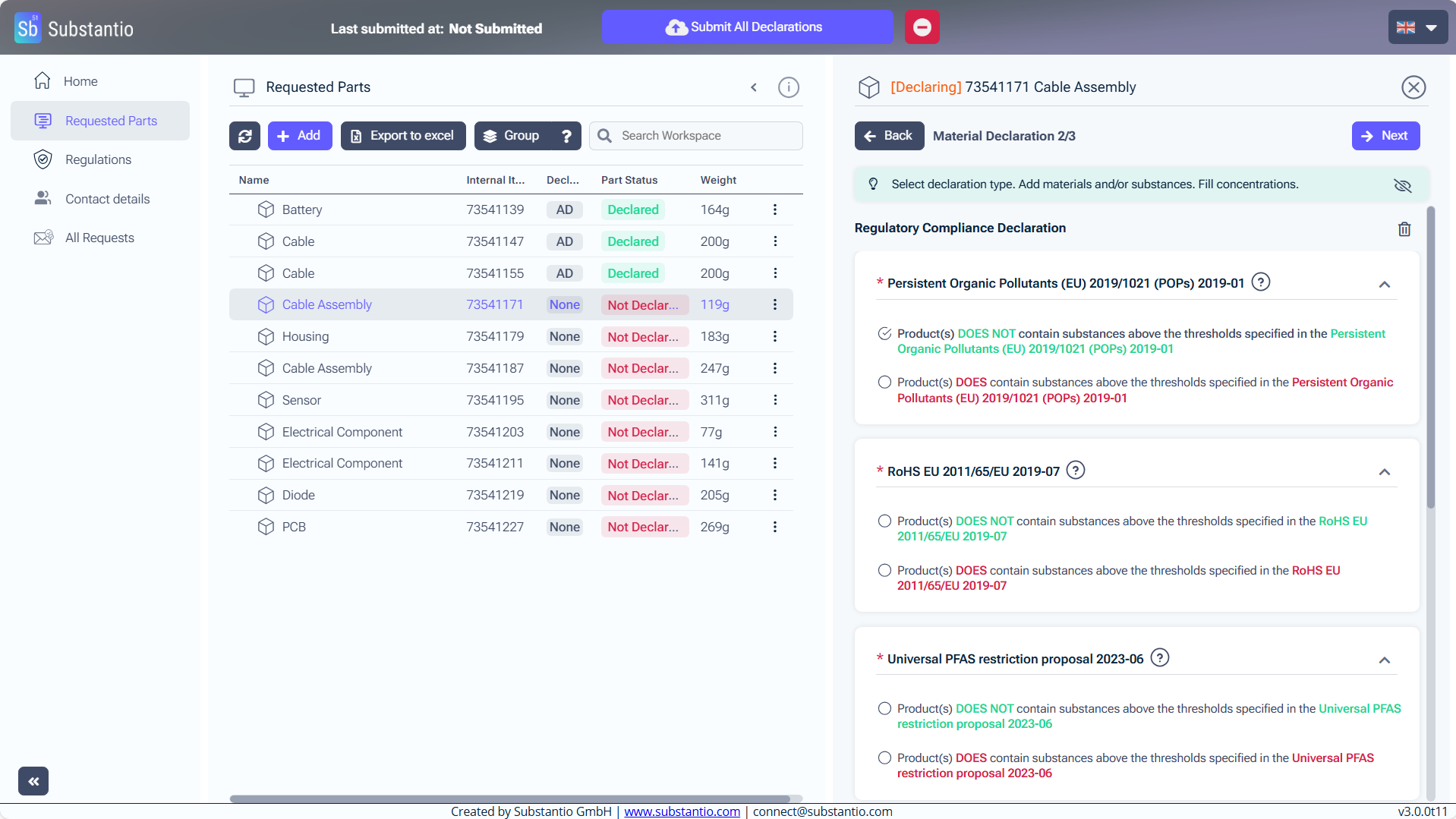
Indicate whether your product contains substances exceeding the limits established by applicable regulations by selecting the appropriate checkbox.
Example RoHS: If your product contains substances above the regulation thresholds, click the checkbox Product DOES contain...
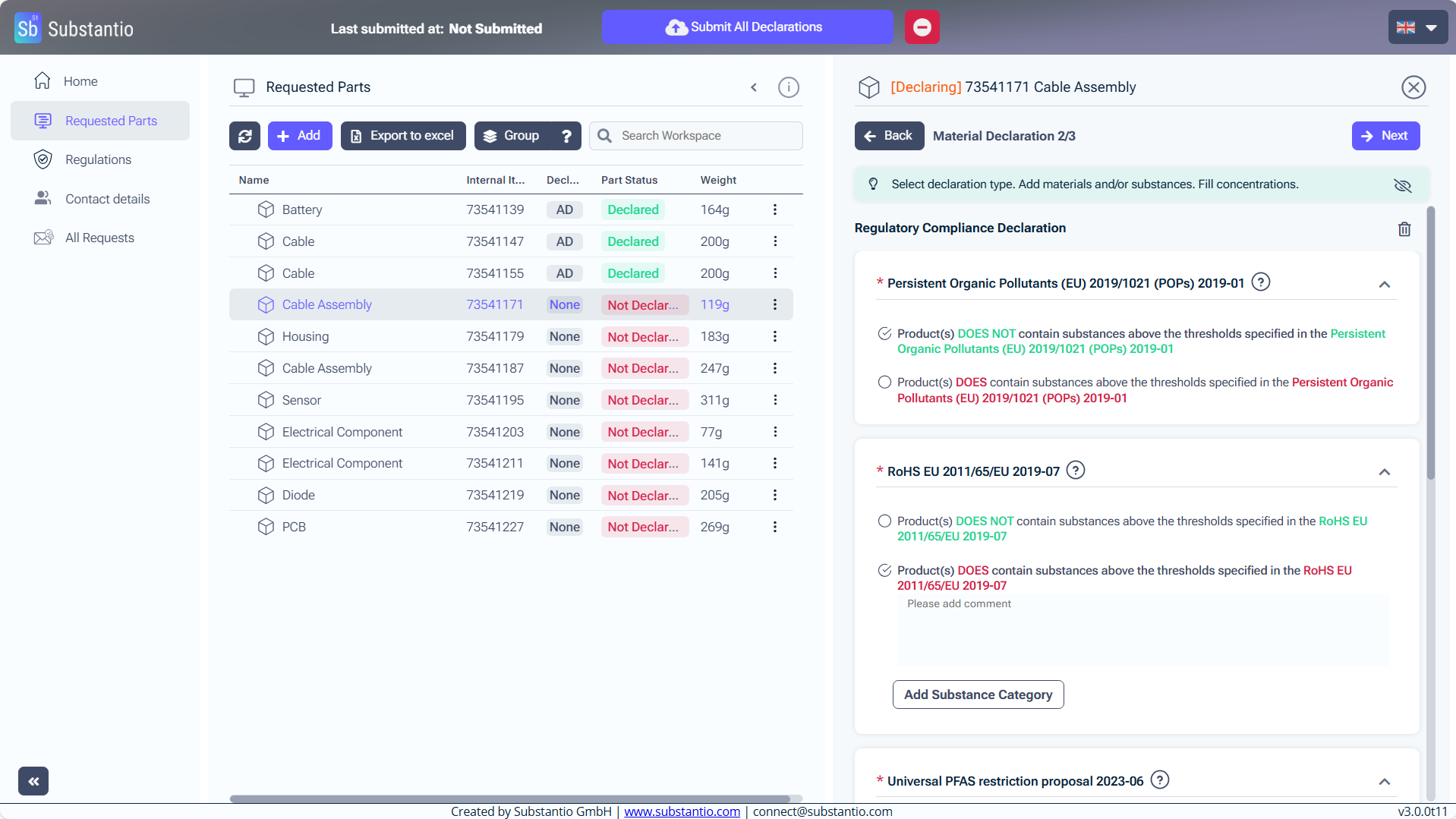
and then click the Add Substance Category button.
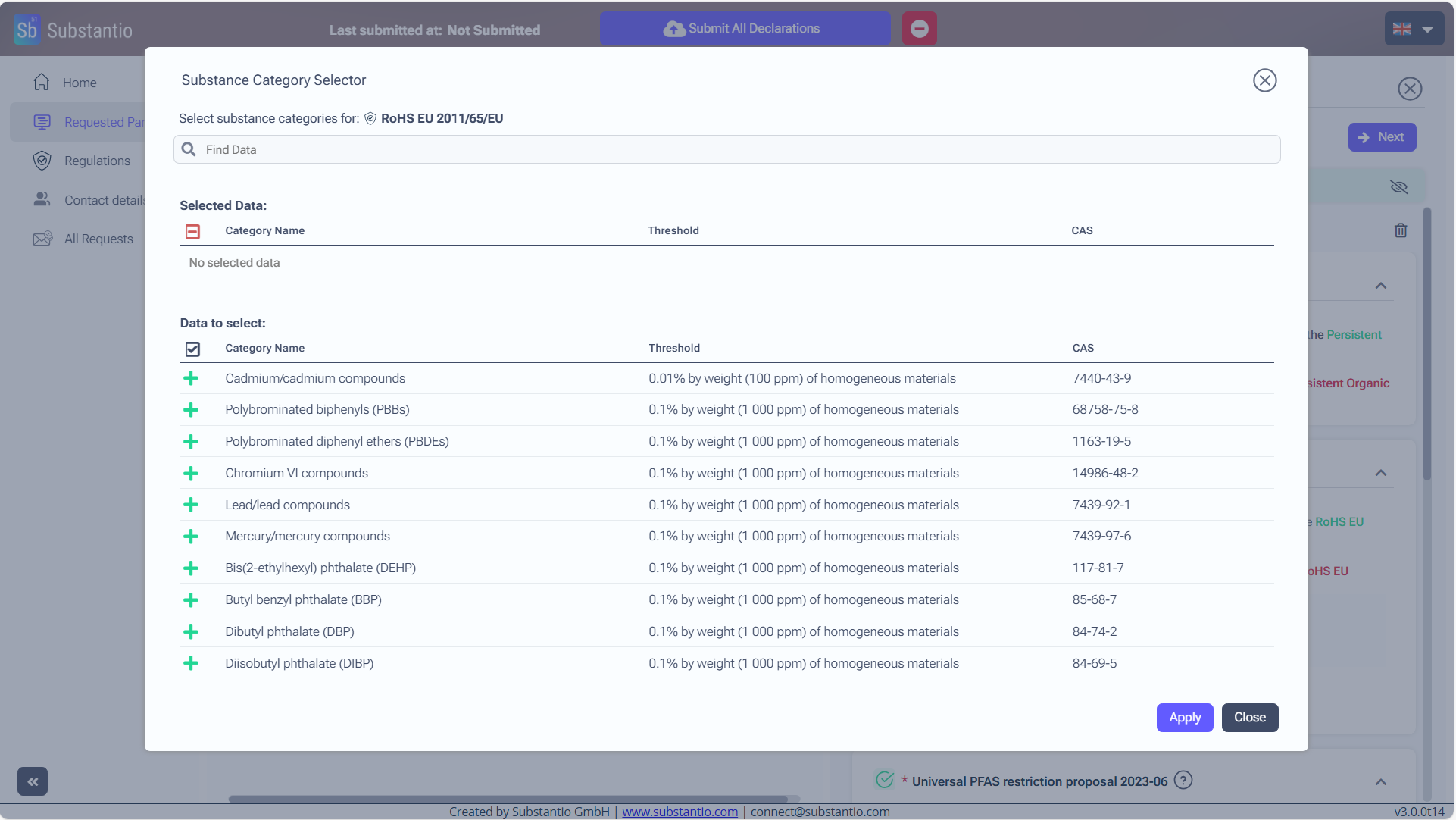
Find the relevant substance by inserting the name or the CAS-number of it in the field.
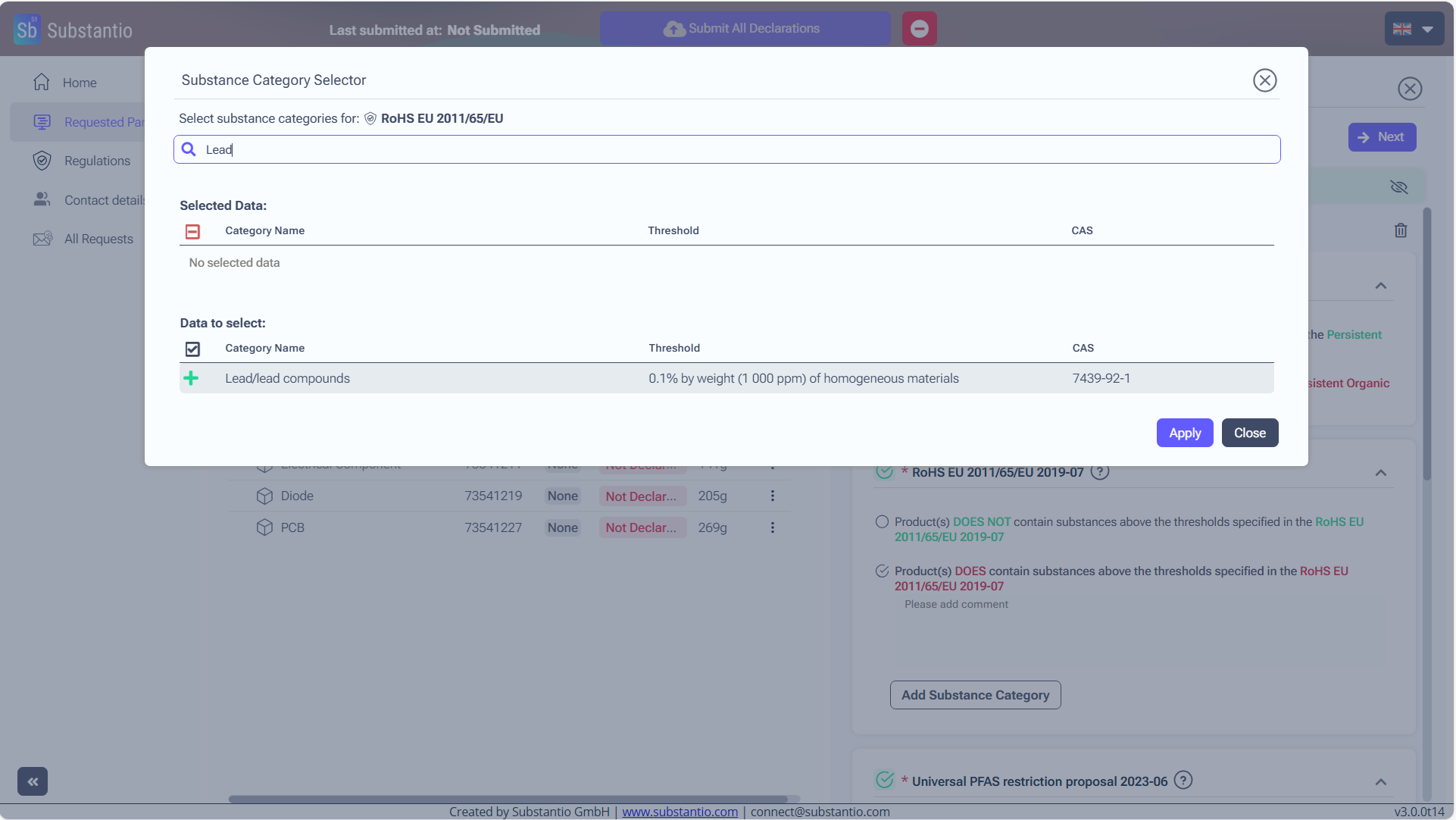
Than click the + icon to add it.
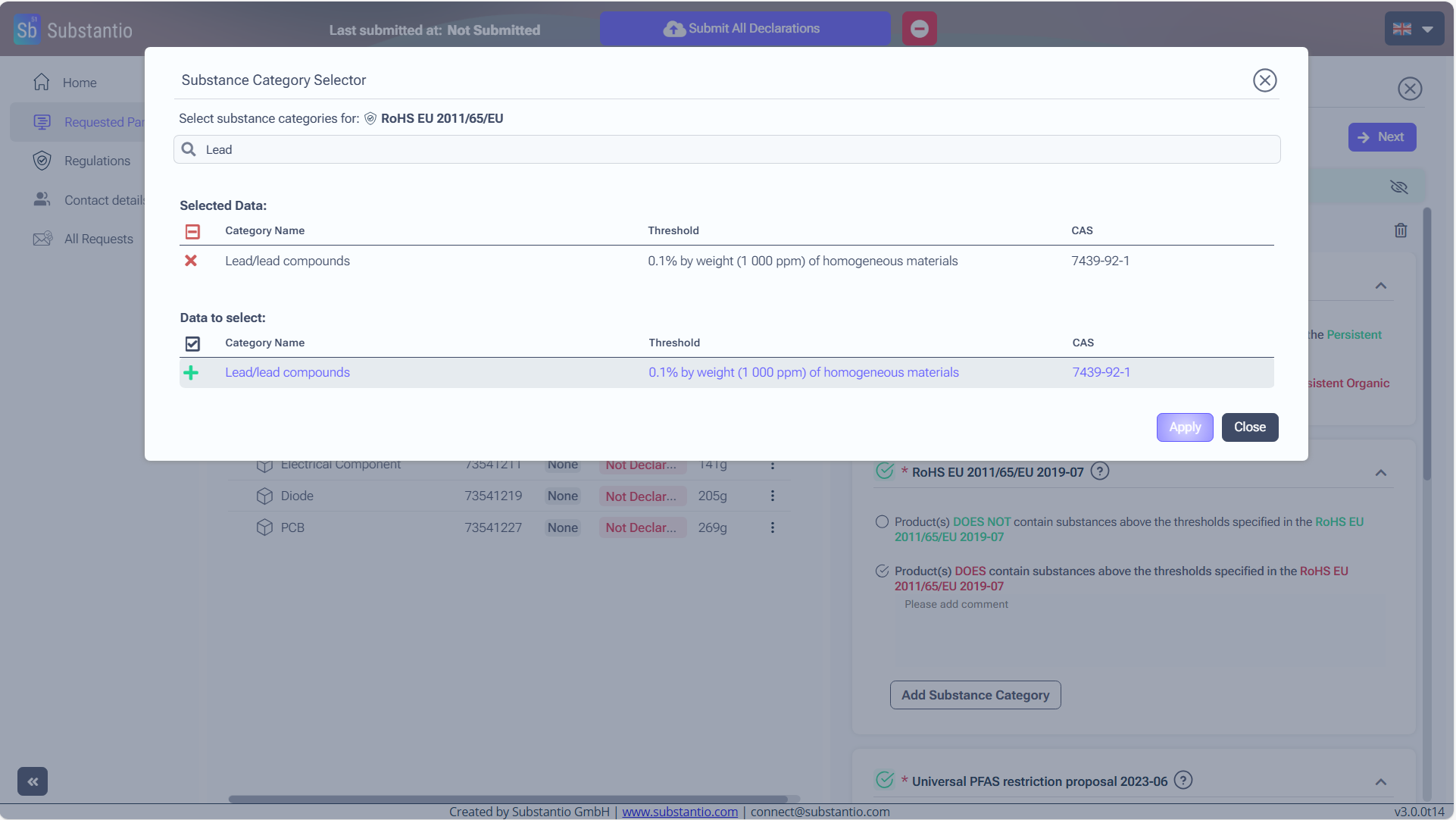
Click the Apply button to confirm your selection.
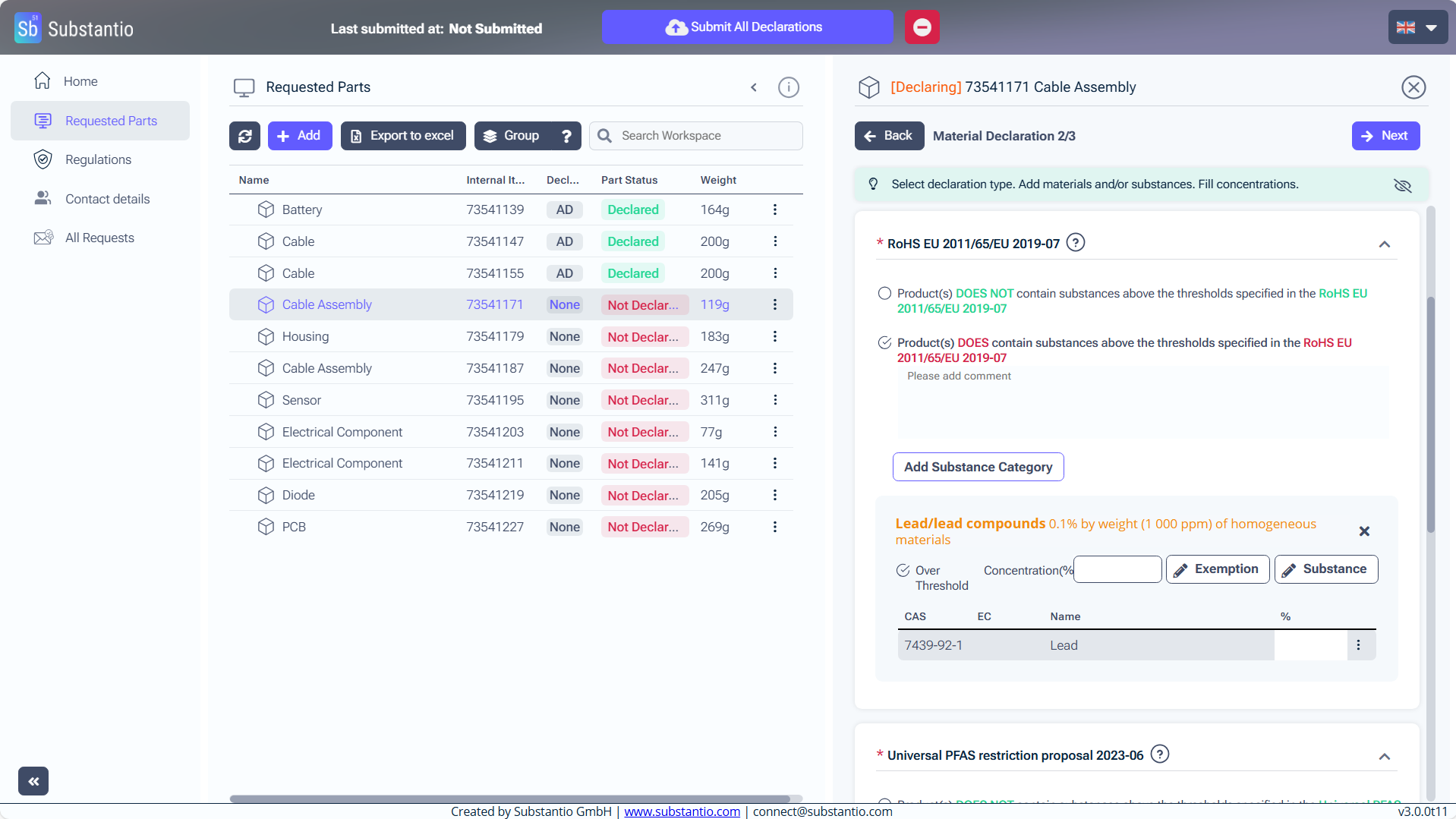
Click to enter the concentration (in %) of the substance that is present in your product.
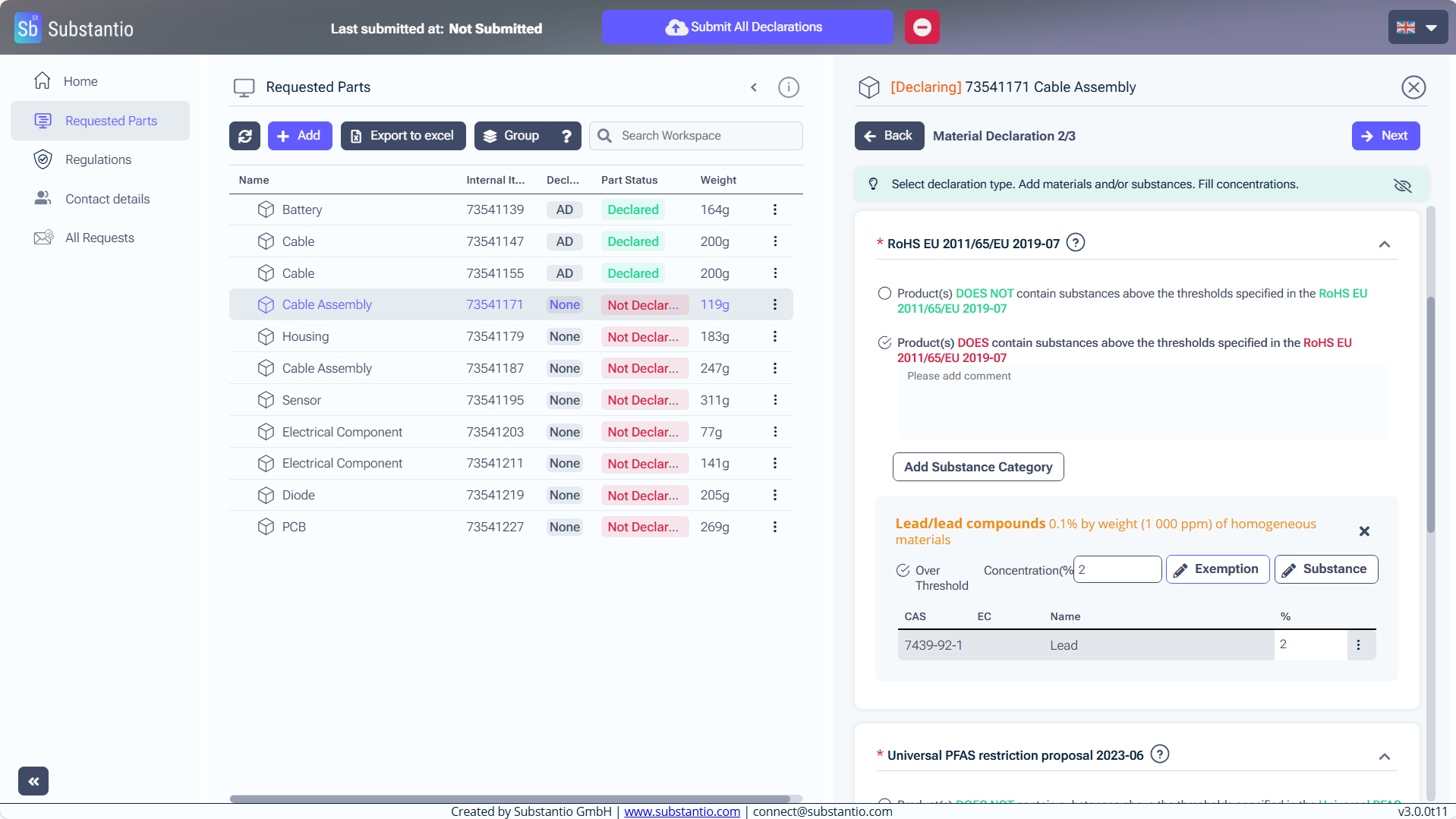
Click the Exemption button to declare if your product qualifies for any exemptions.
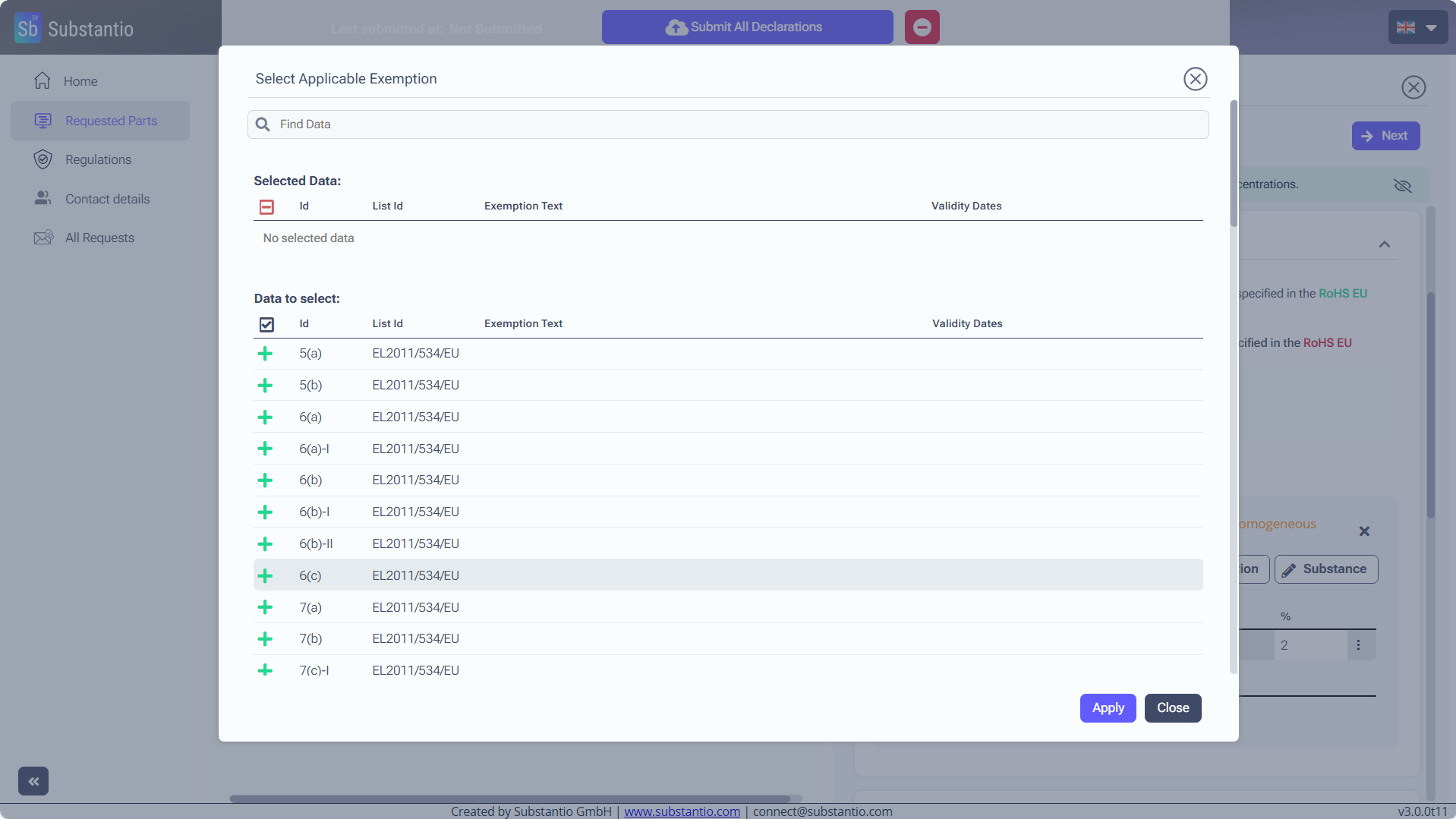
Select the exemption that matches your part by clicking on it. There can be selected more then one Exemption per part.
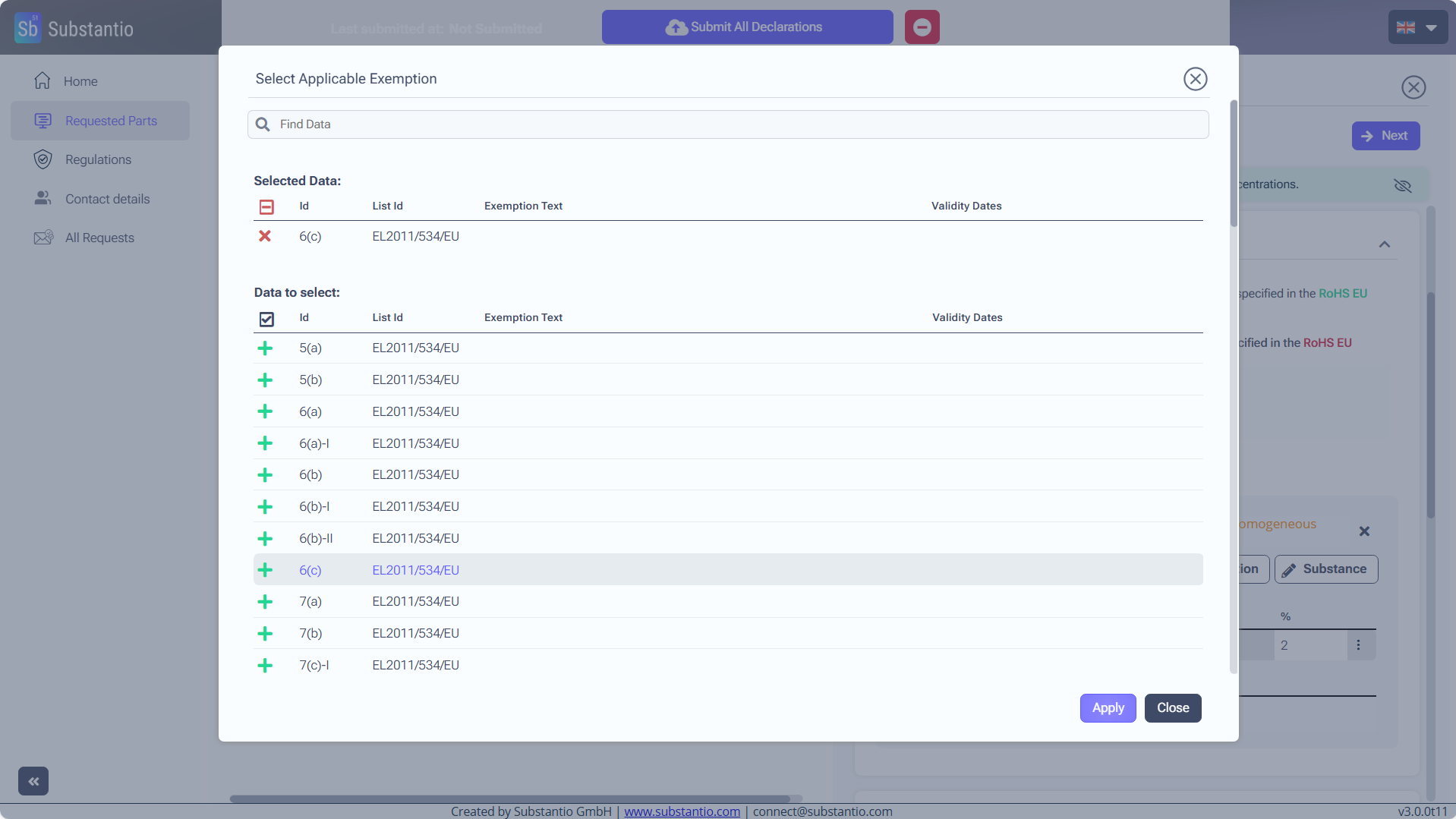
Click the Apply button to save your changes.
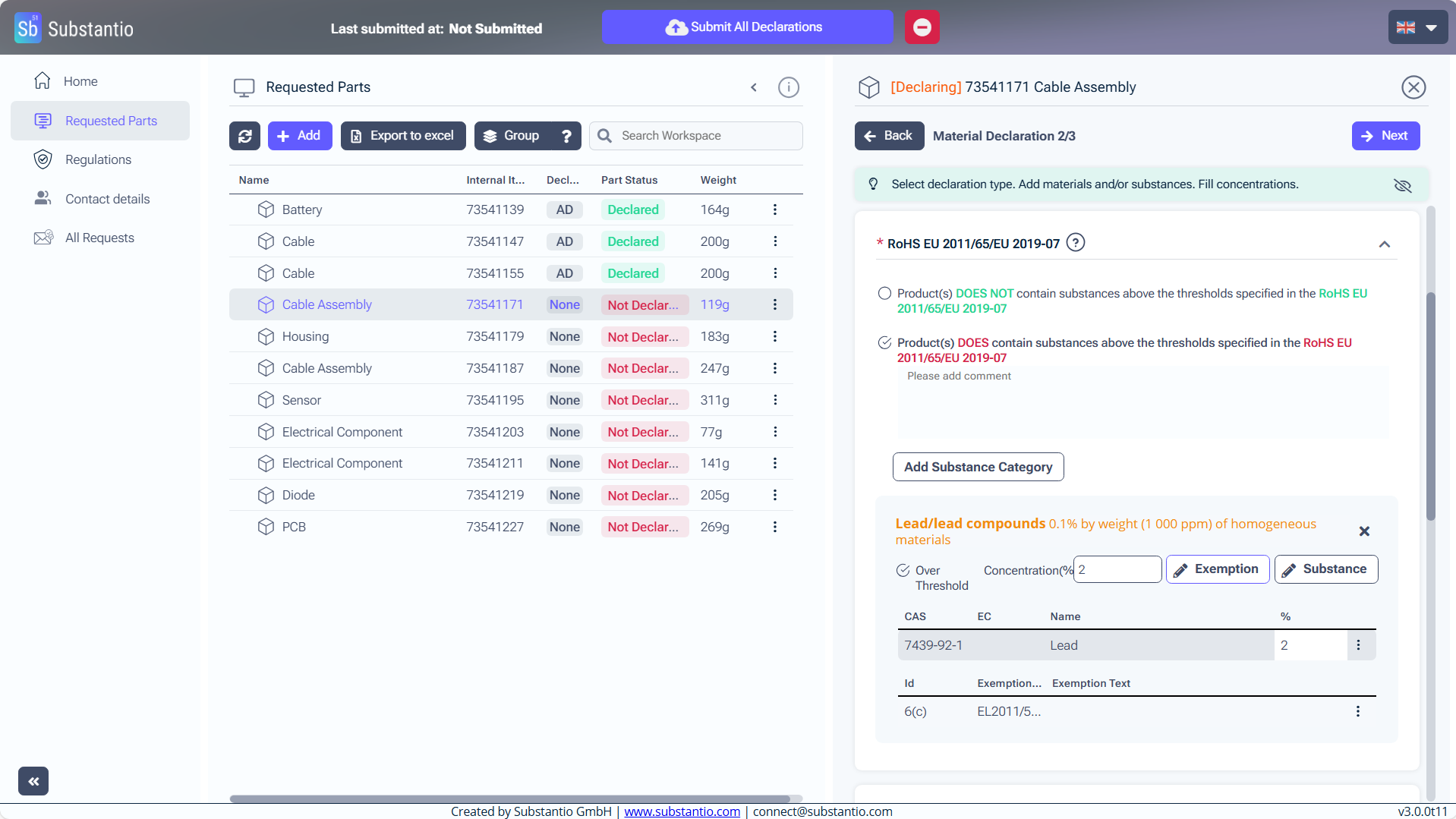
That is how it should look like.
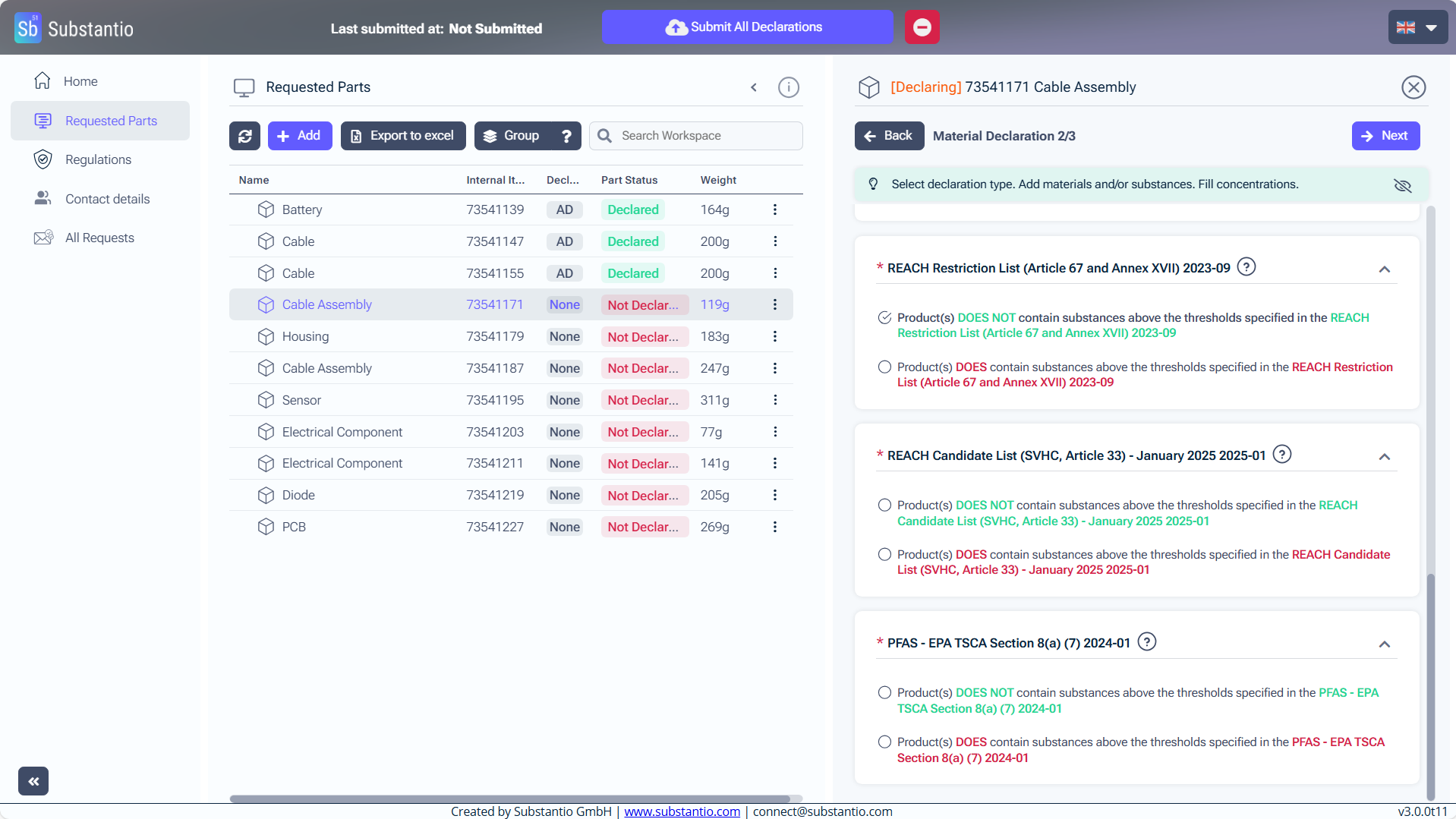
Example REACH: Click the check box Product DOES contain... if your Product contains any REACH registered substances.
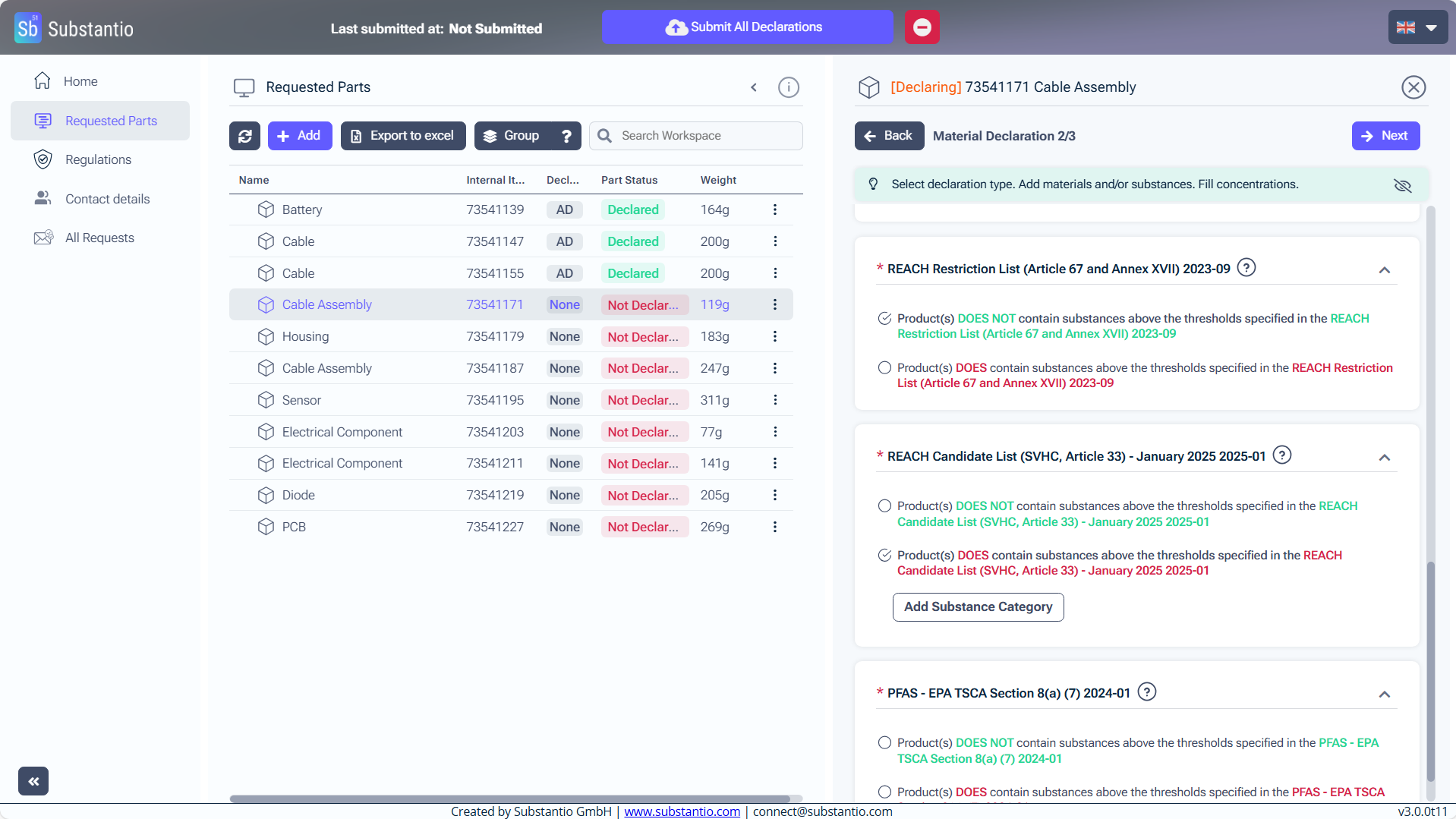
Click the Add Substance Category button.
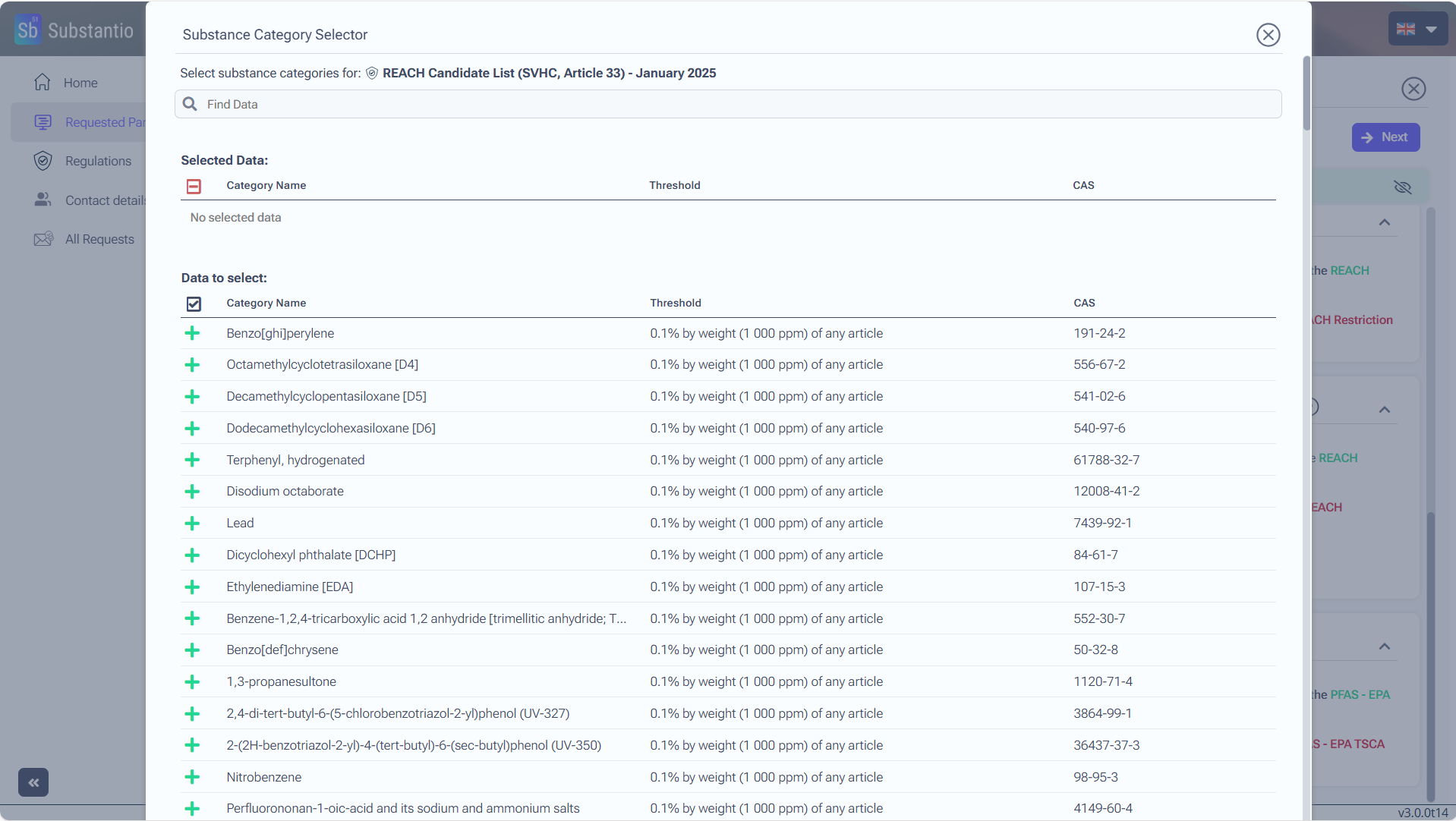
Find the relevant substance by inserting the name or the CAS-number of it in the field.
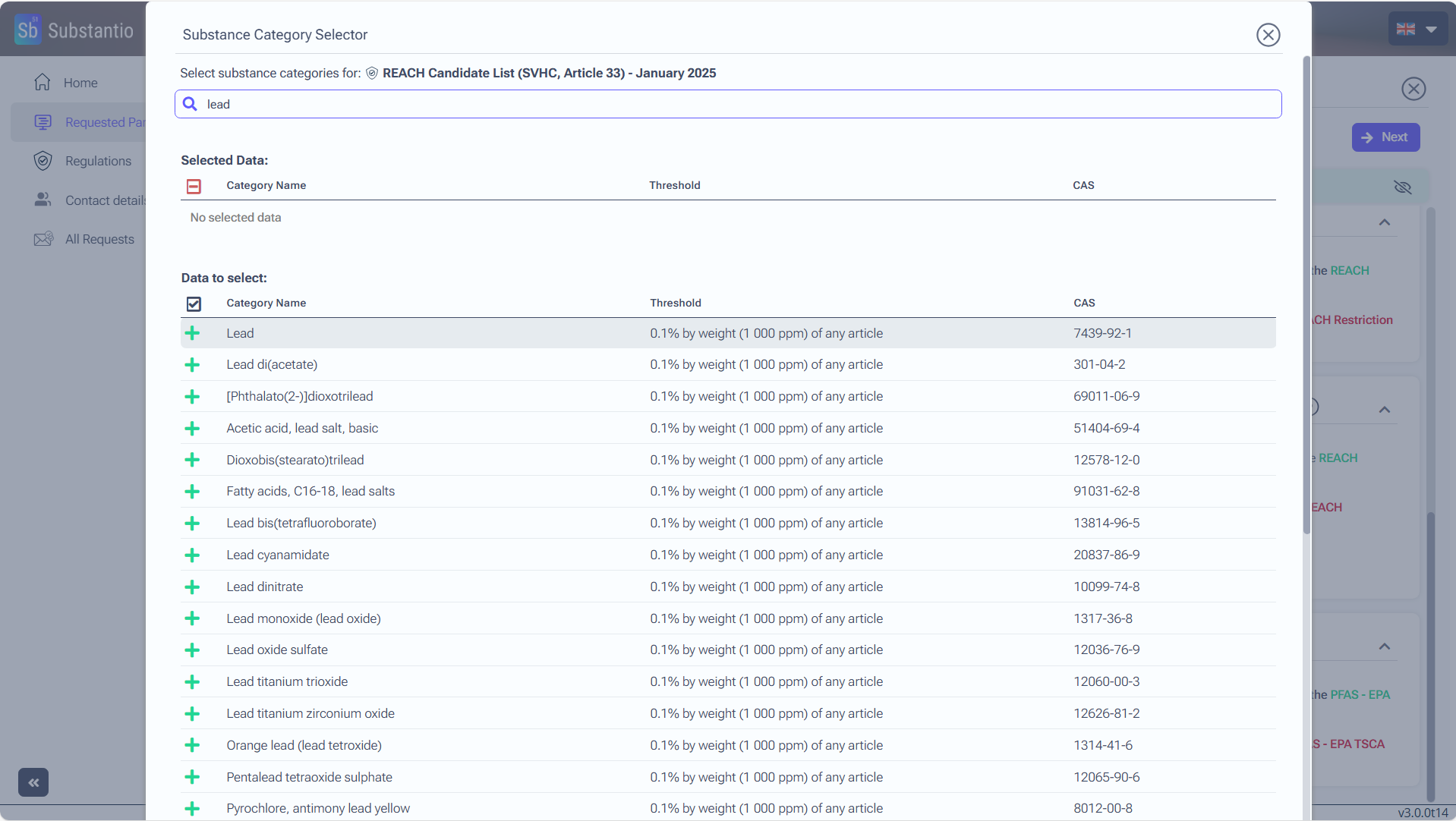
Click the + button to choose the substance.
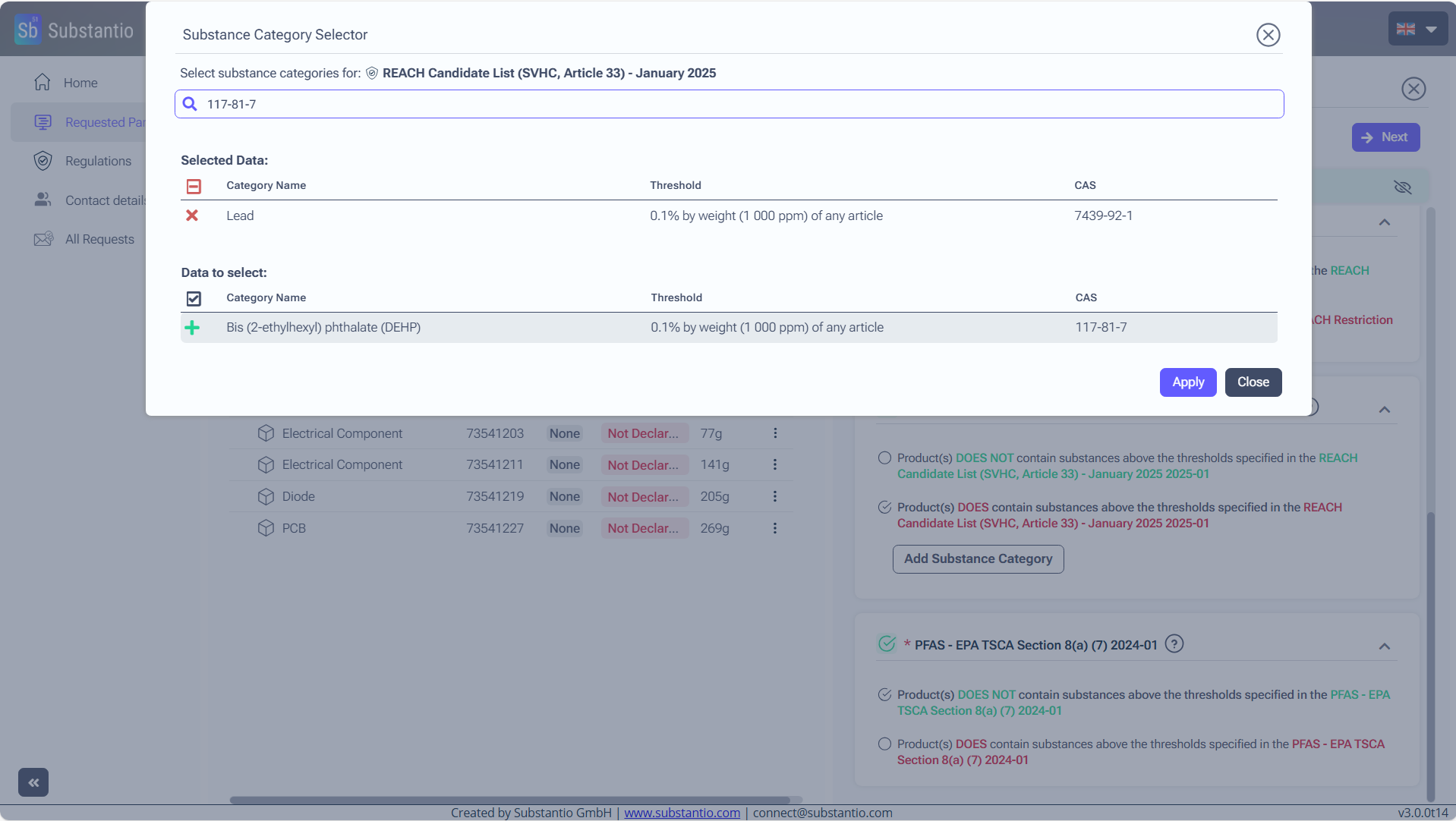
Multiple substances can be selected. Entering CAS-numbers in the search field helps simplify the process of finding specific substances.
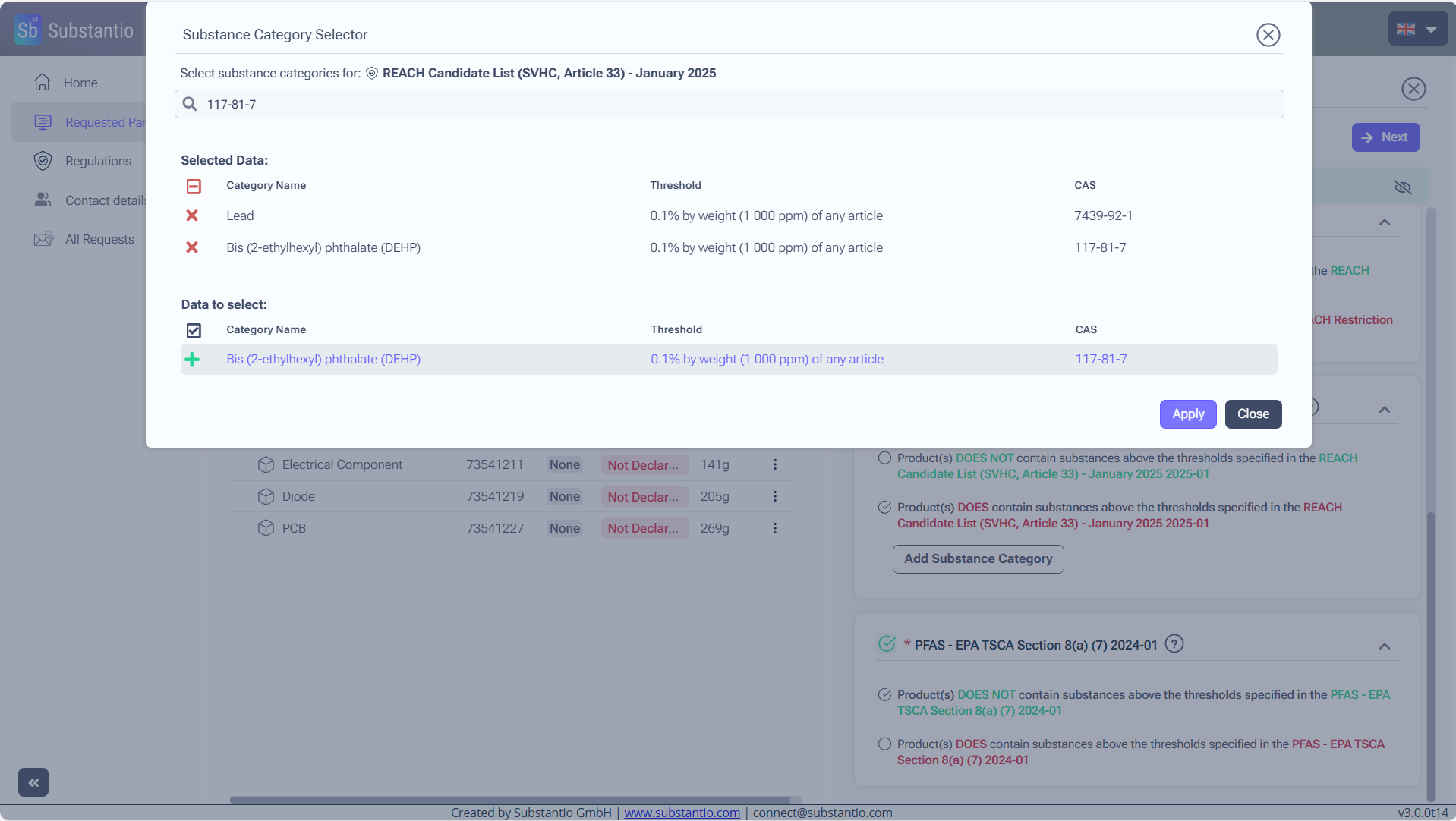
Click the Apply button to save the selected substances.
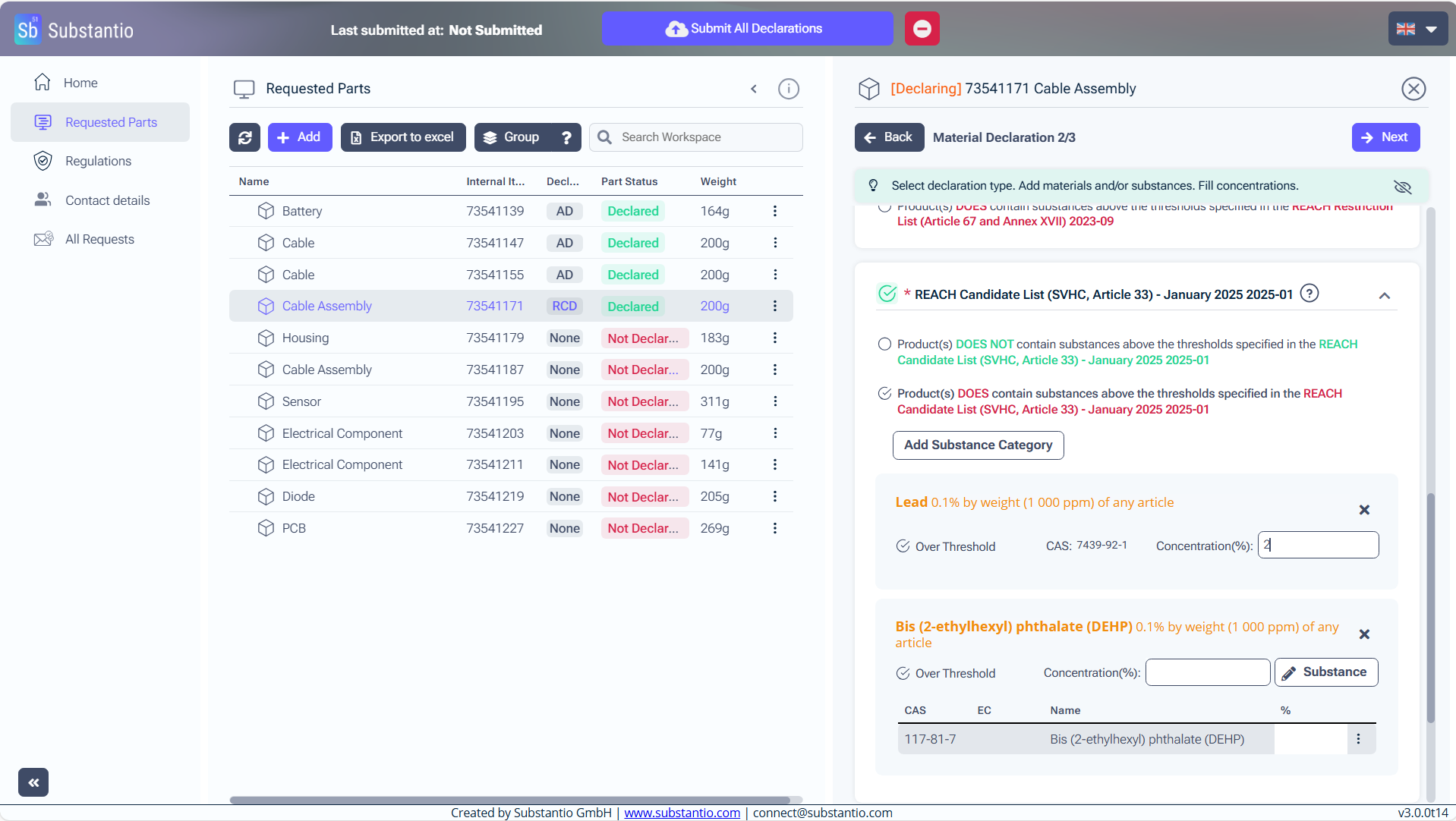
Insert all the Concentrations in % of the substances.
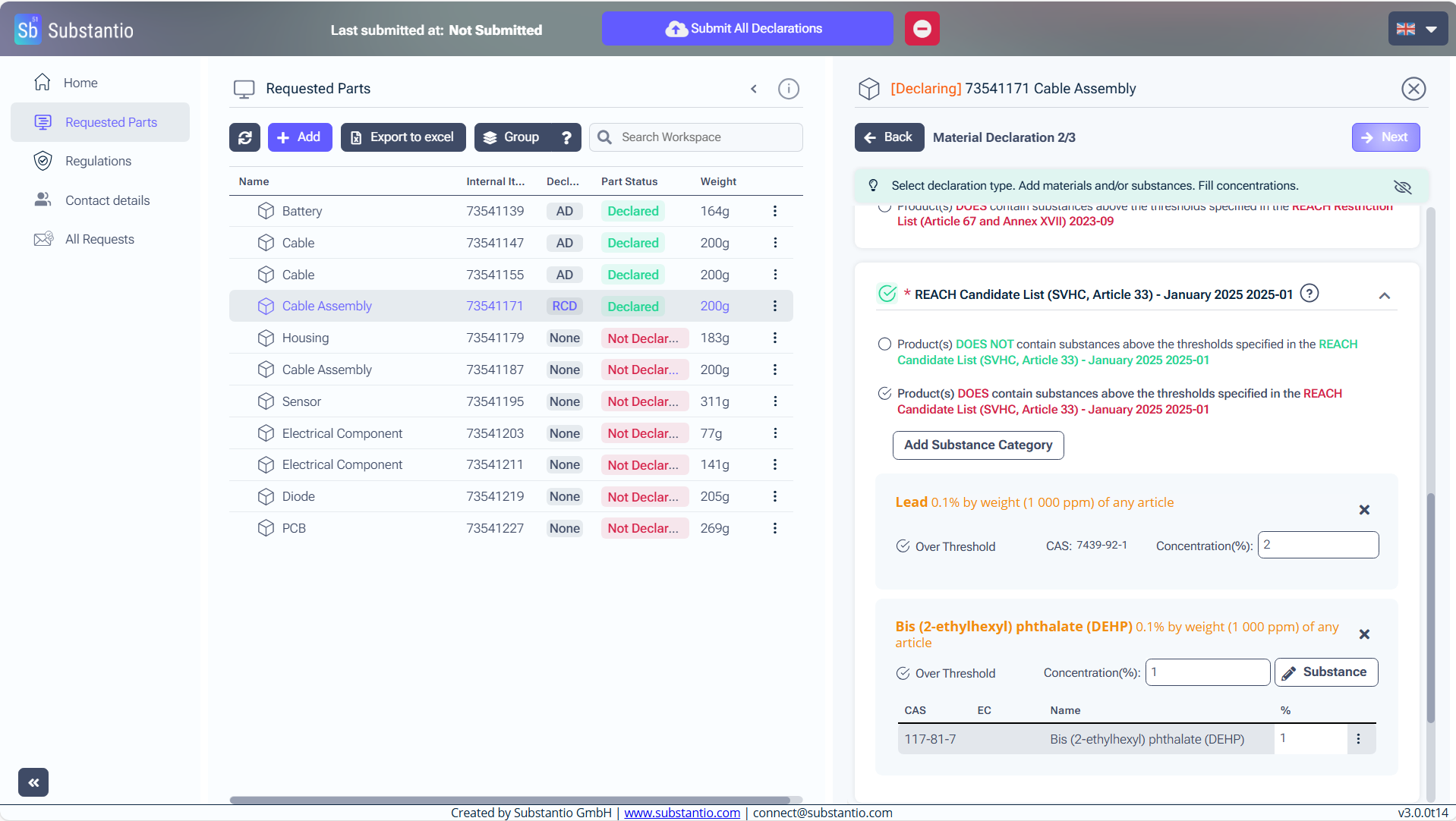
Click the Next button.
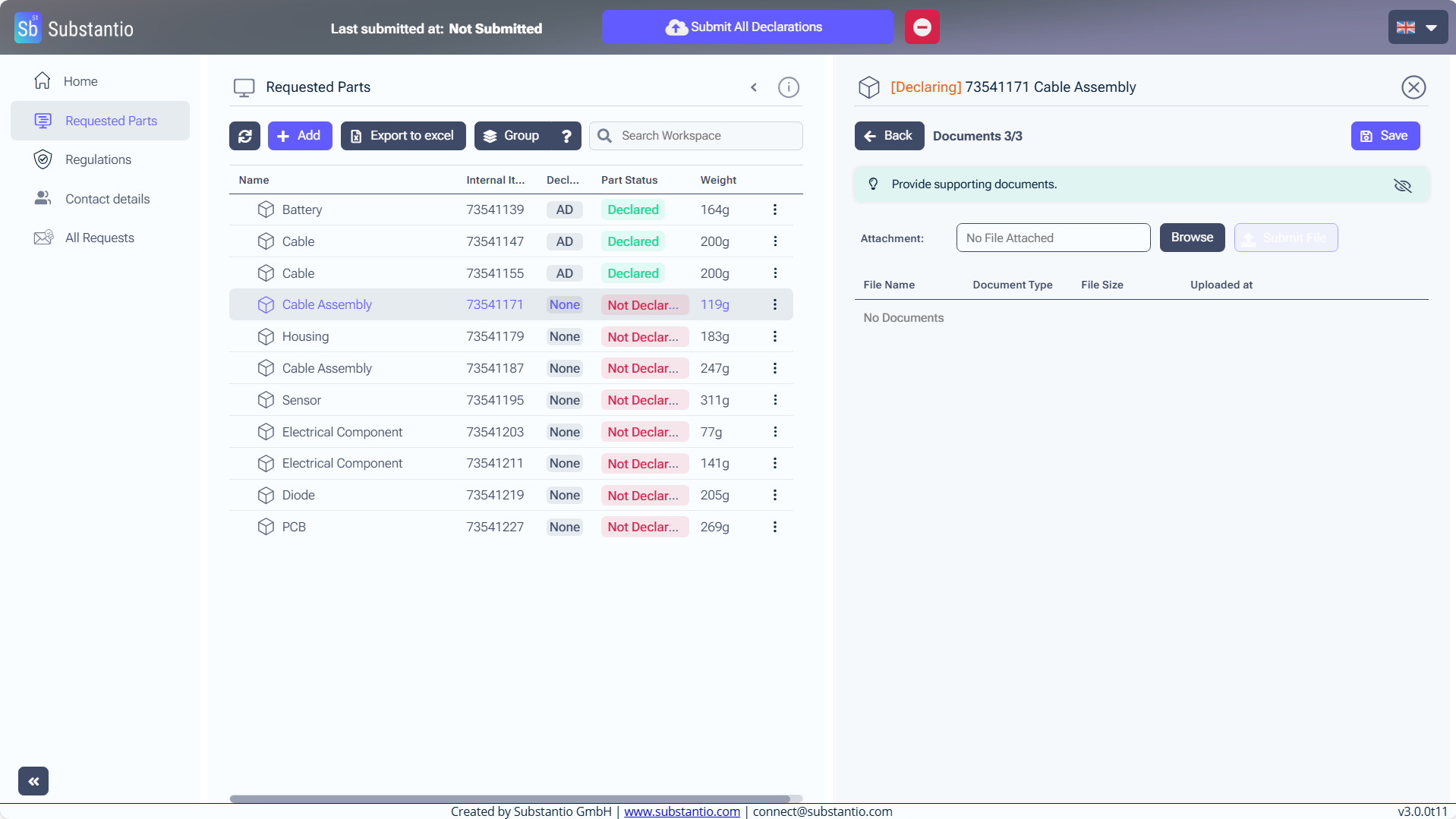
Please upload a conformity document to validate your declaration. To do this, click the Browse button.
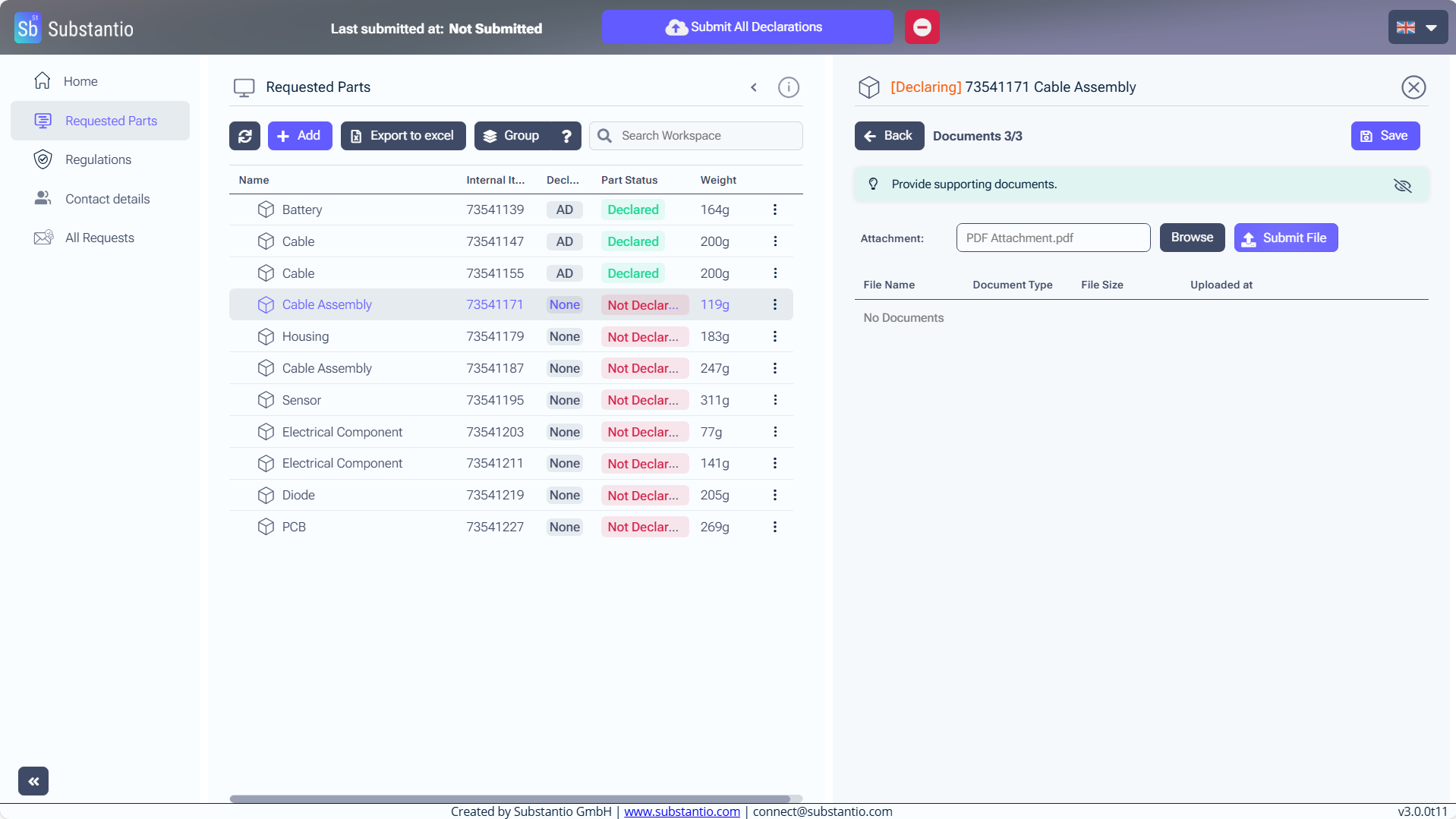
Once you have selected your document, click the Submit File button to upload it. You can upload multiple documents by clicking the Browse button again for each additional document.
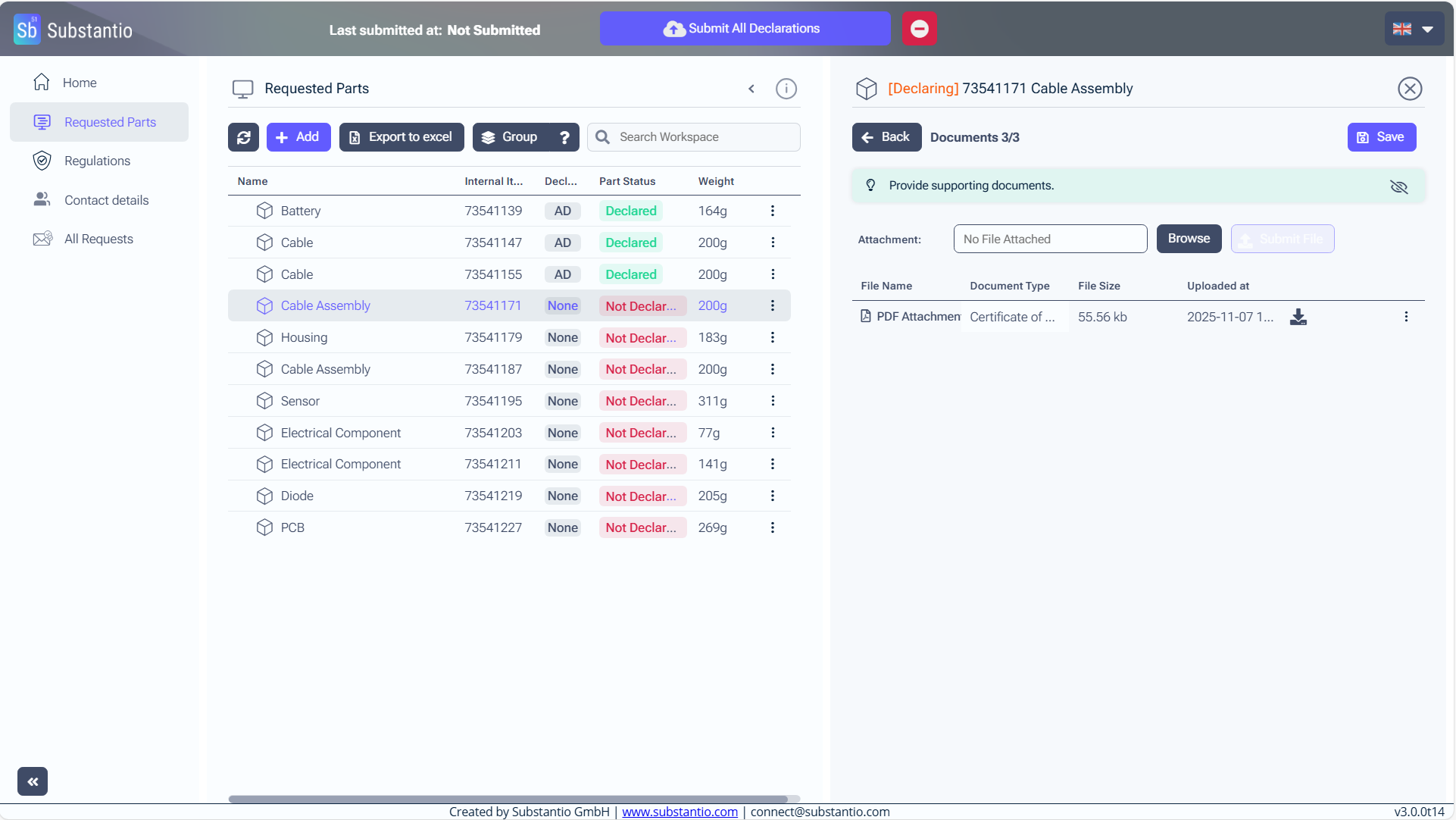
Click the Save button to store your progress.
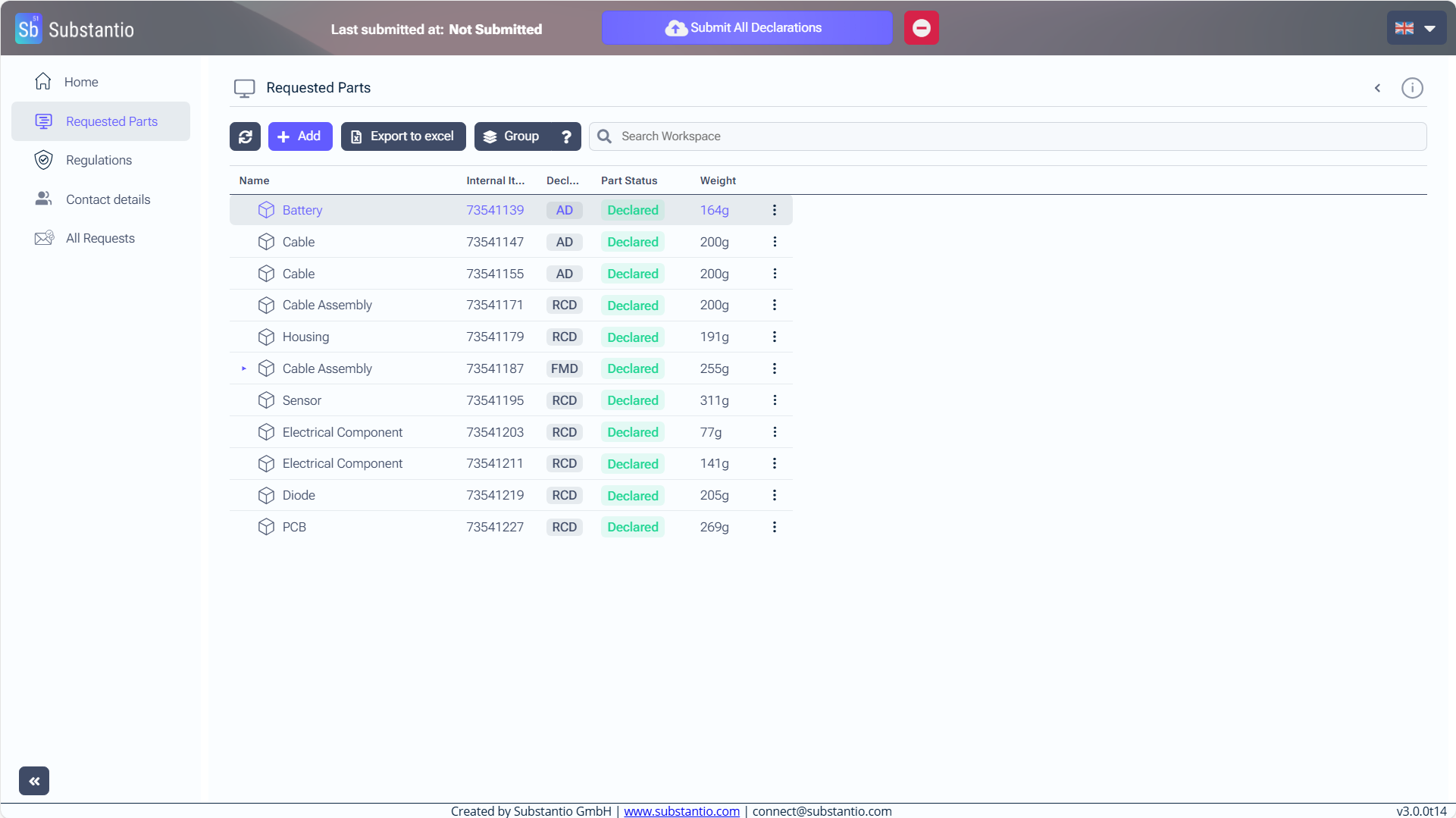
Once all parts have been declared, click the Submit All Declarations button to send your information to the customer. Make sure all parts are declared before submitting!

