22
/38
That's how it should look like.
Next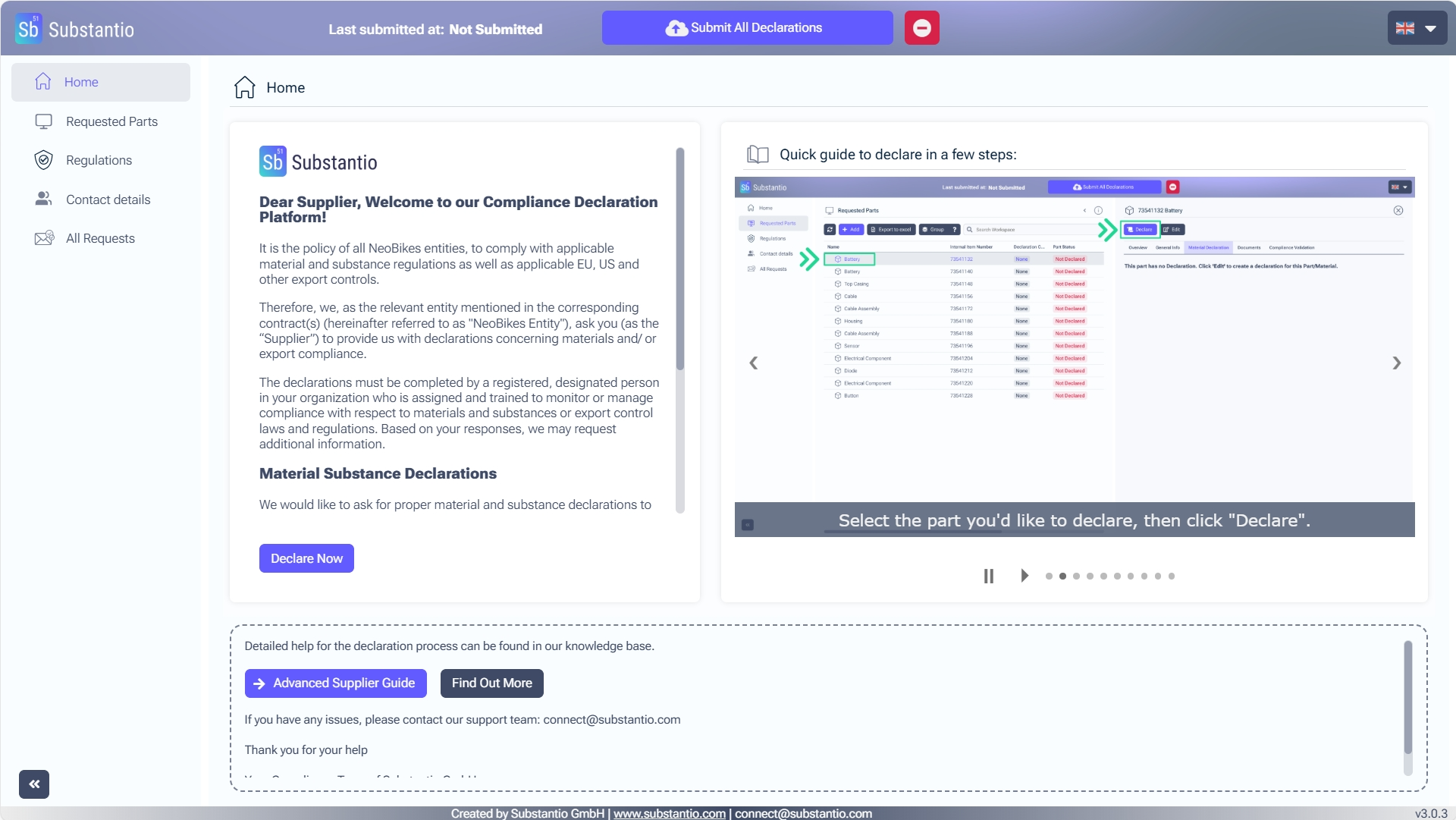
You accessed the Substantio platform via the link of your customer's email for substance compliance. Respond to the requests from your customer by clicking the Declare now button.
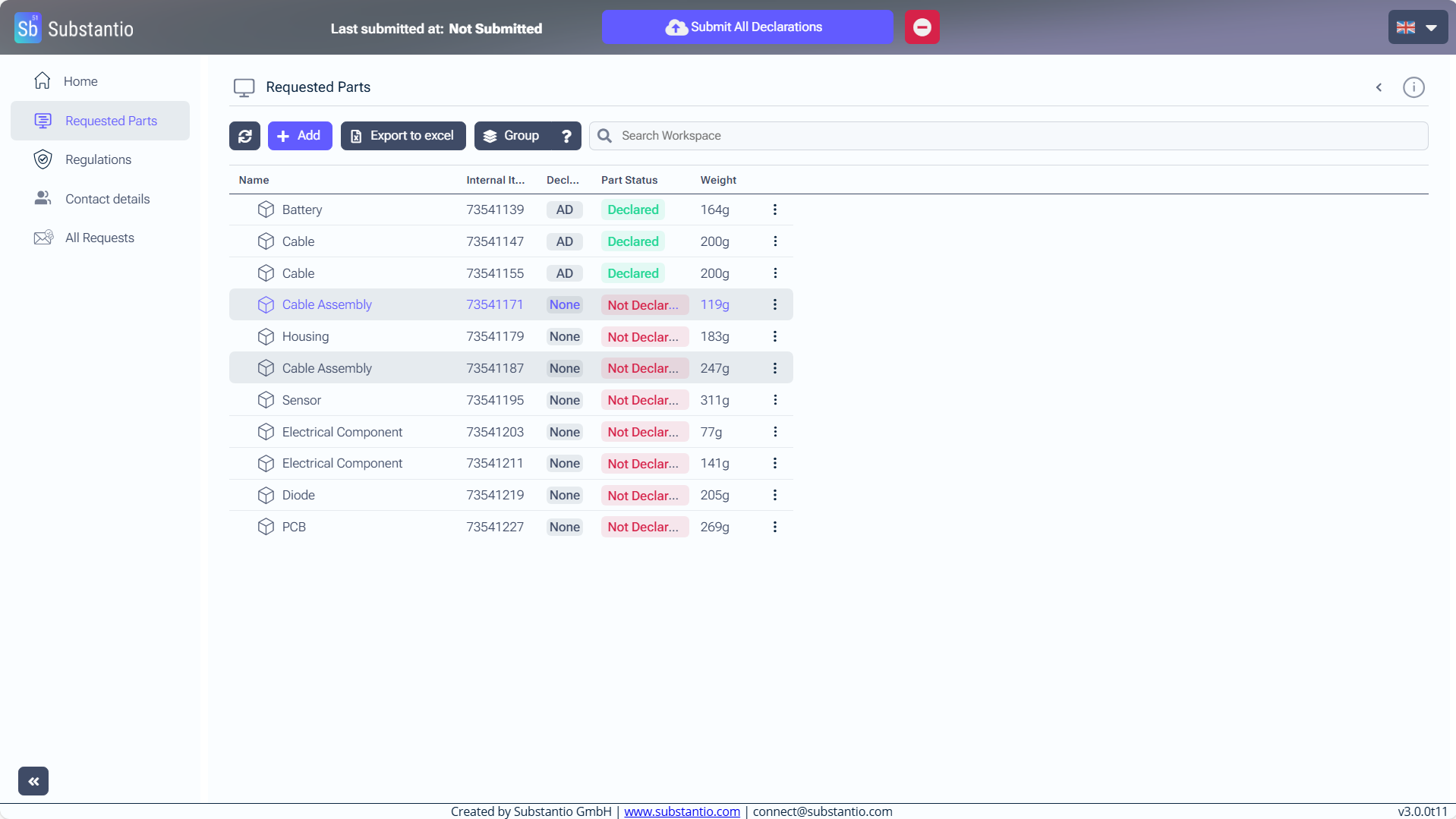
Press and hold the Shift key while clicking on your parts to select multiple items.
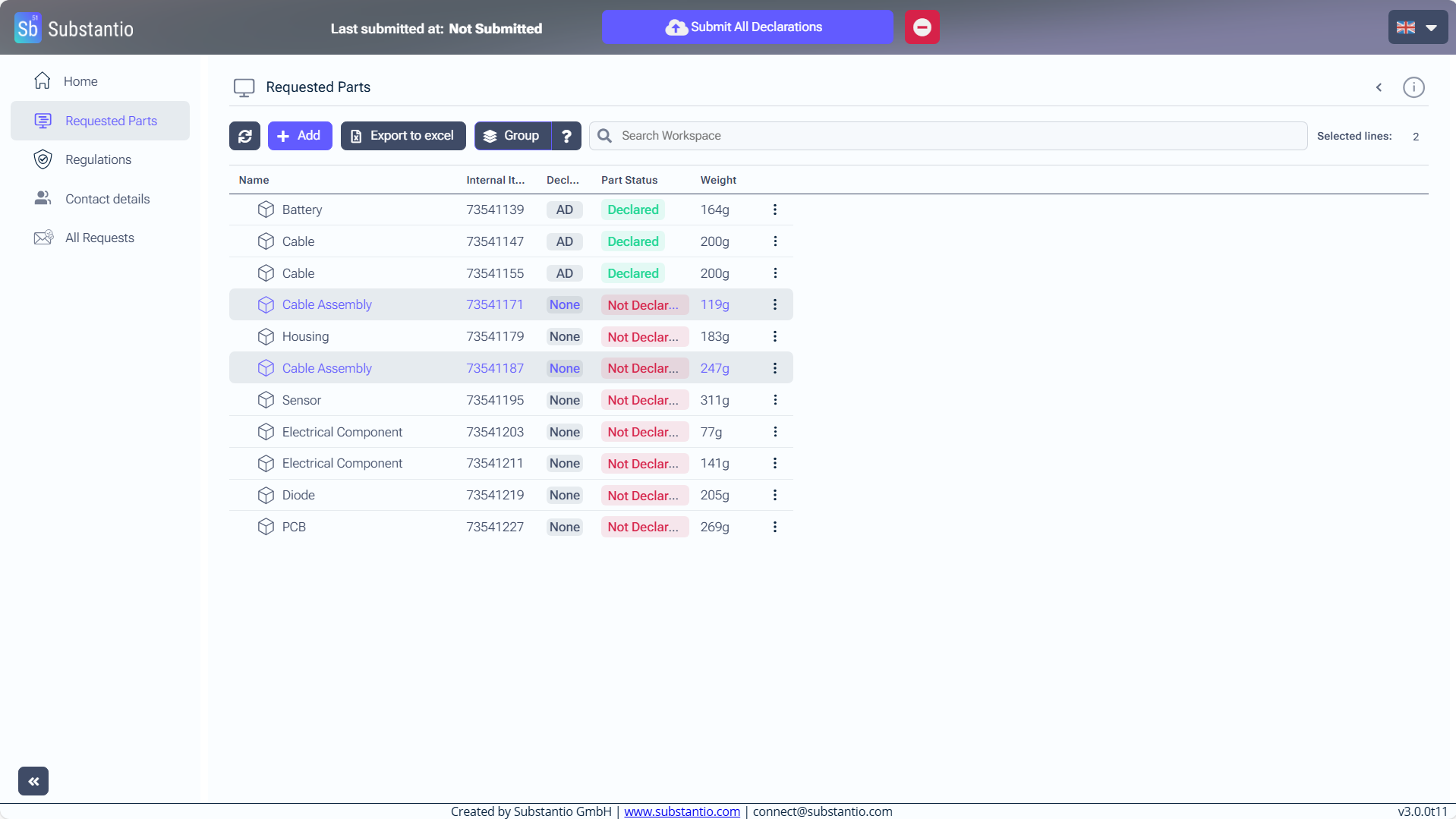
Click the Group button.
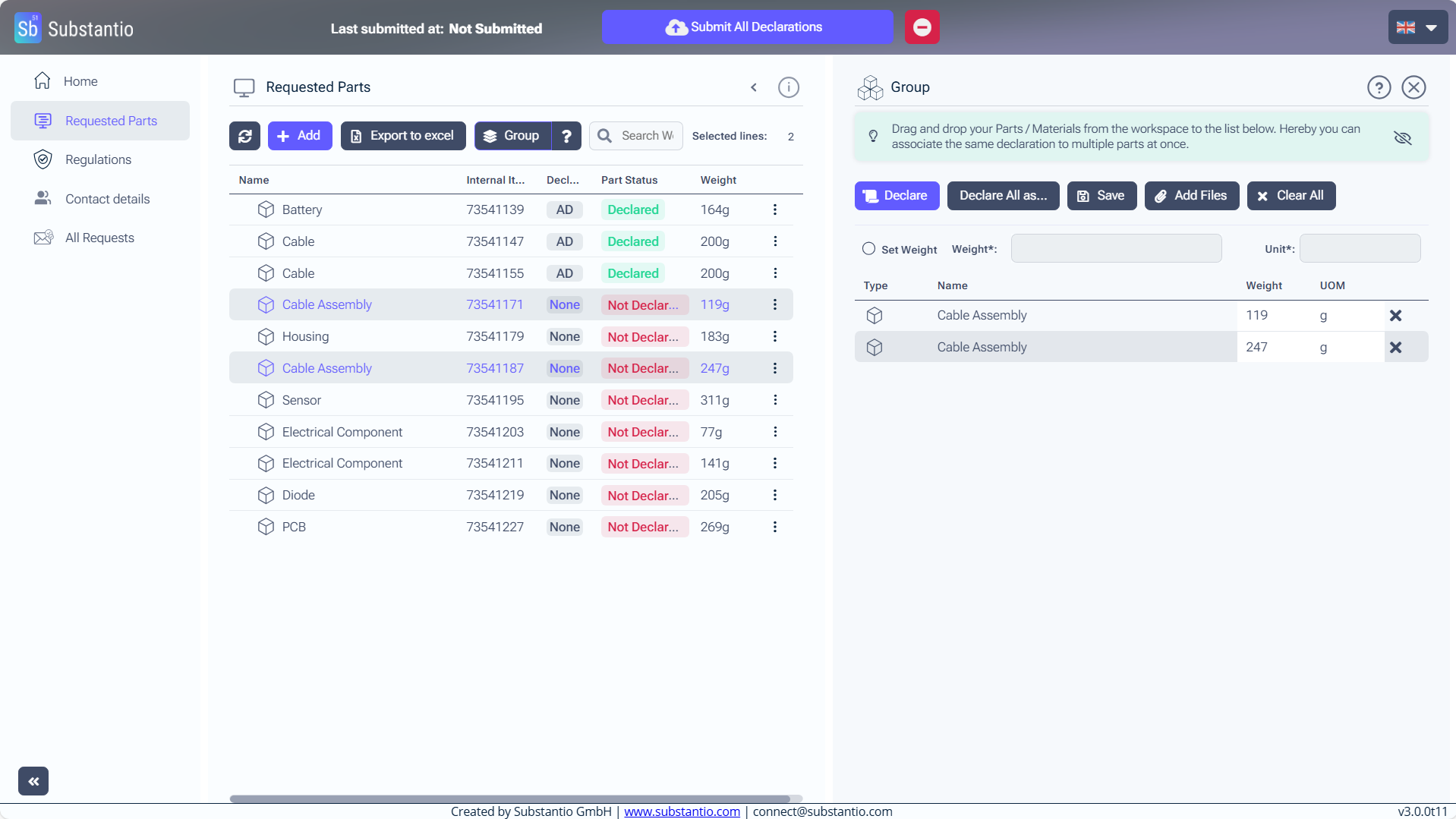
If the parts do not have the same Weight, enter the weight for each part separately.
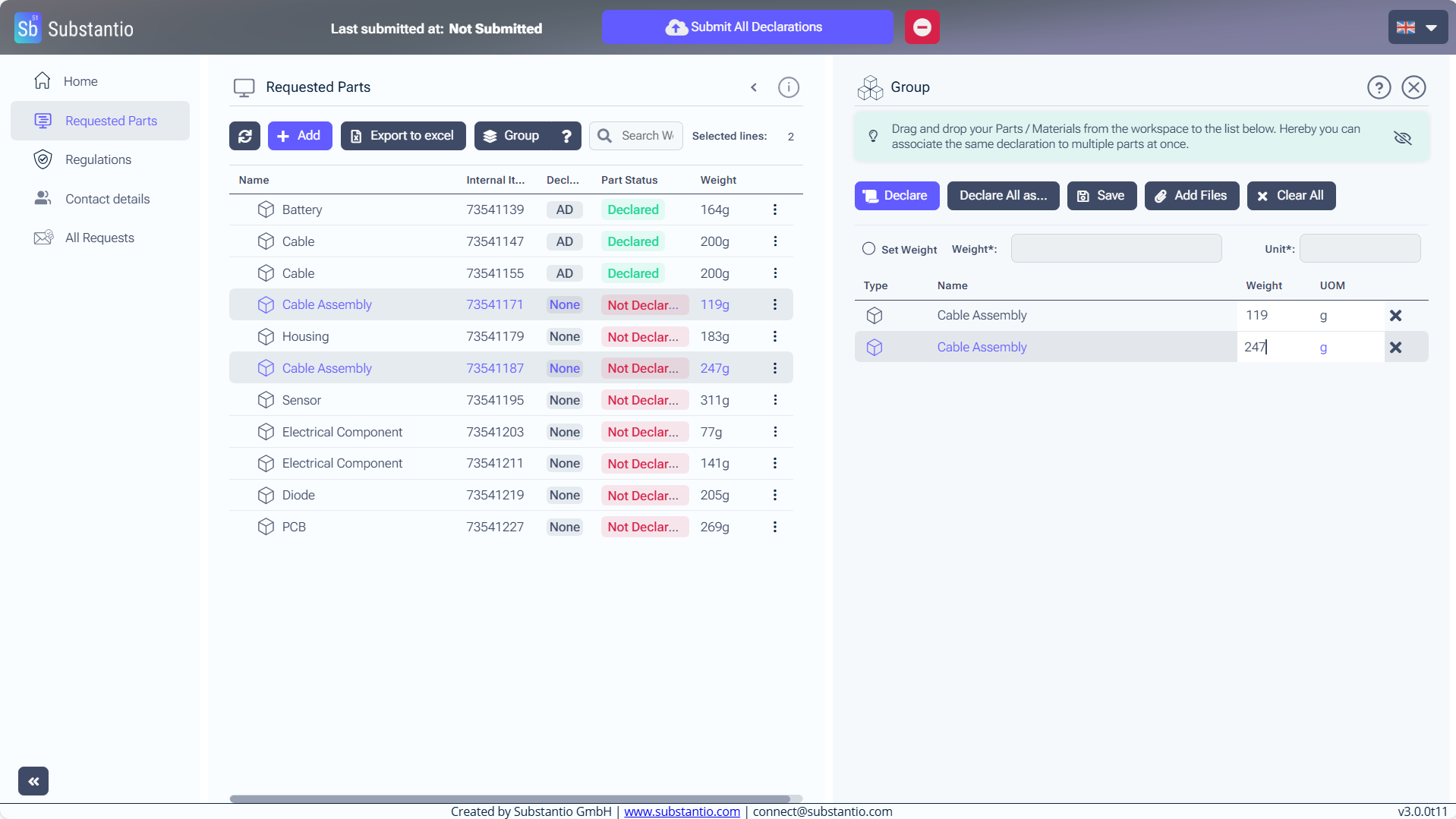
Click the Set Weight check box, if your parts have the same weight.
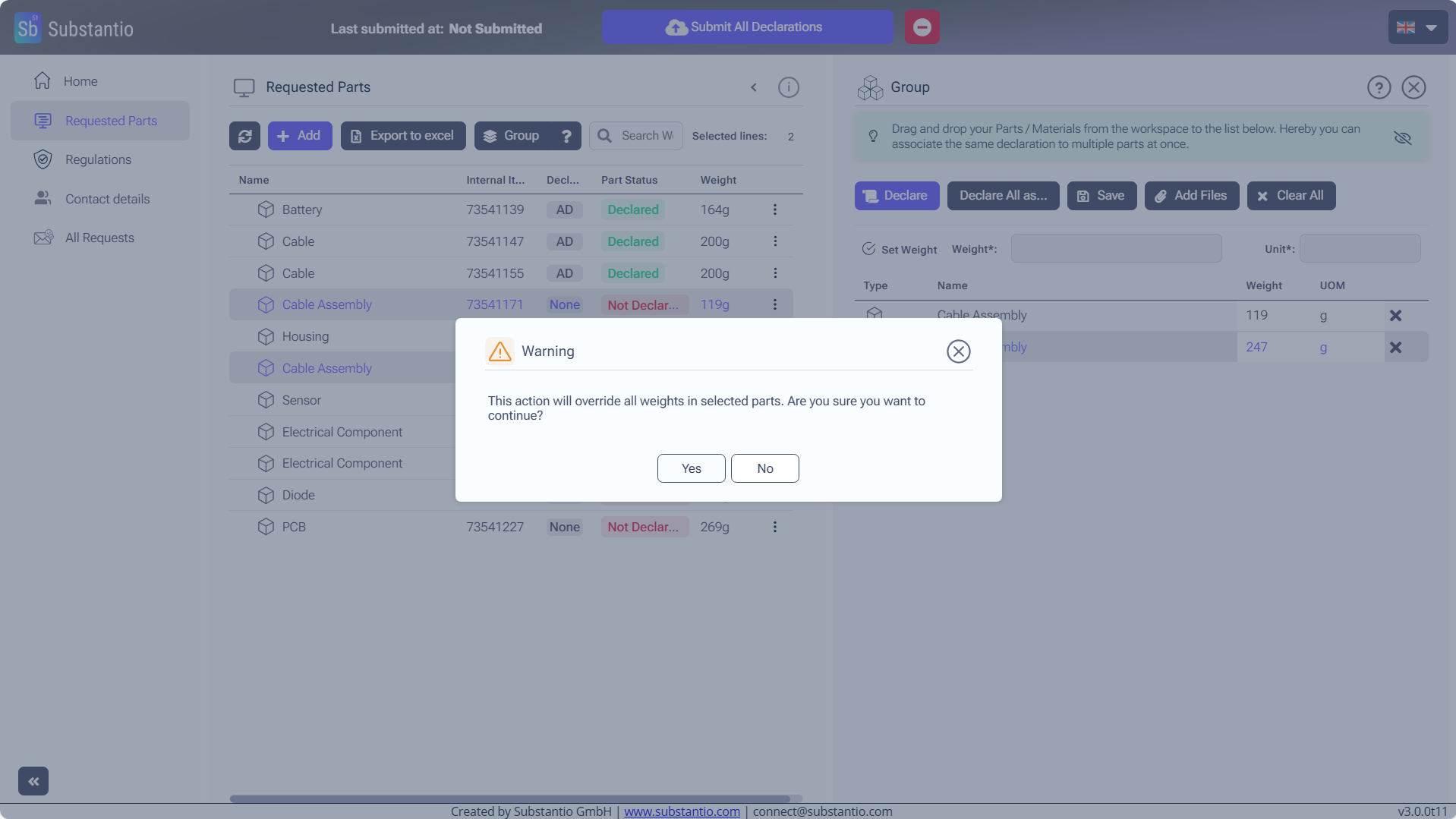
Click the Yes button.
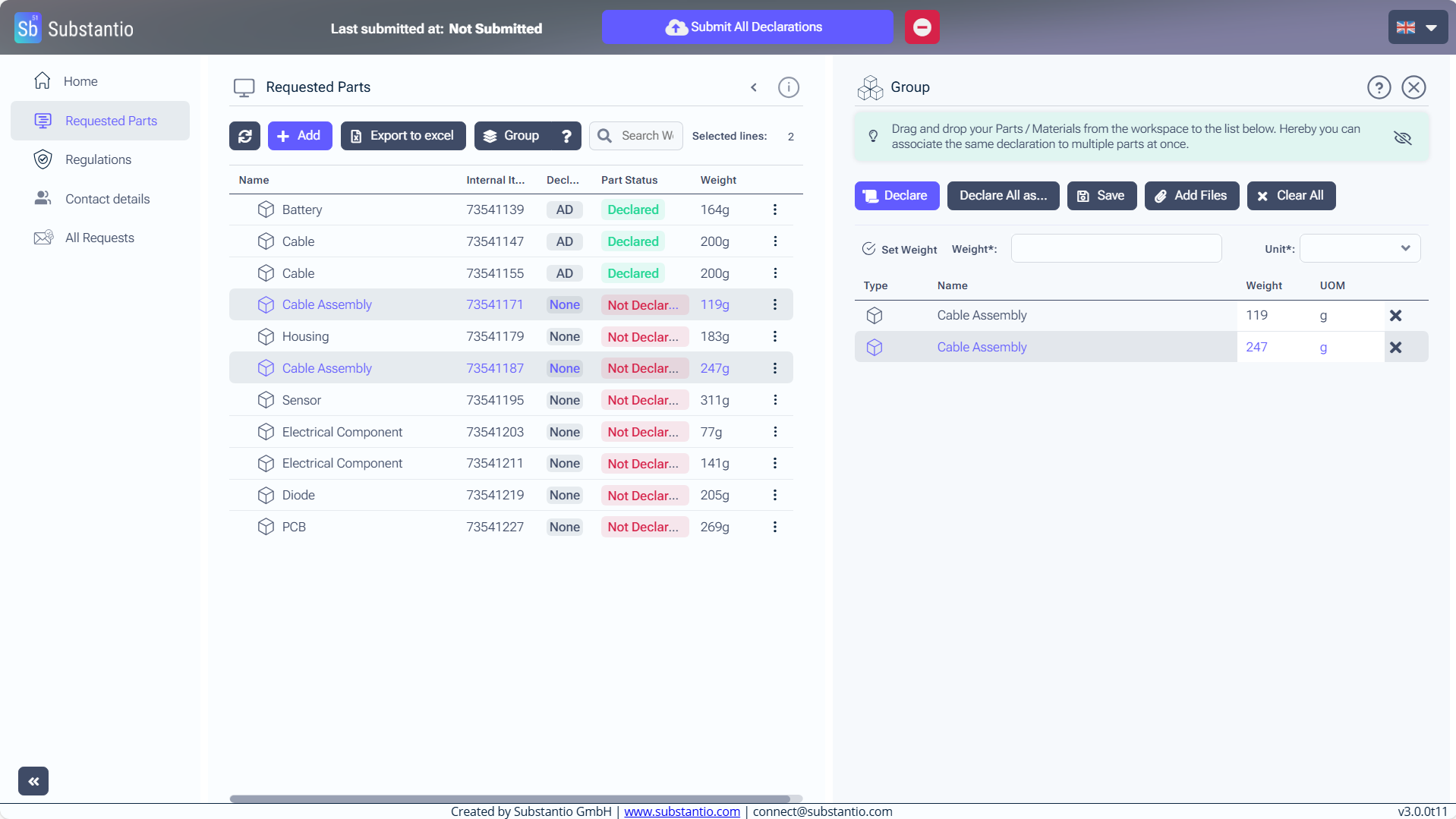
Set in the Weight for your parts.
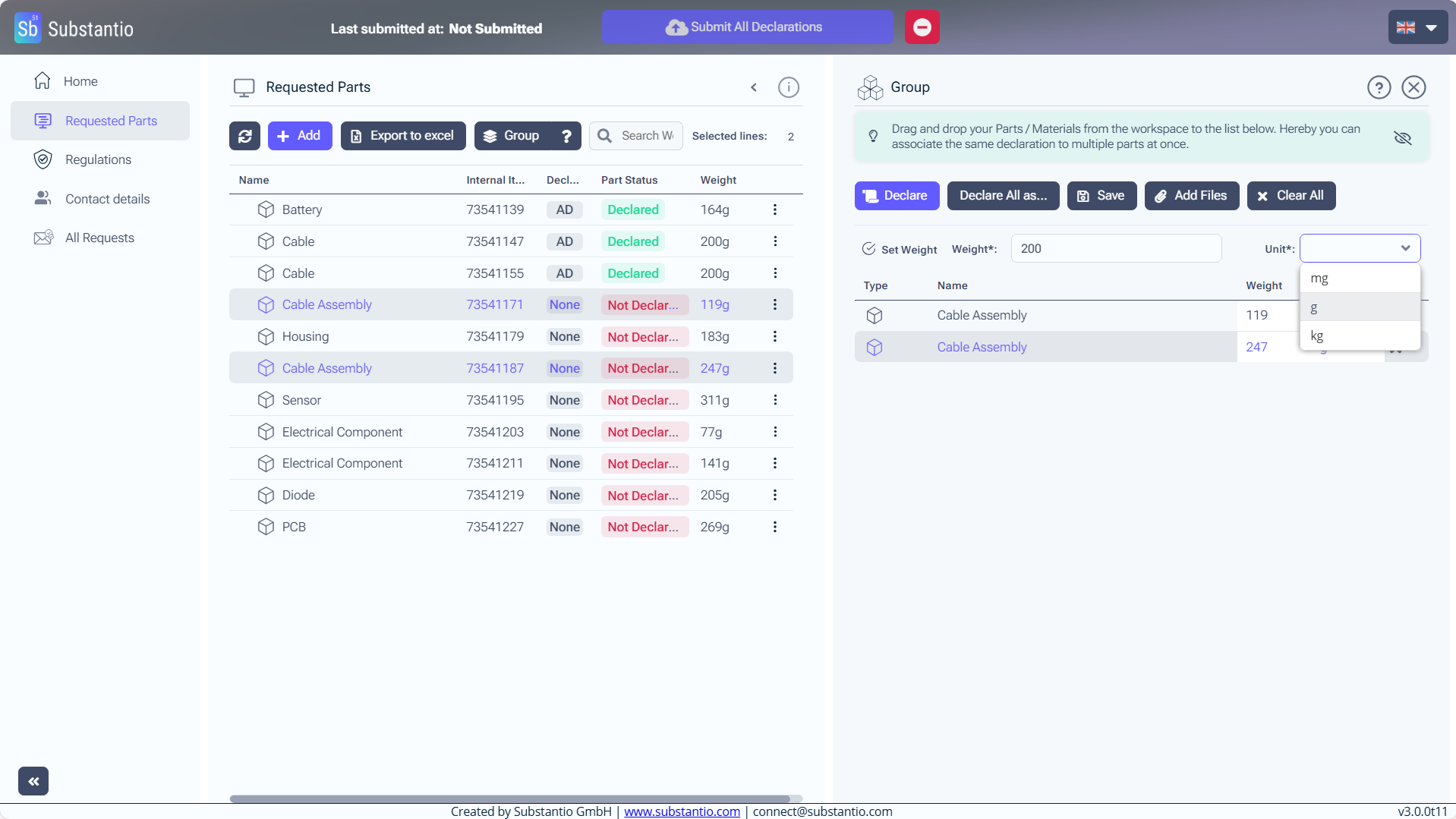
And choose the unit.
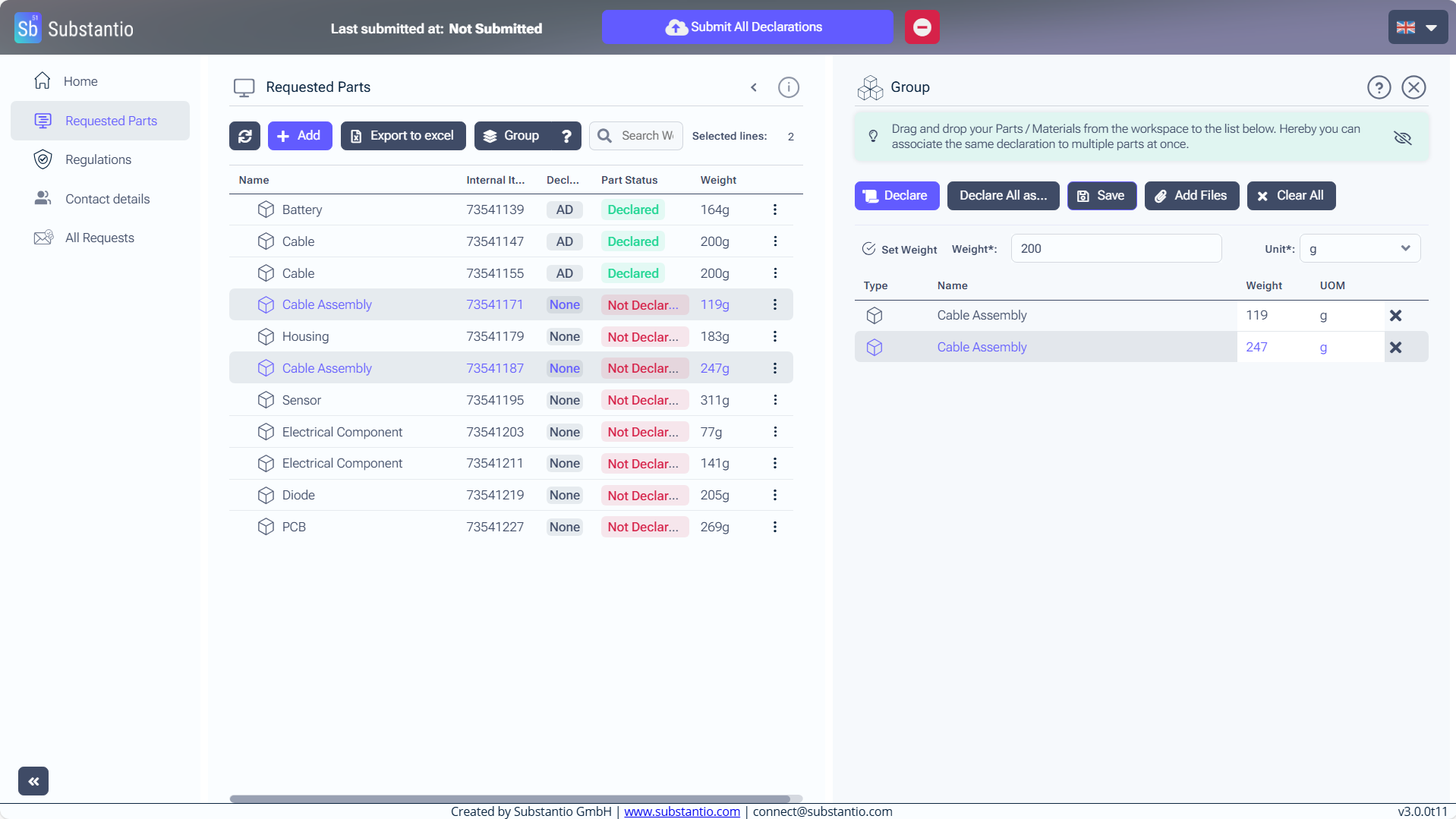
Click the Save button.
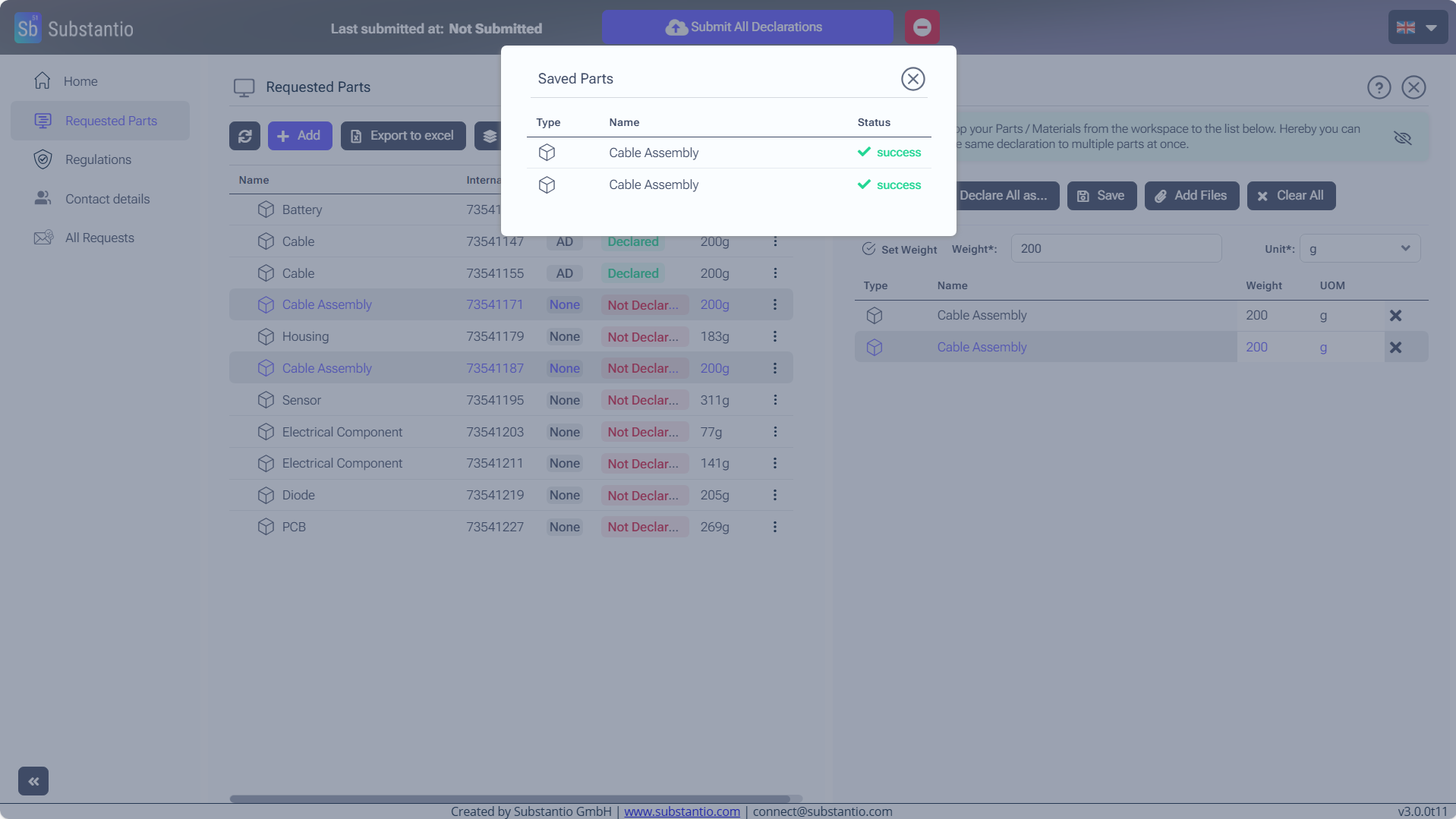
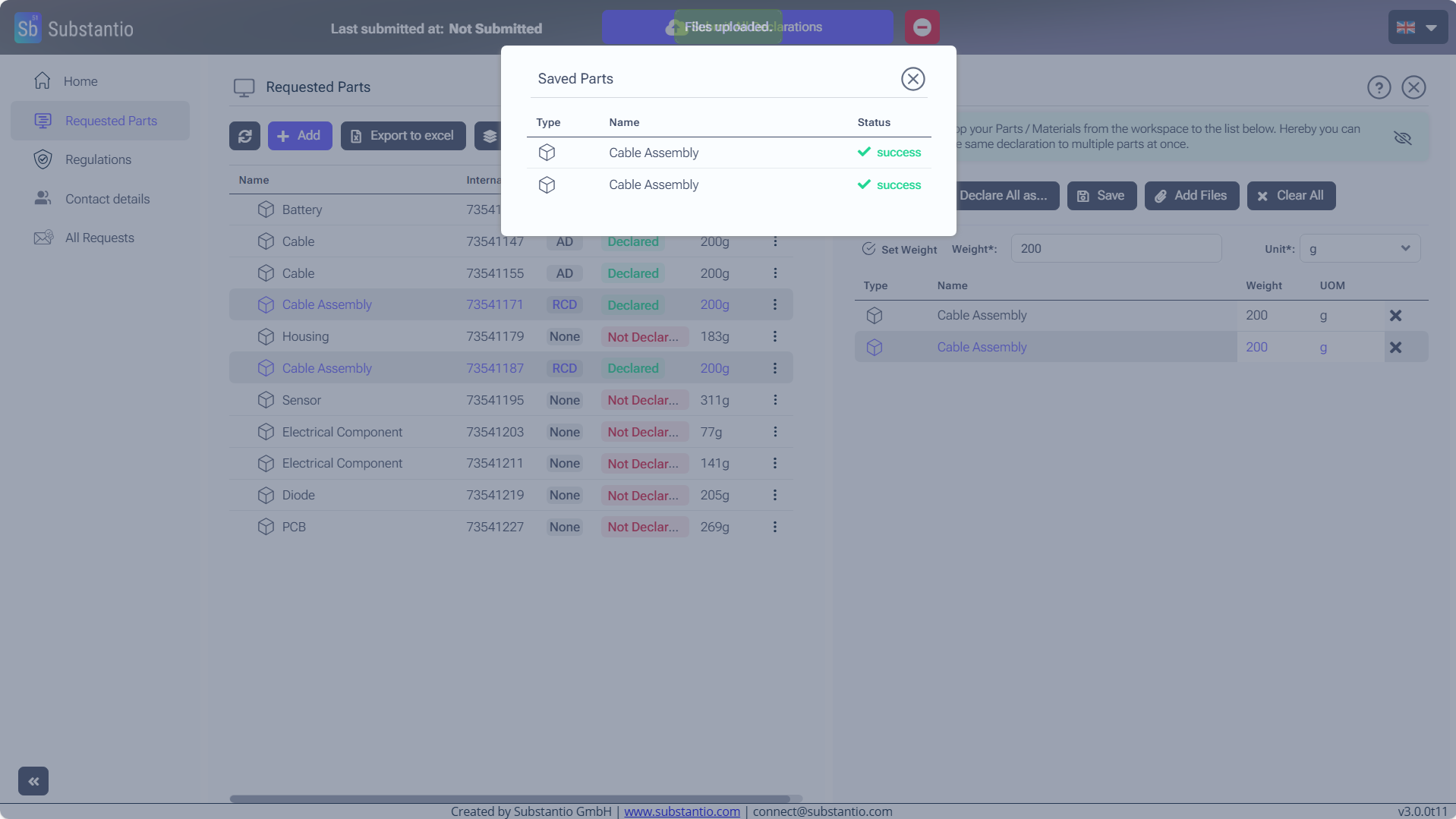
The program will confirm that it has been saved.
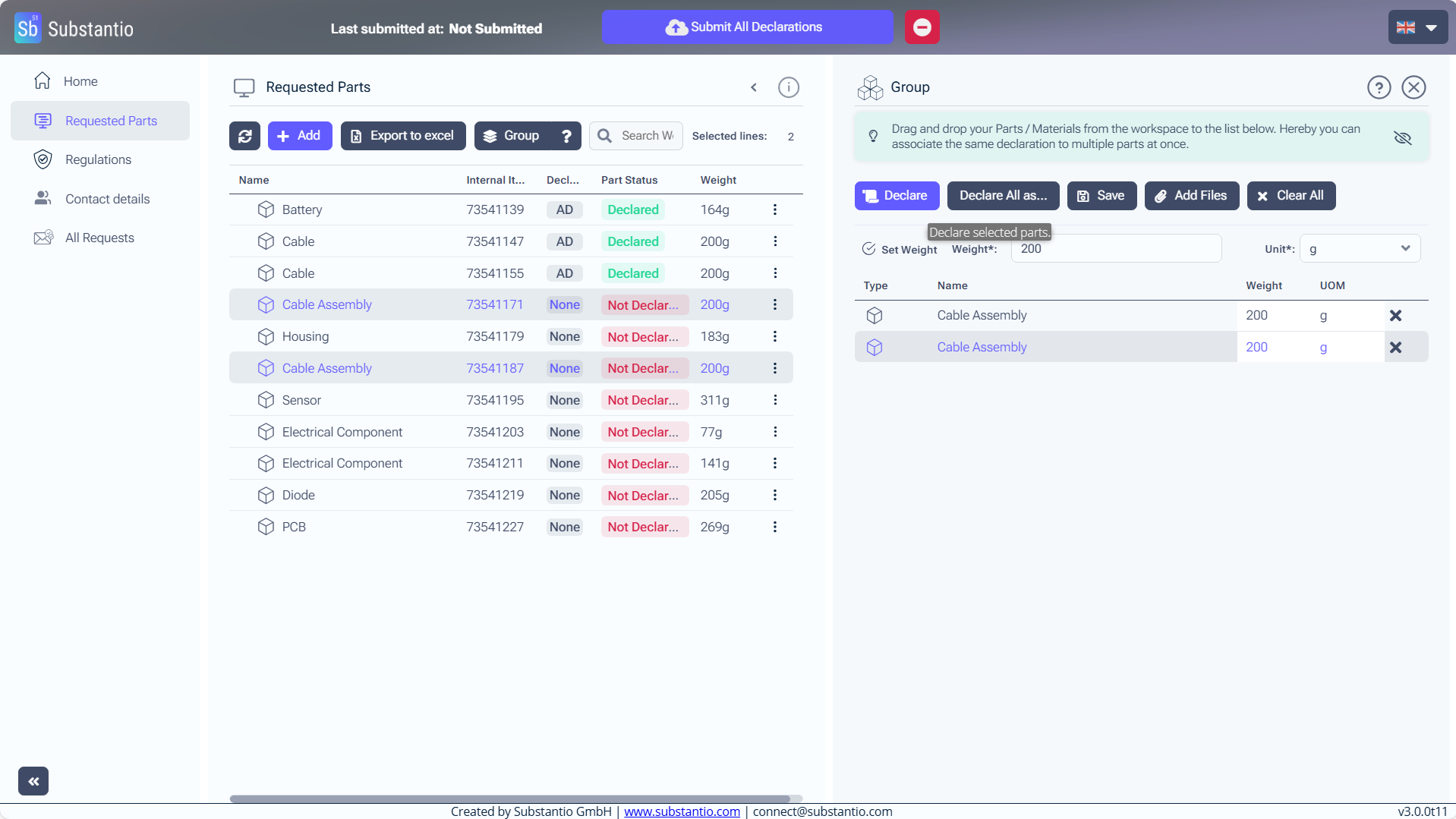
Click the Declare button.
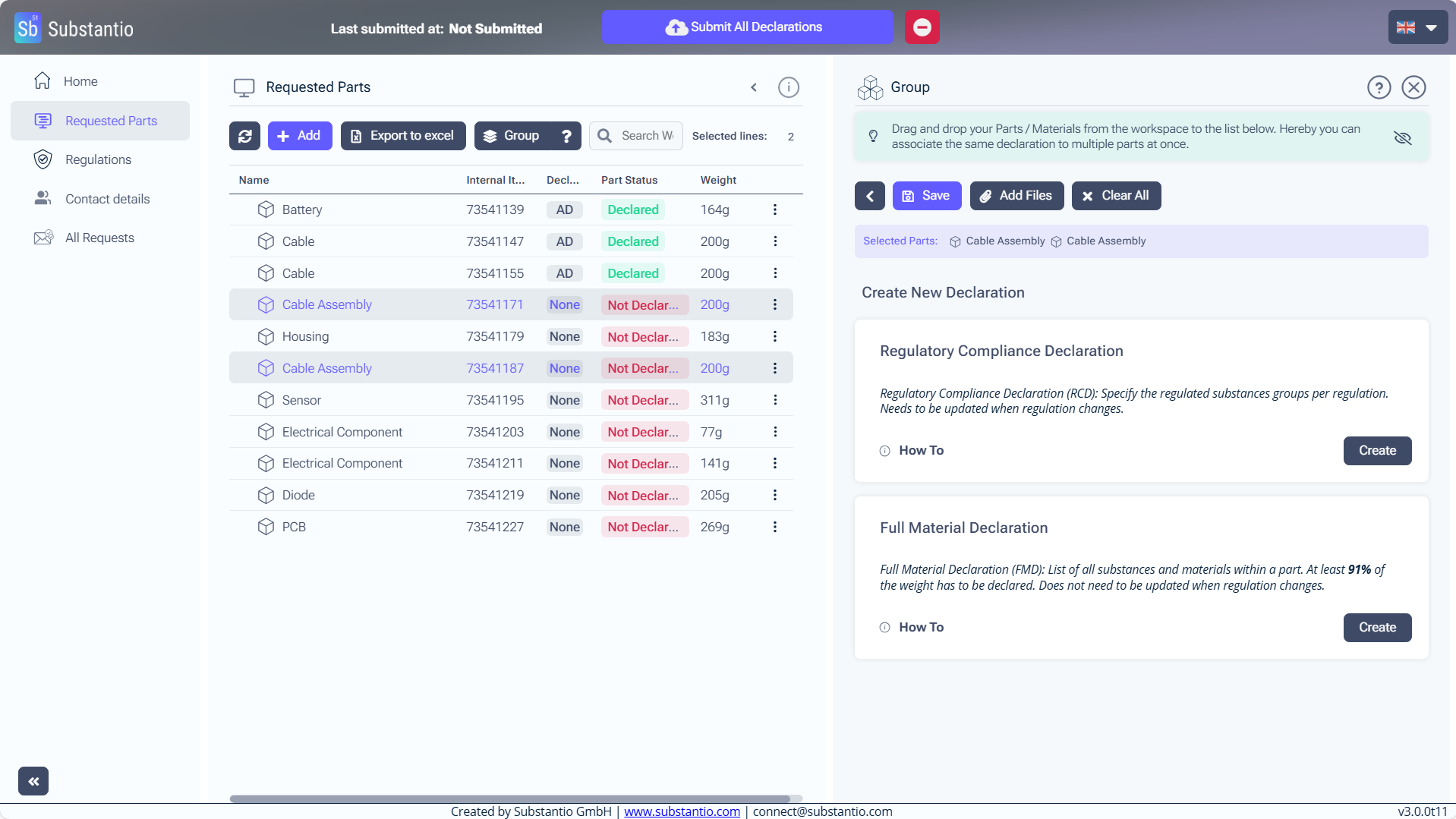
Click the Create button to declare your Regulatory Compliance Declaration.
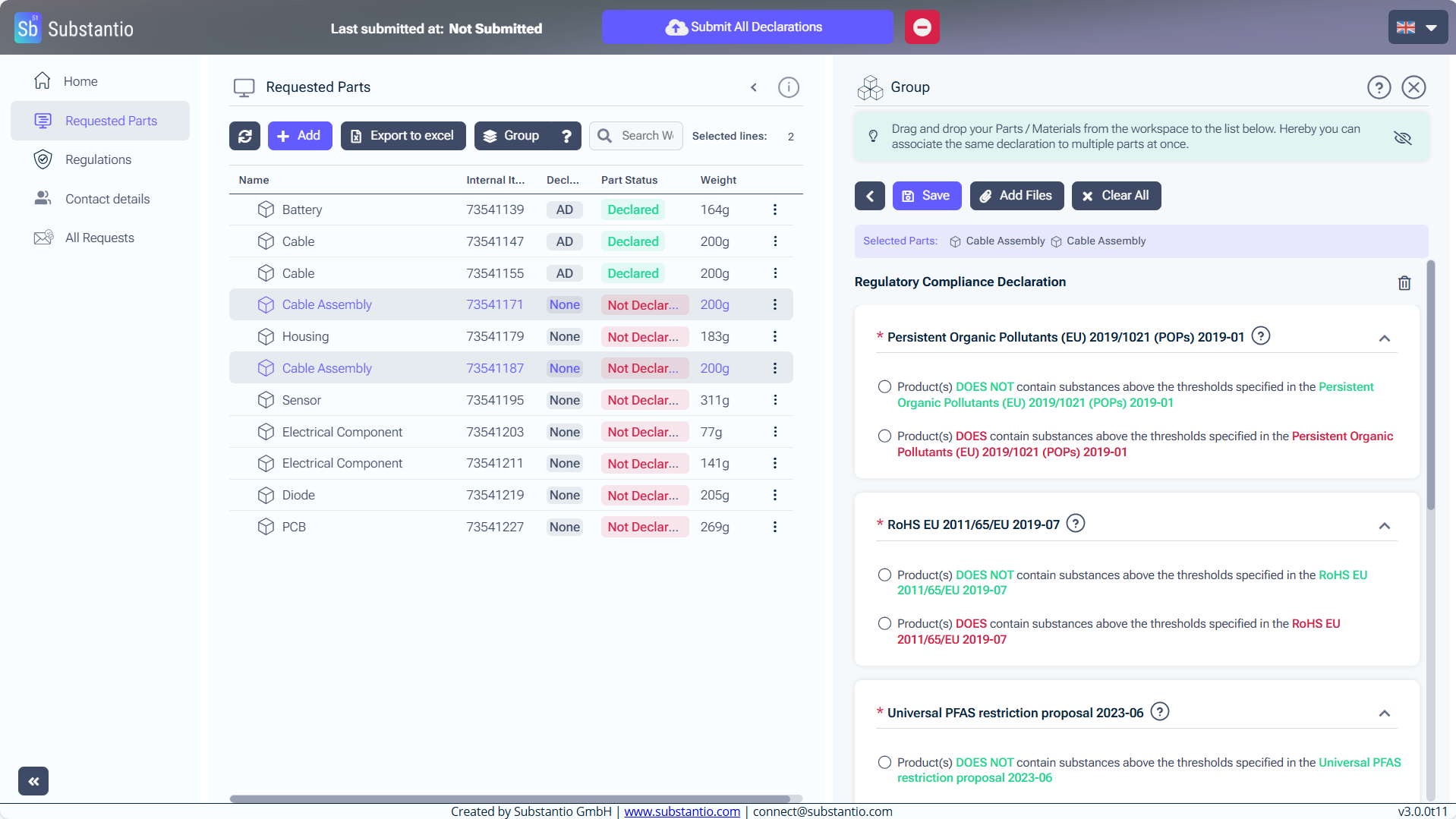
Select whether your product contains substances exceeding the thresholds specified in the regulation by clicking the appropriate checkbox.
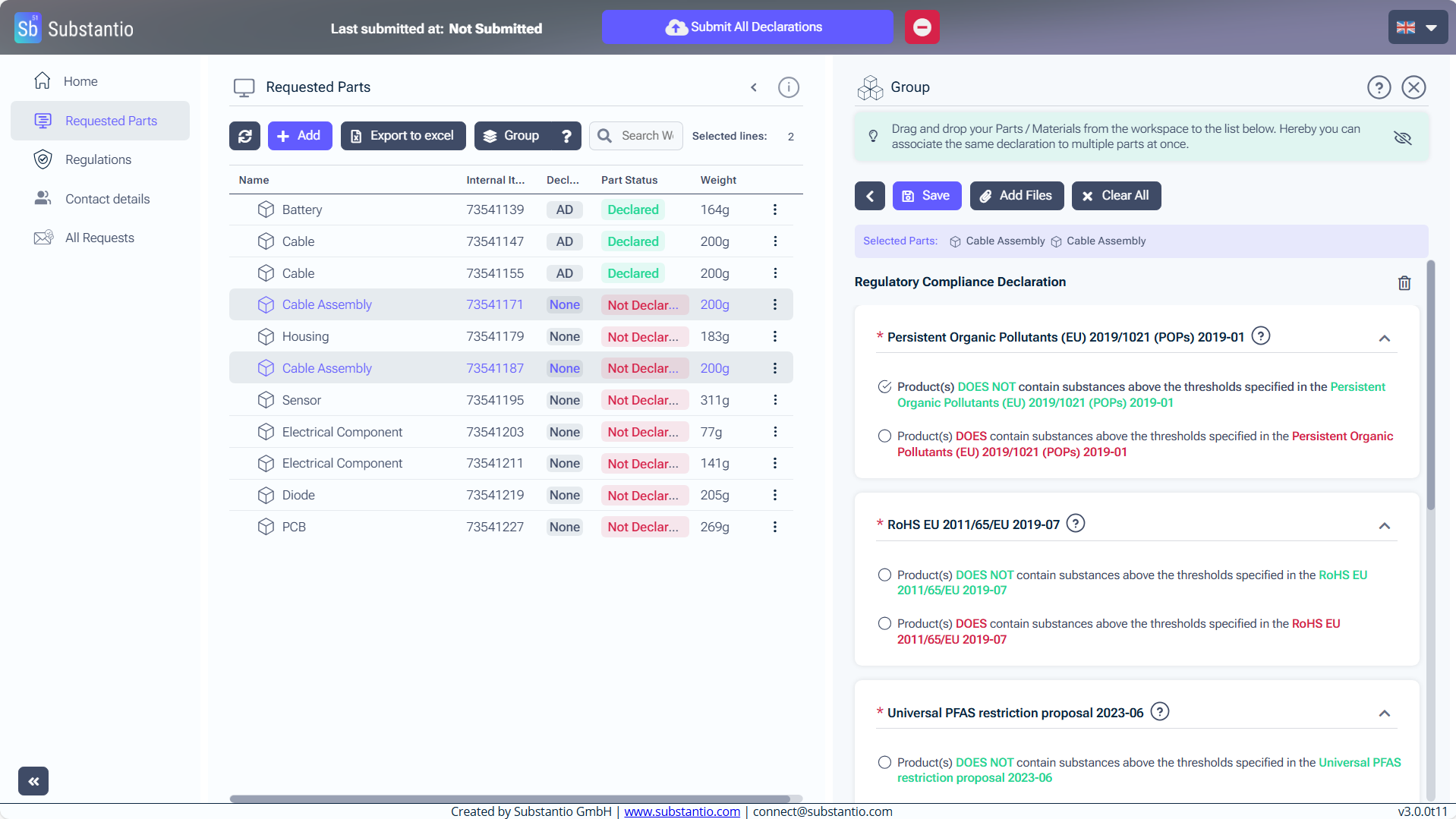
Example - RoHS: If your product contains a substance that is above the thresholds set by the regulation, than click “Product DOES contain...”
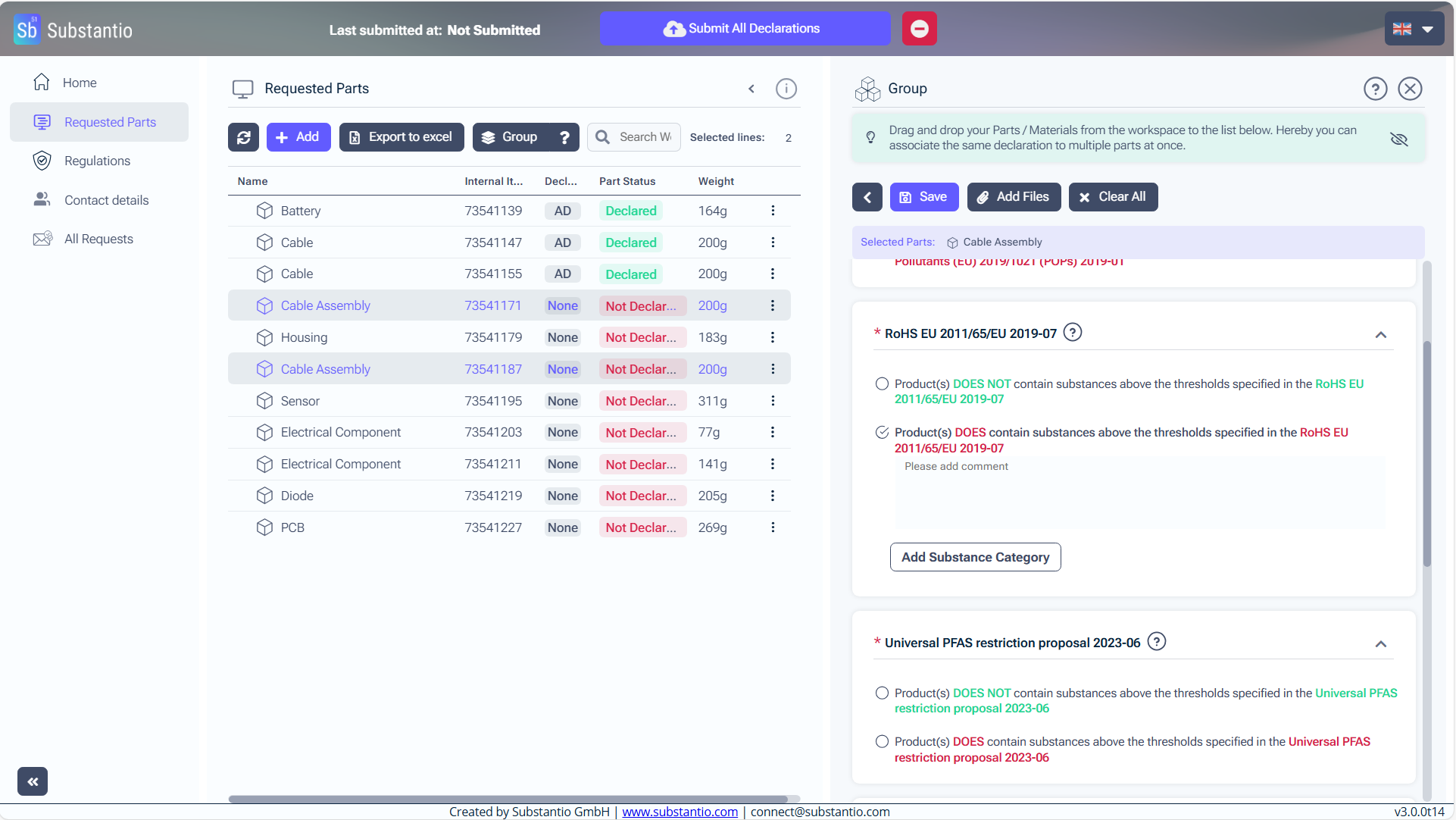
Next, click the Add Substance Category button to choose substances exceeding the regulatory threshold.
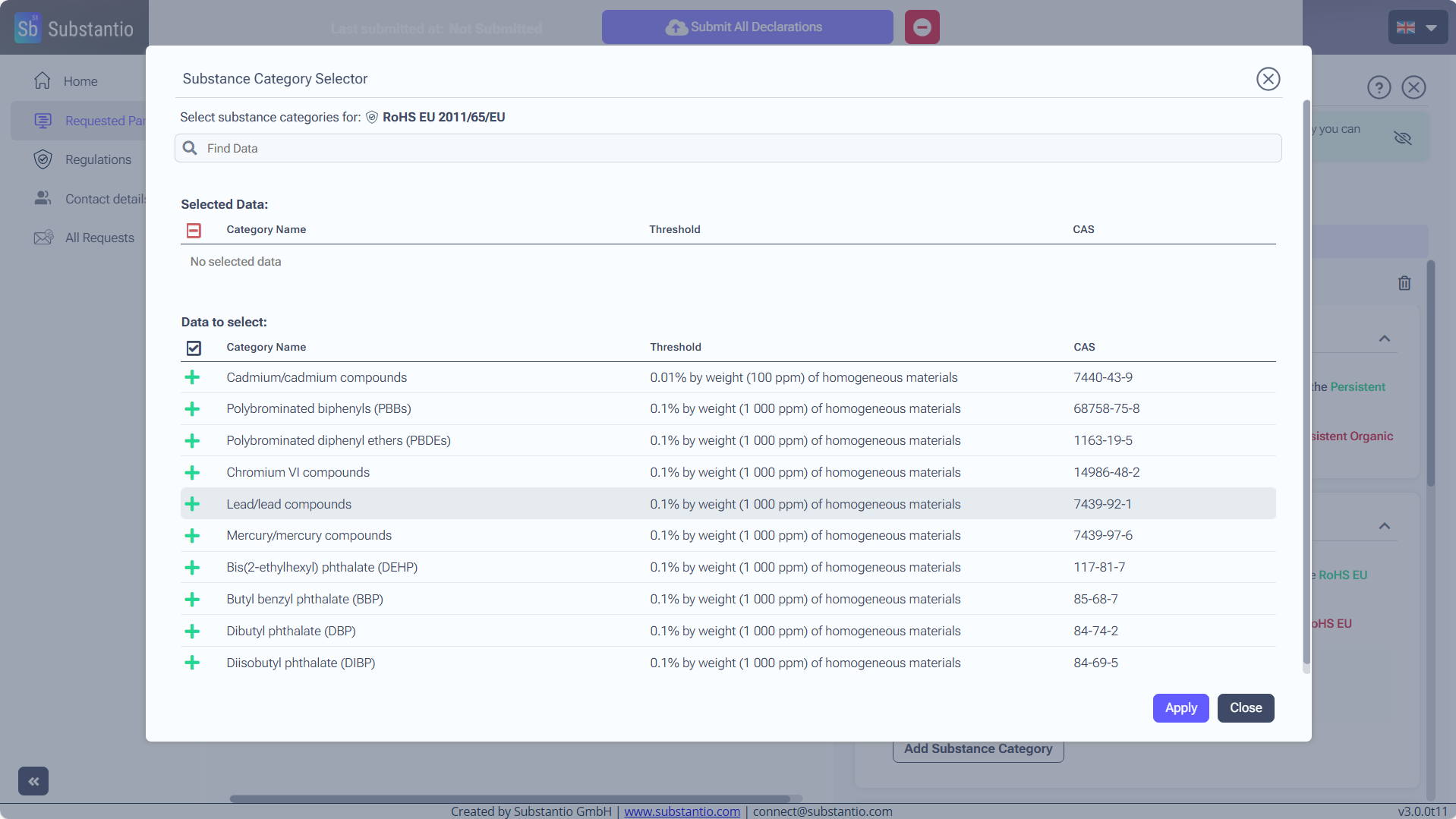
Click on the substance contained in the part, or search for the substance using the search field above.
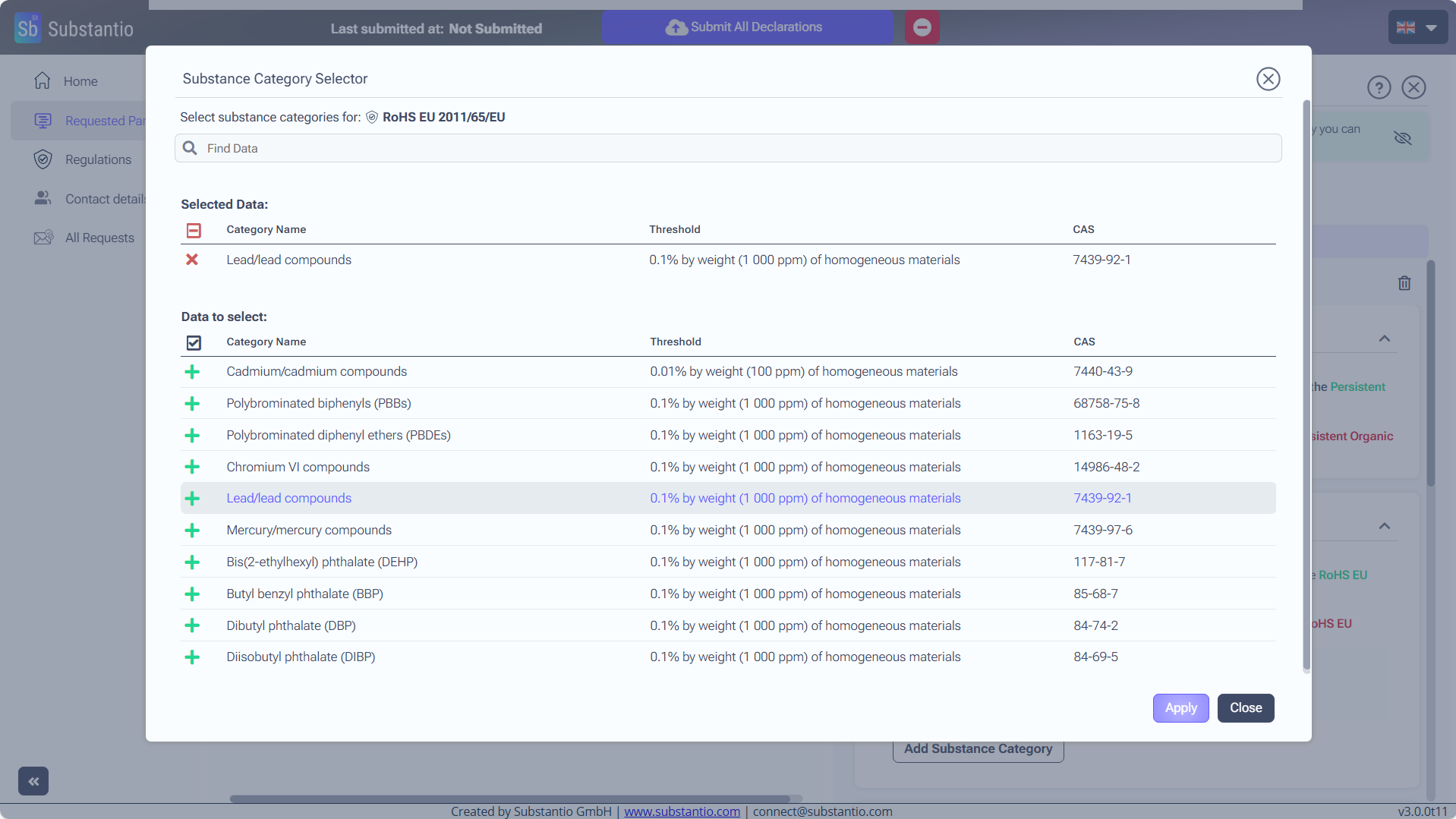
Click the Apply button.
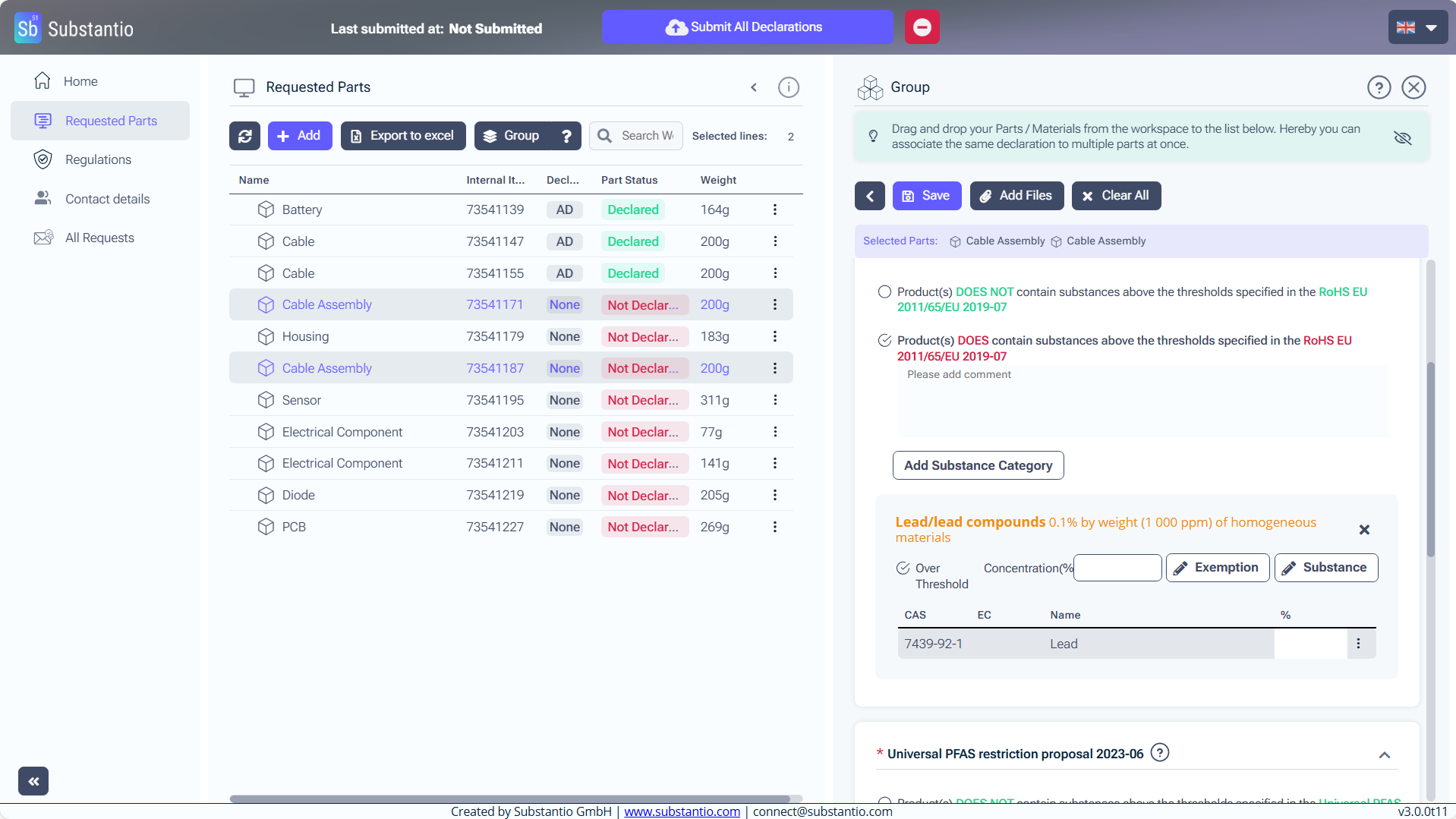
Fill in the Concentration to provide the concentration level of the substance present in your product.
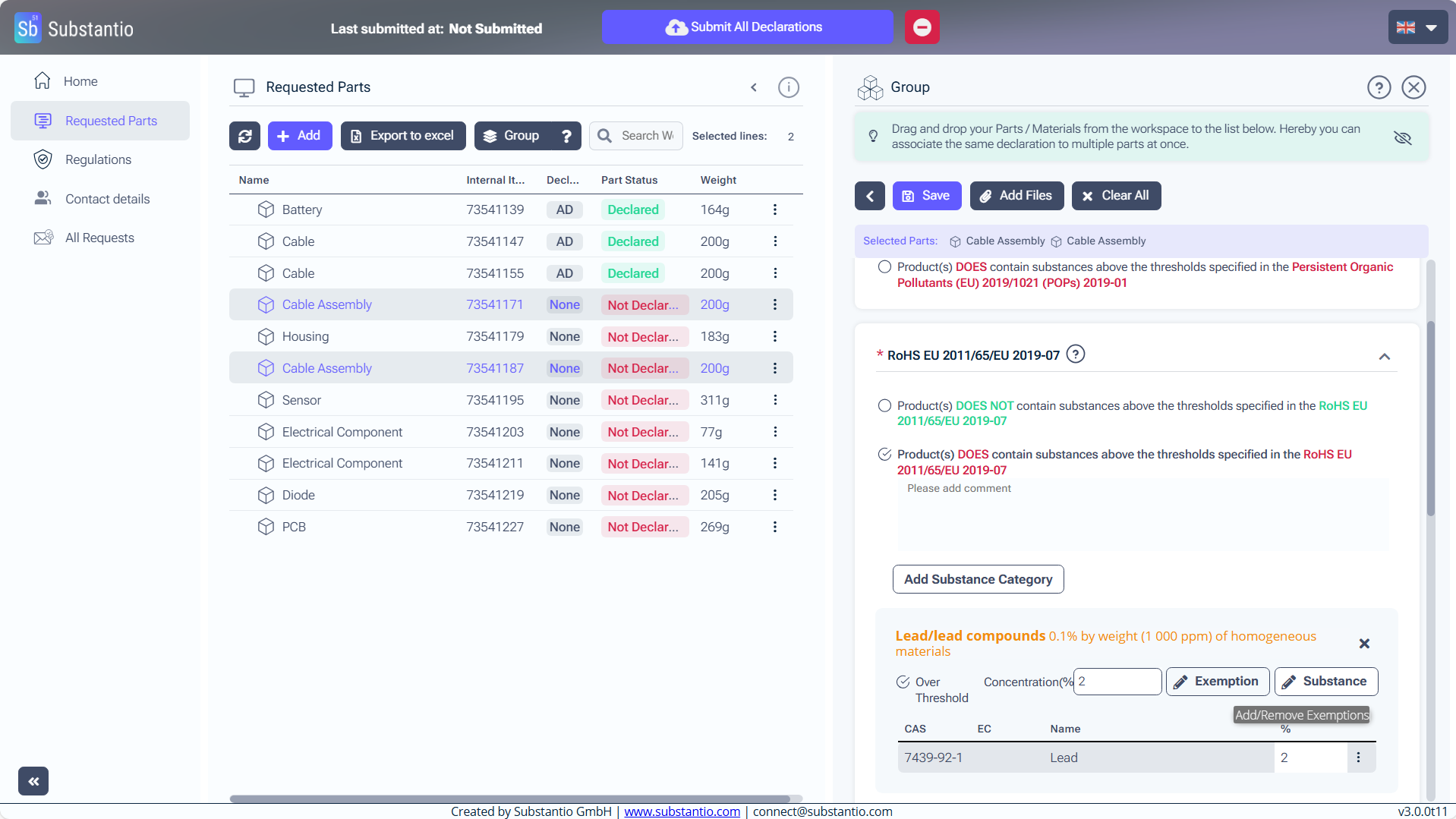
Click the Exemption button to select the applicable exception for the part.
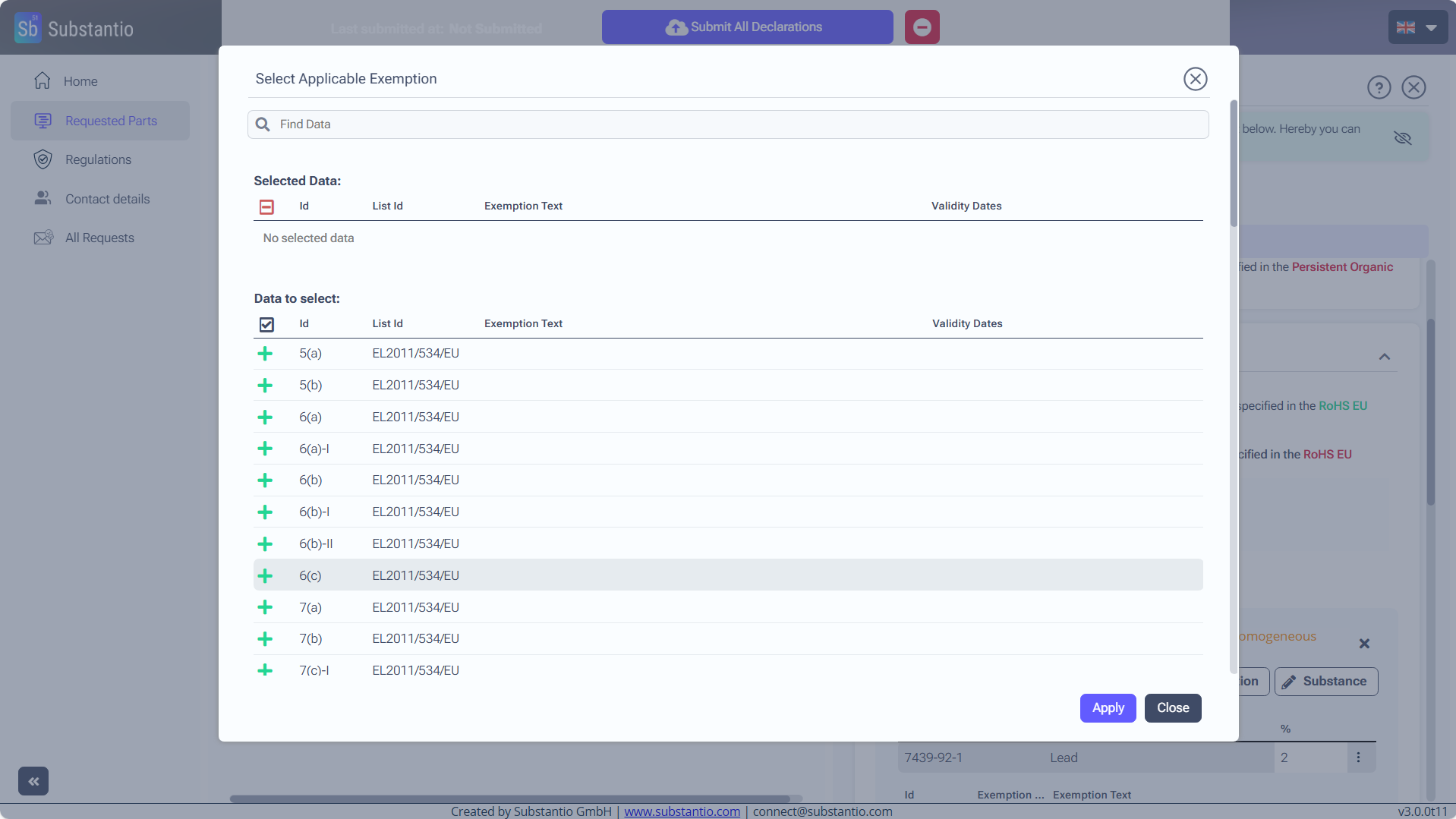
Click on the Exemption with applies for the part.
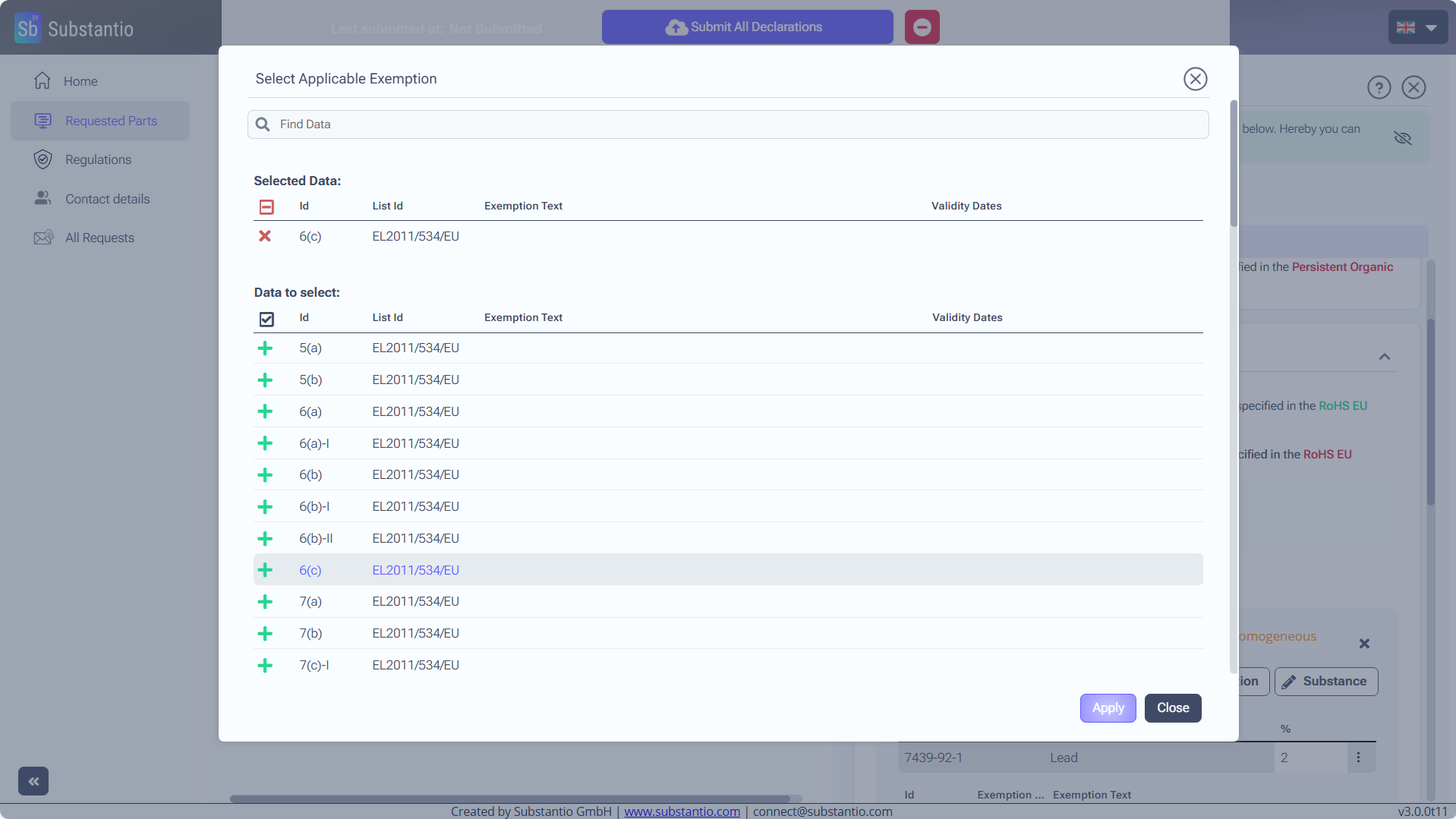
Click the Apply selected Exemptions button.
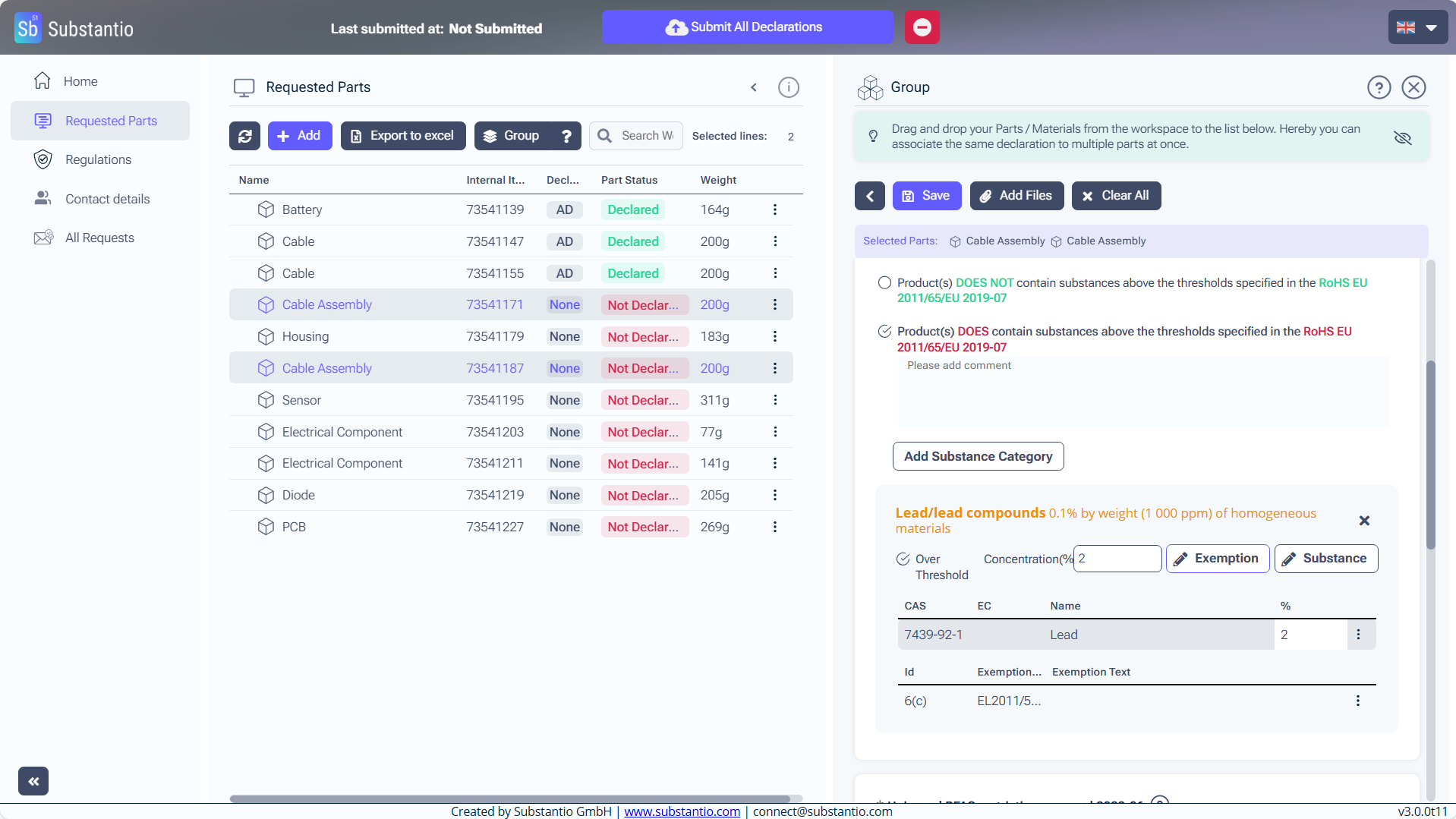
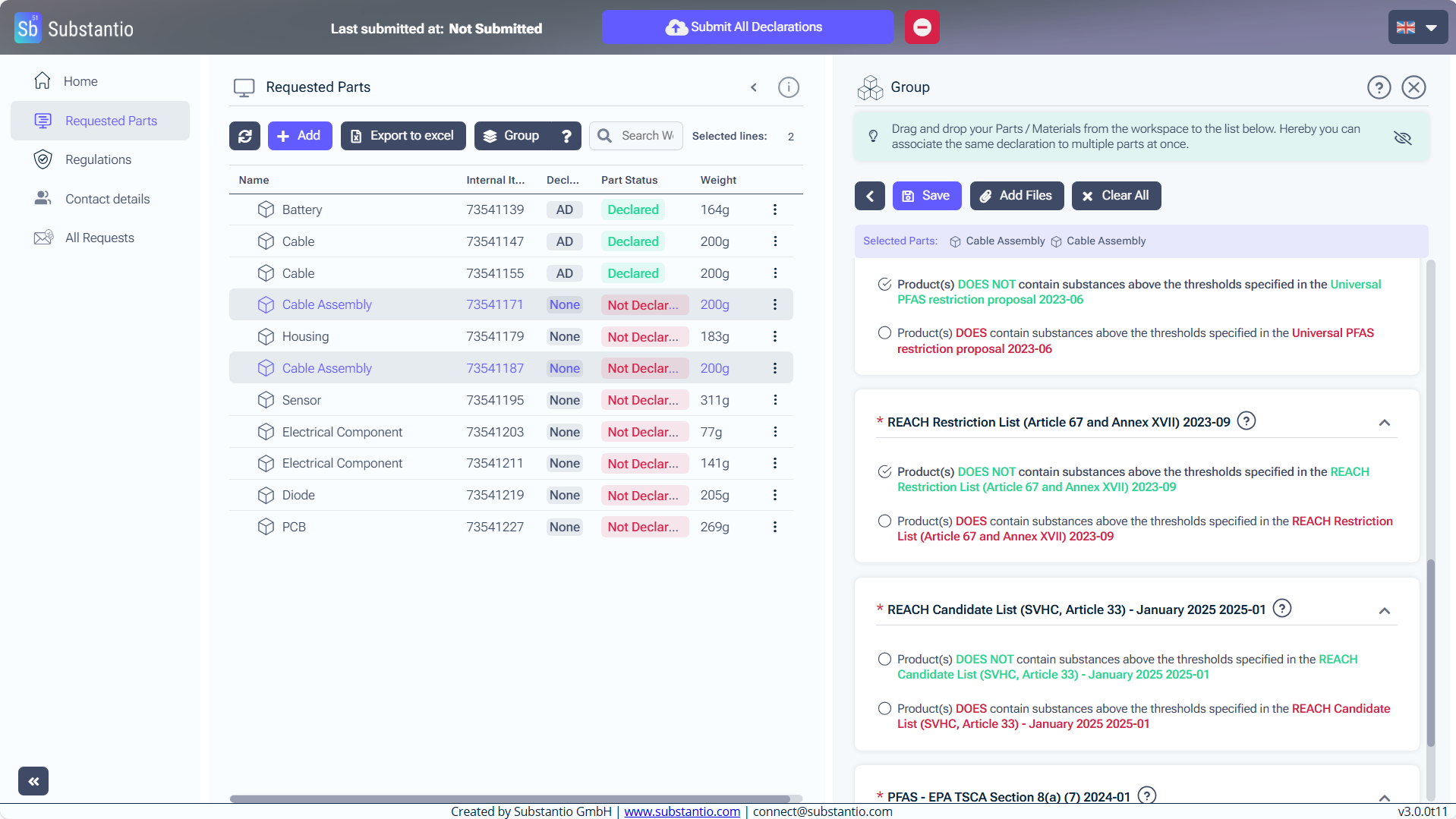
Example - REACH: Select the checkbox “Product DOES contain...” if your product contains any REACH-registered substances above the threshold.
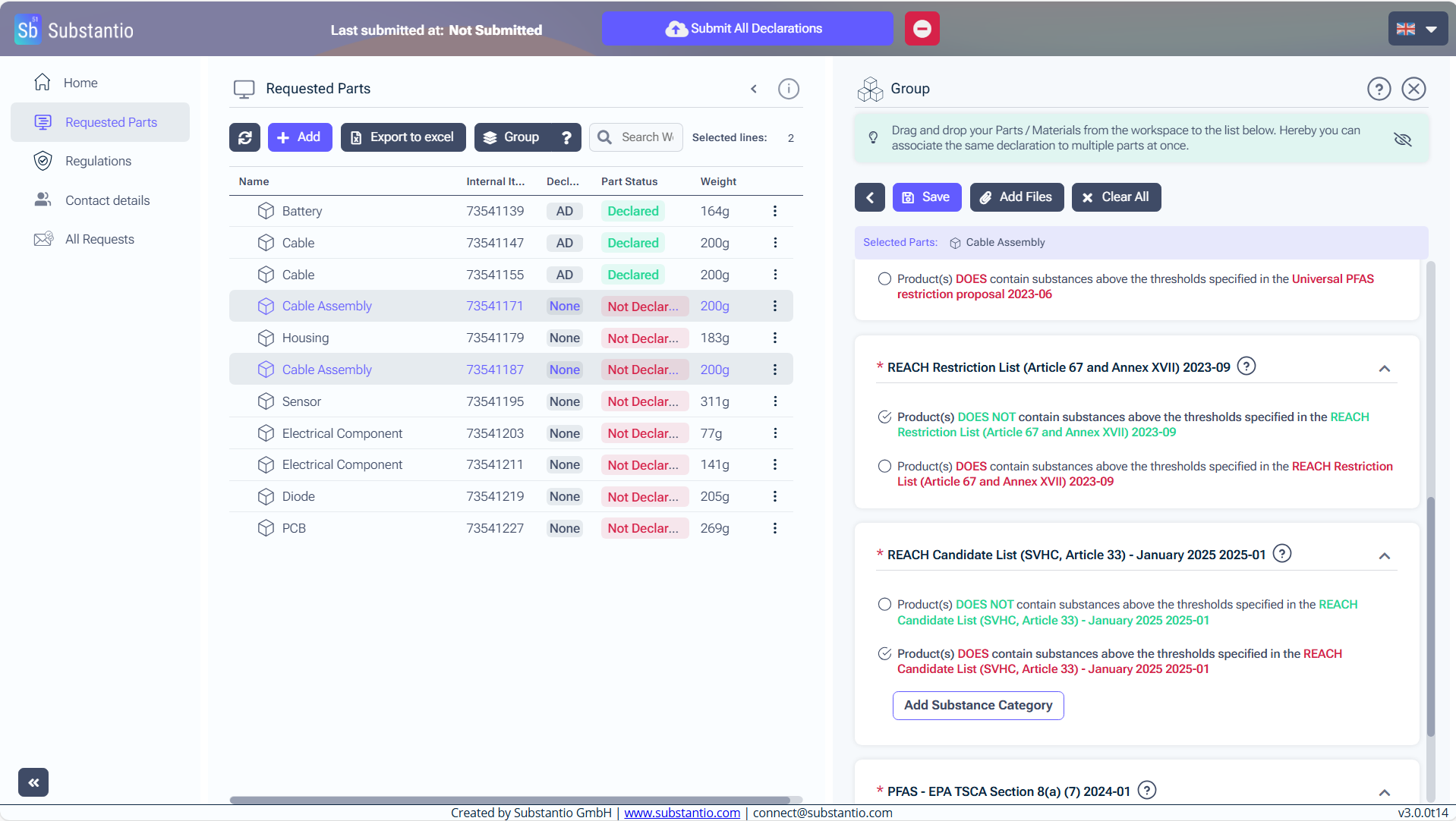
Next, click the Add Substance Category button to choose substances exceeding the regulatory threshold.
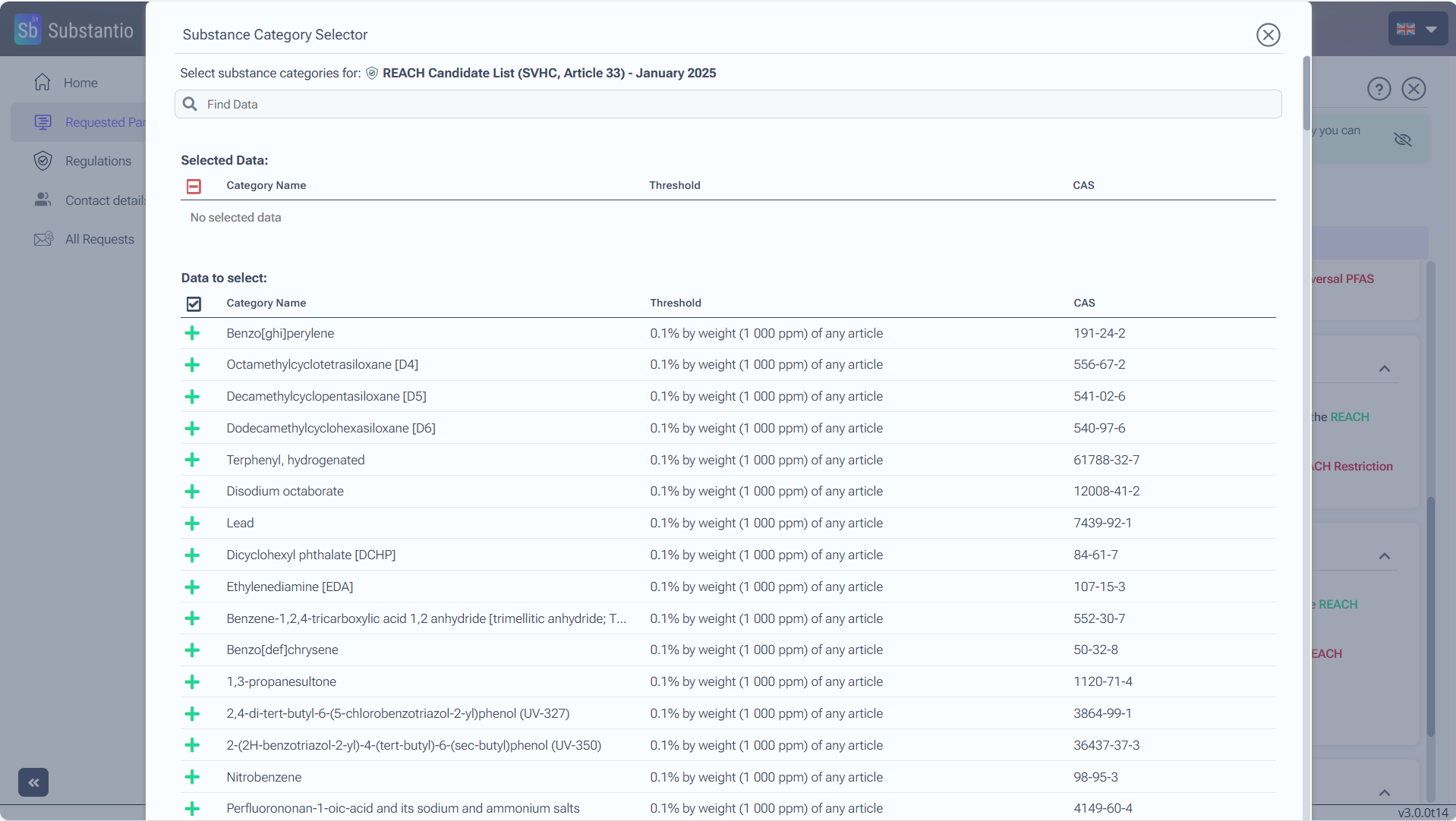
Find the substance by inserting the name of it in the field.
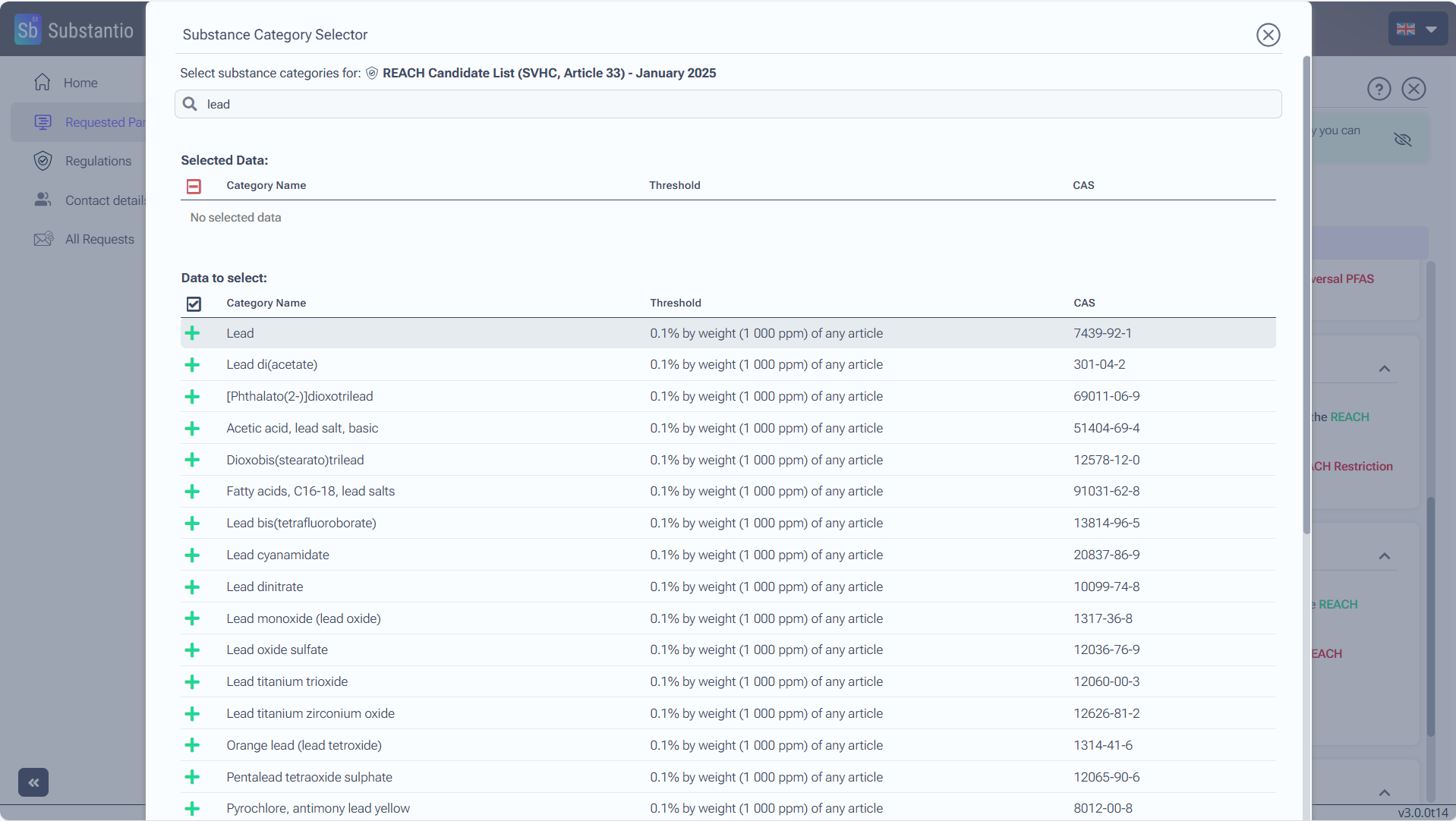
Click the + button, to choose.
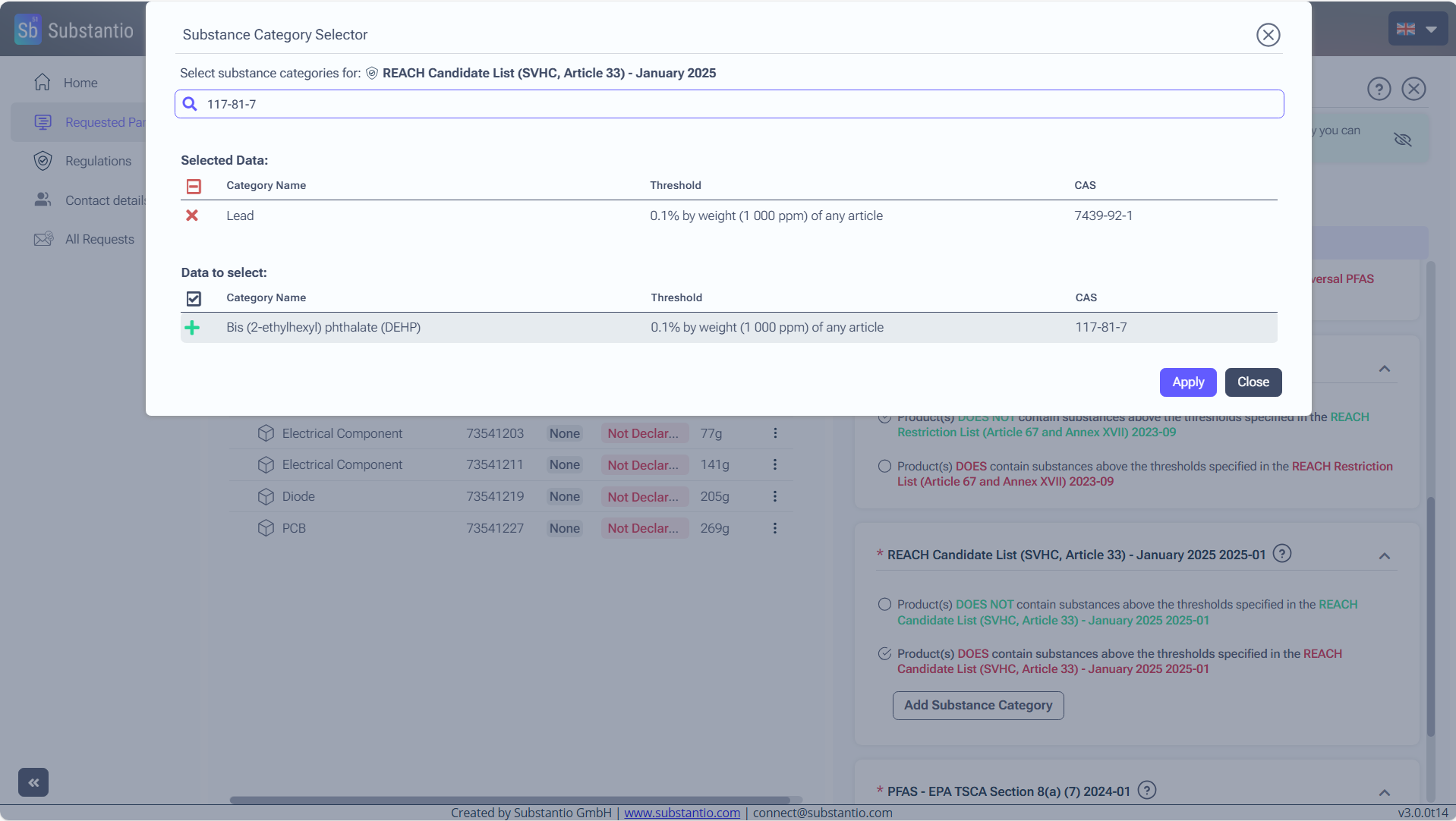
You can also insert the CAS-number to find the substance.
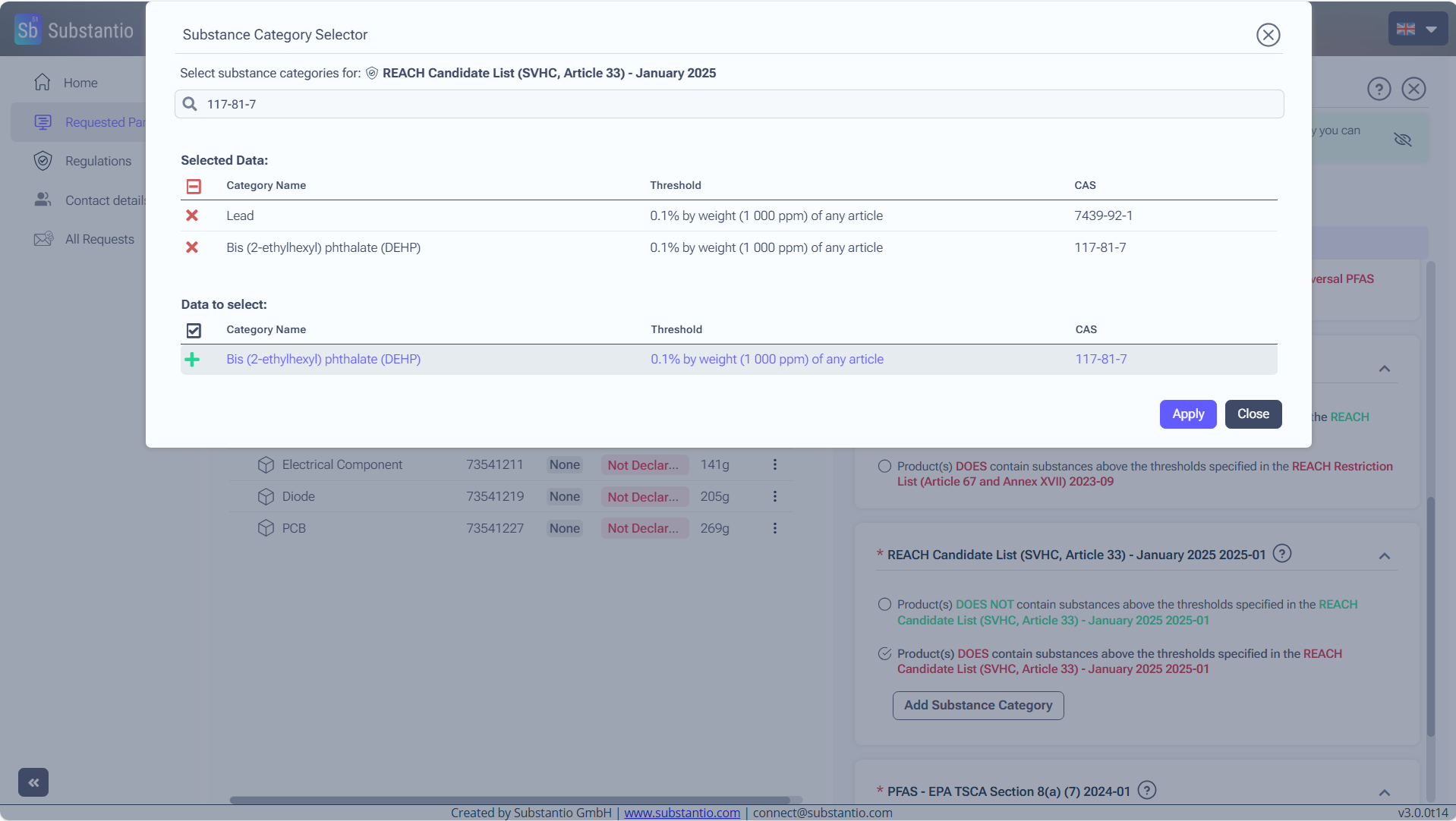
You can add all your substances in one step, they will be stored temporarily.
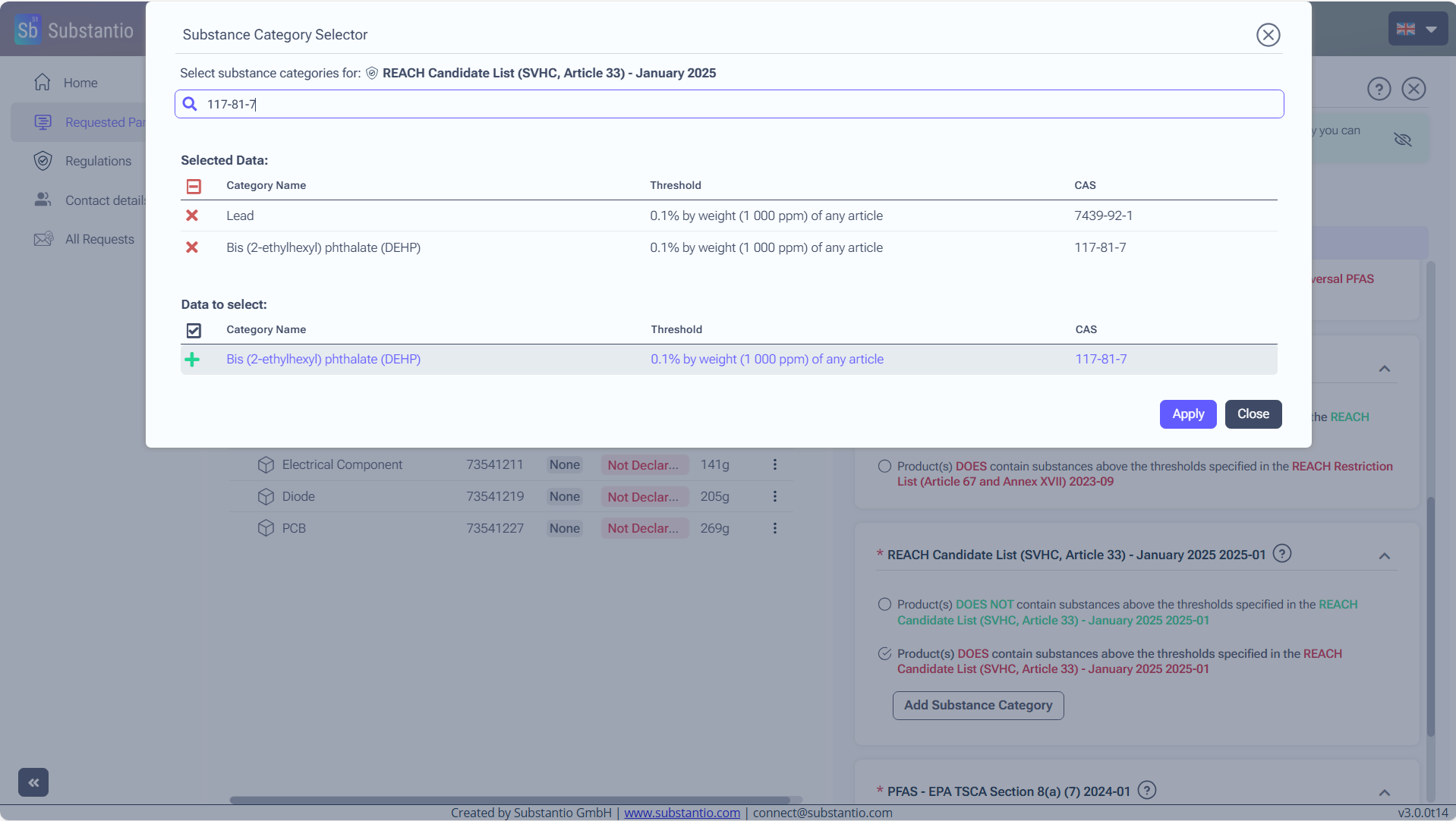
Click the Apply button after selecting all substances that exceed the threshold.
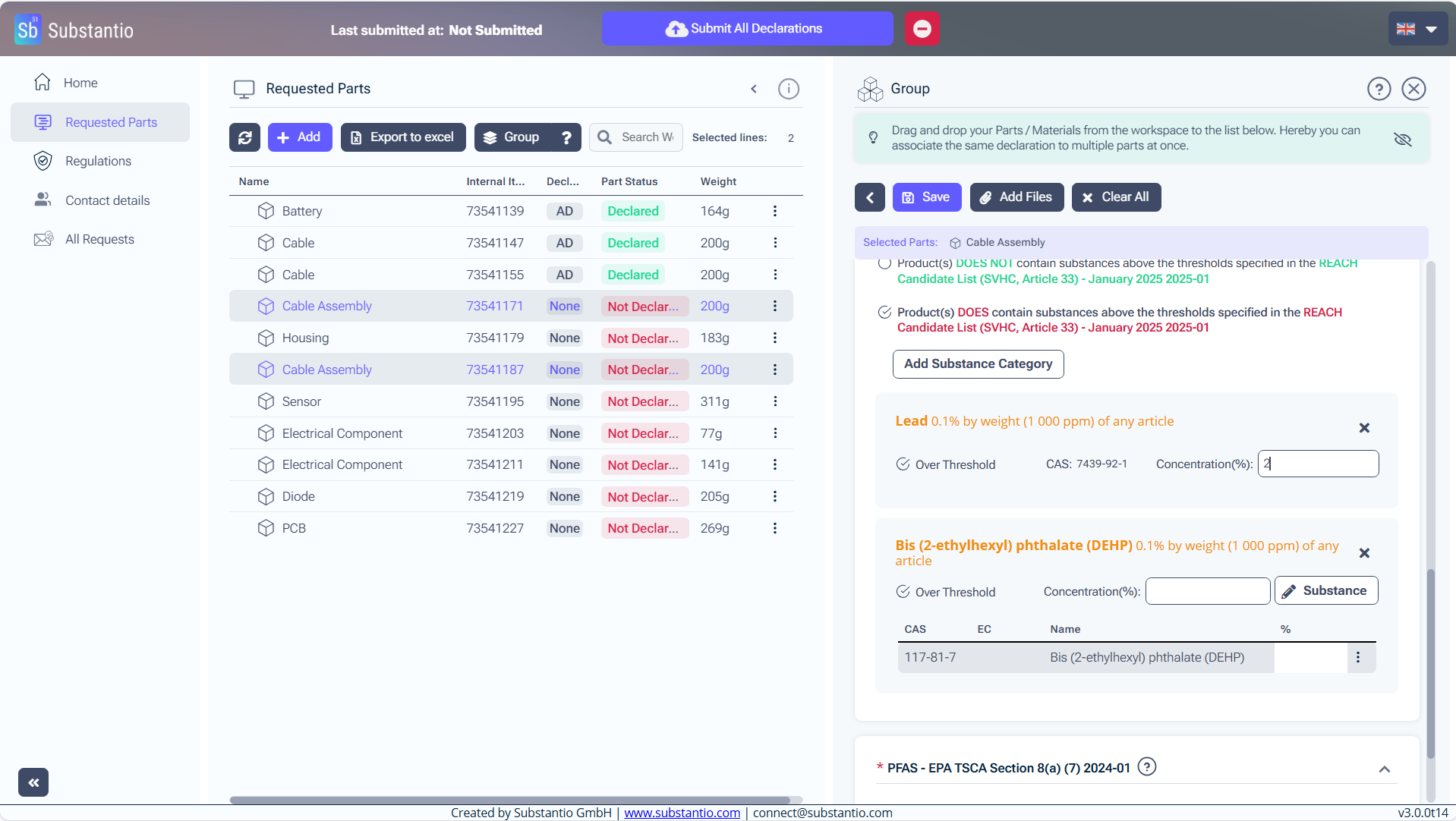
Next, fill in all the Concentrations of the substances in the part (%).
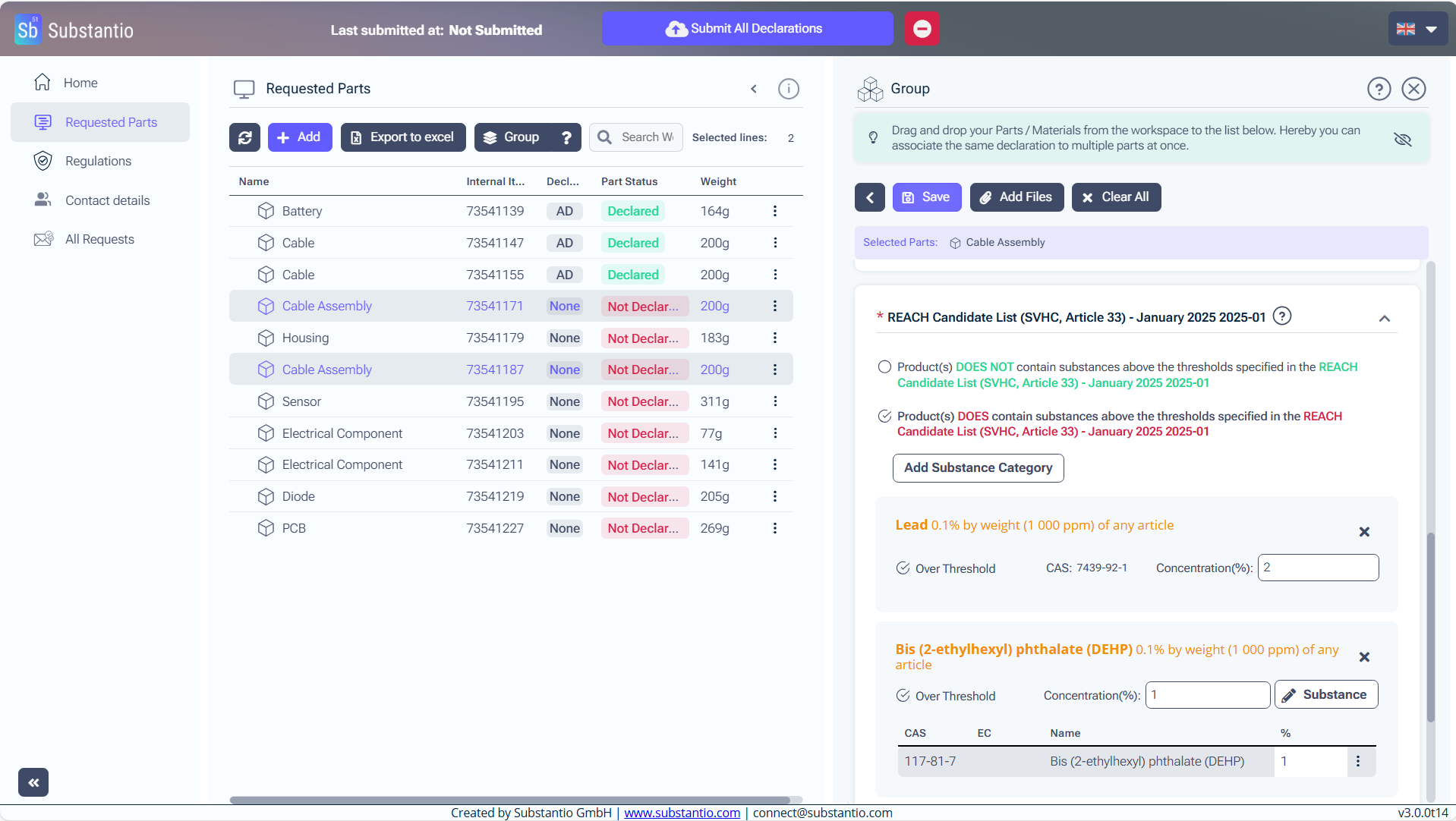
Than Save the process.
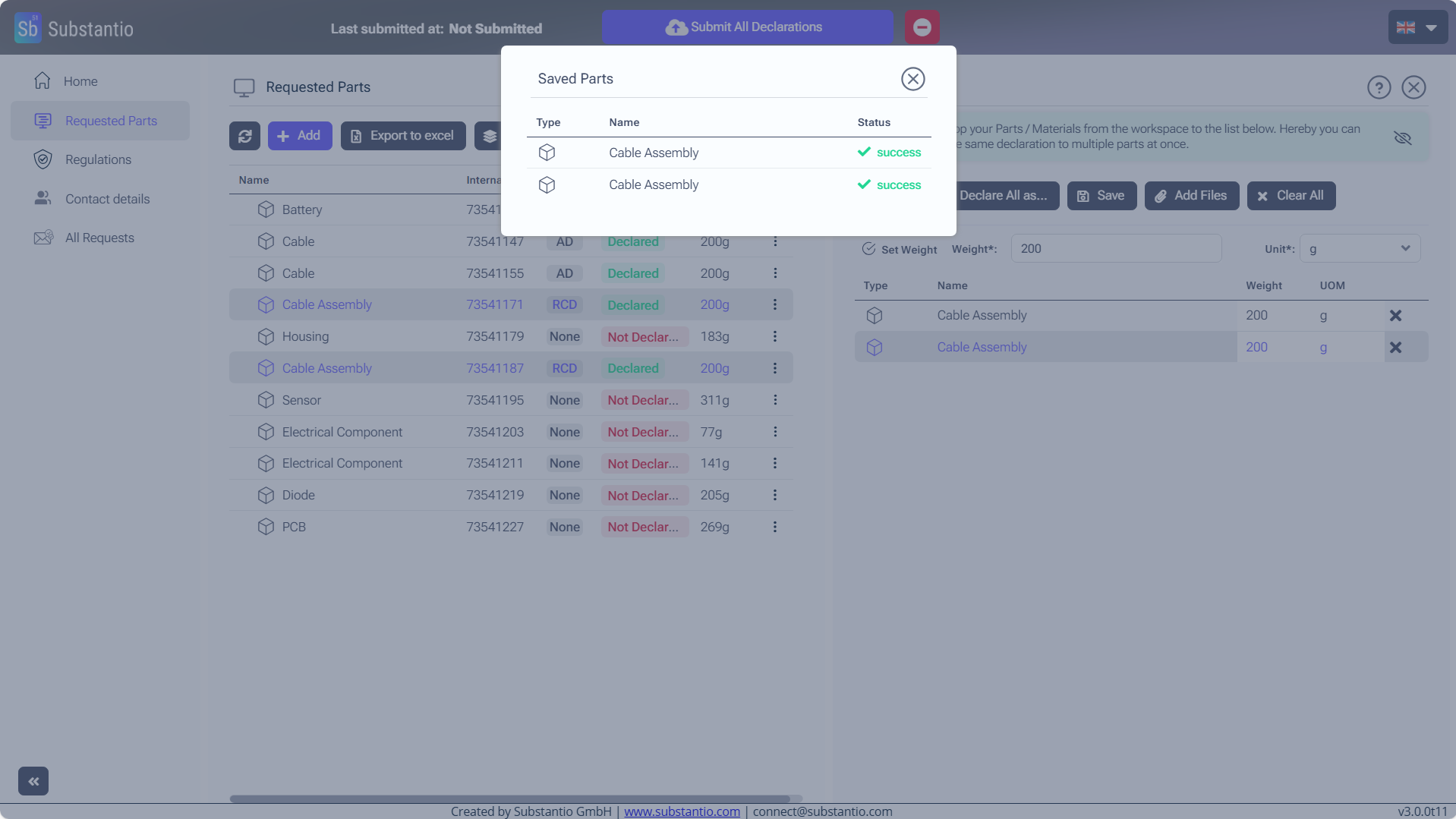
Now the Declaration has been successfully saved.
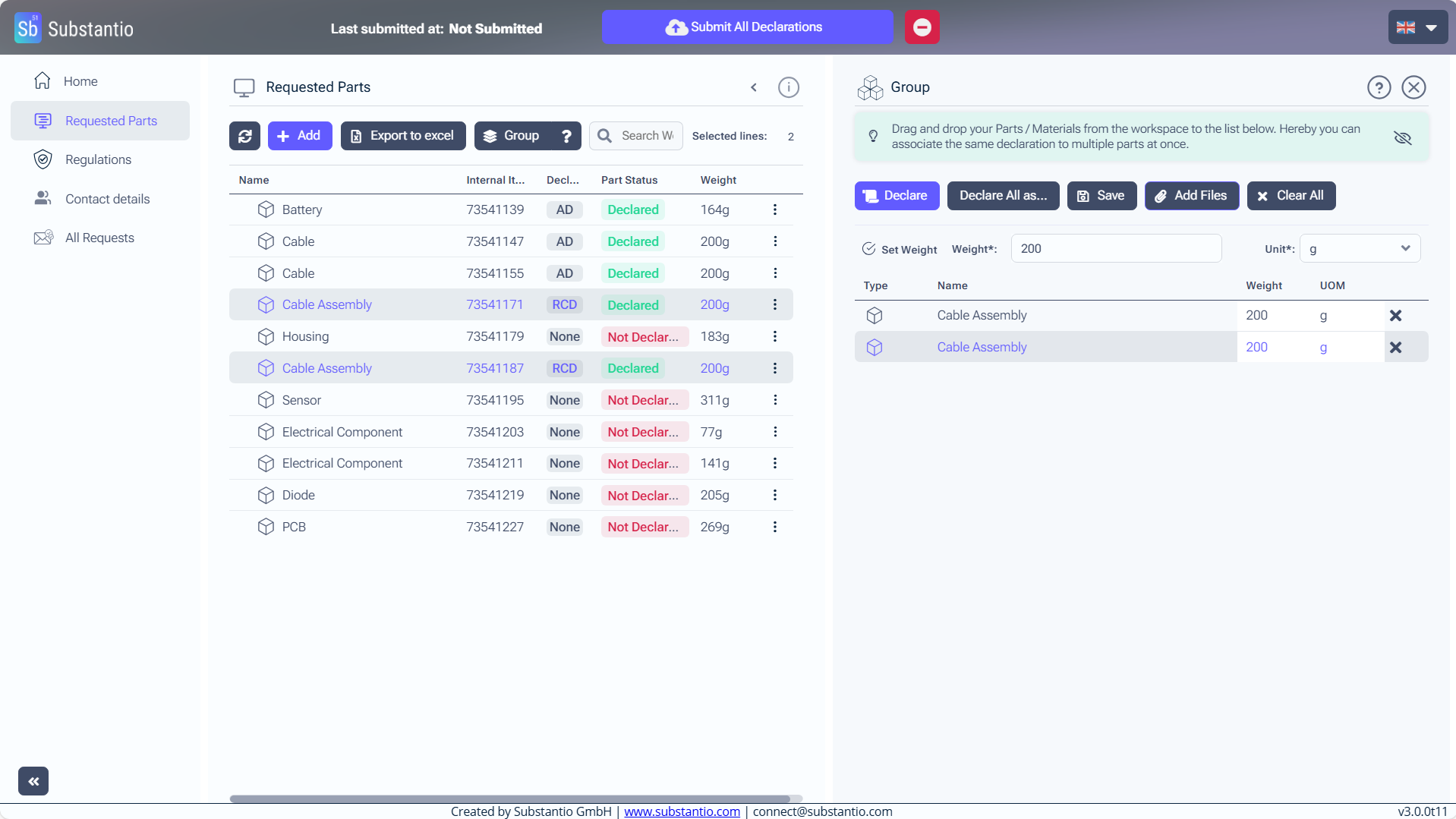
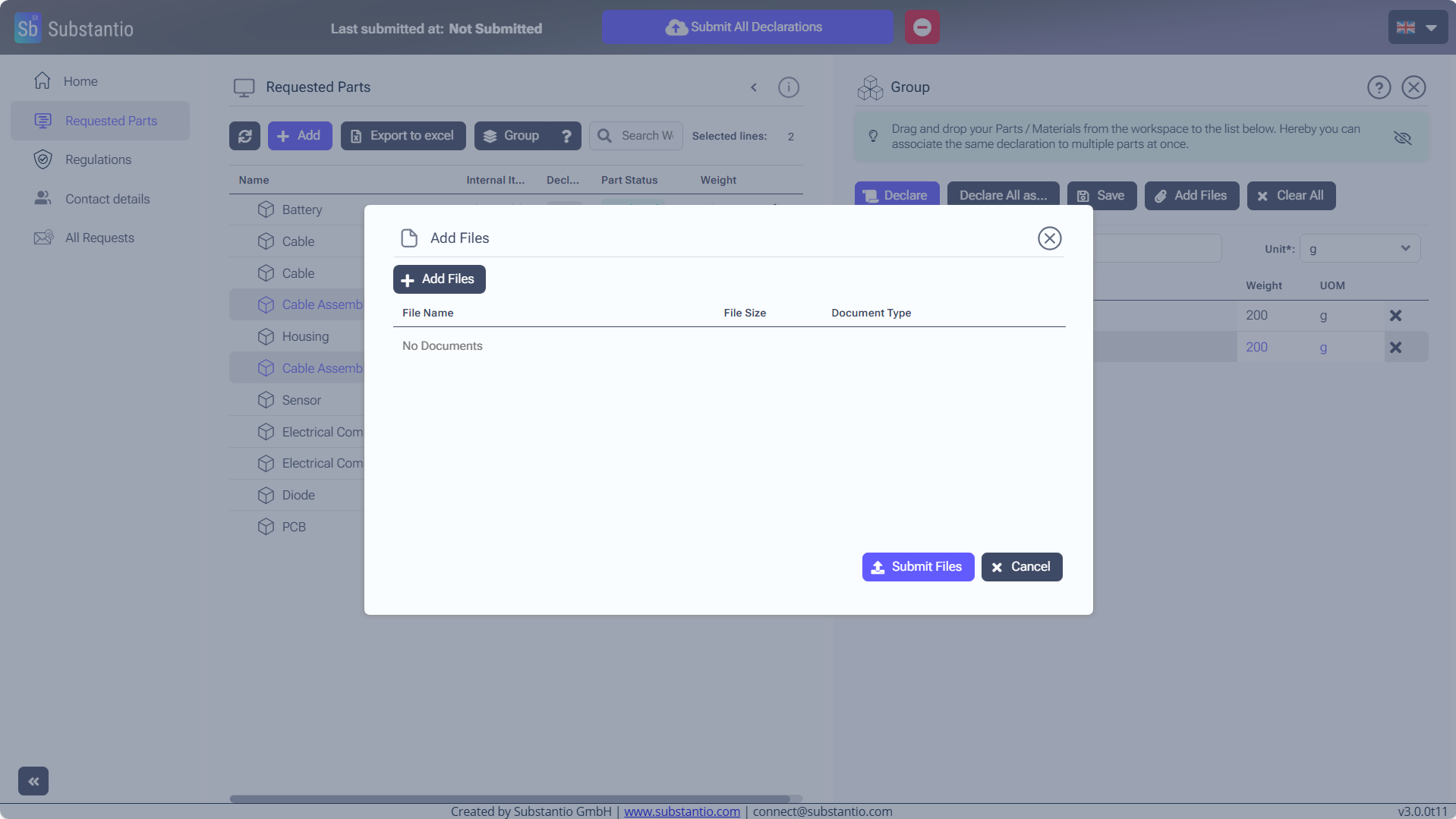
Please upload a conformity document to validate your declaration. To do this, click the Add Files button. You can upload multiple documents by clicking the Add Files button for each additional document and selecting the relevant file.
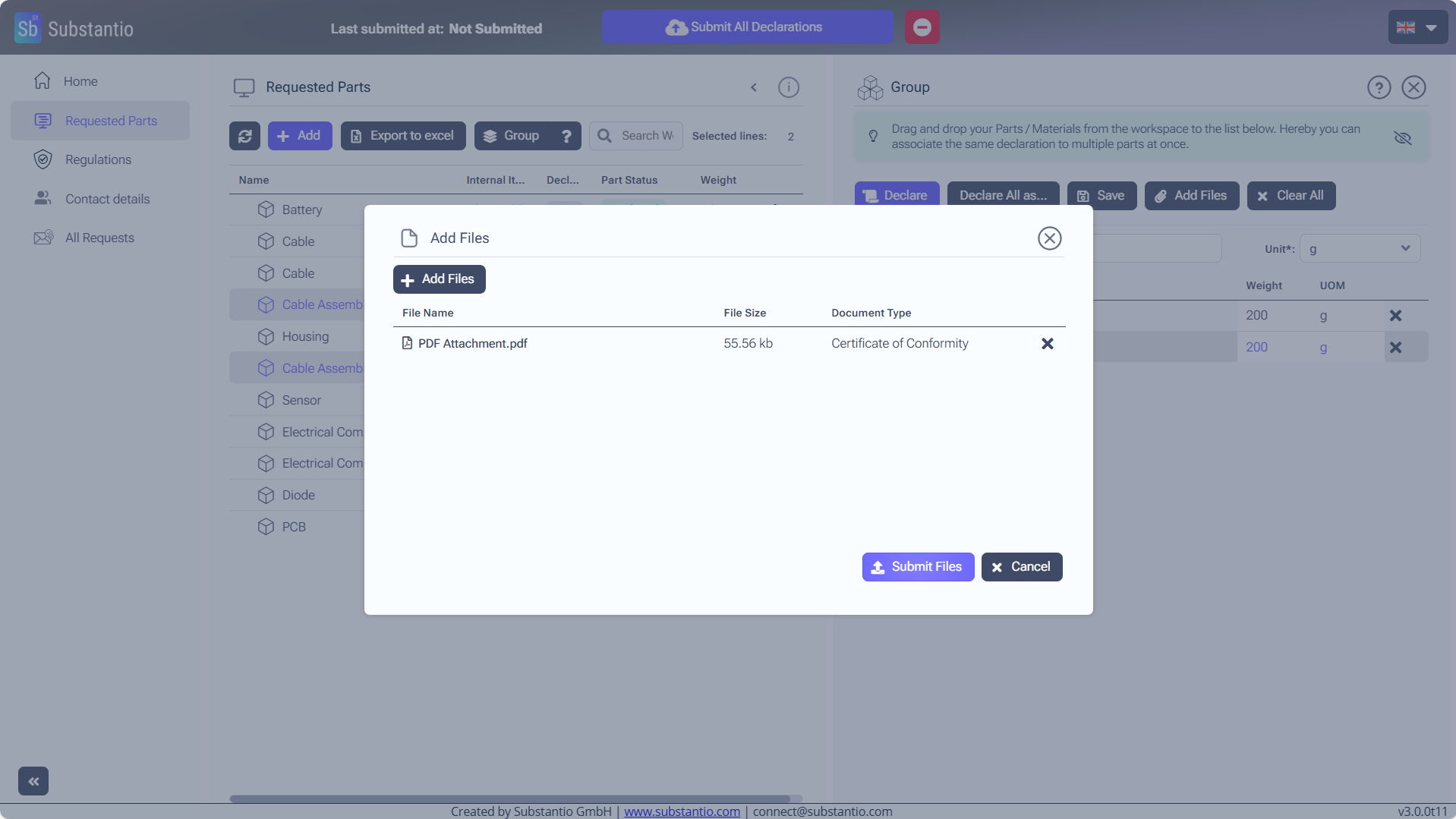
After selecting your document. Click the Submit Files button for loading the file up.
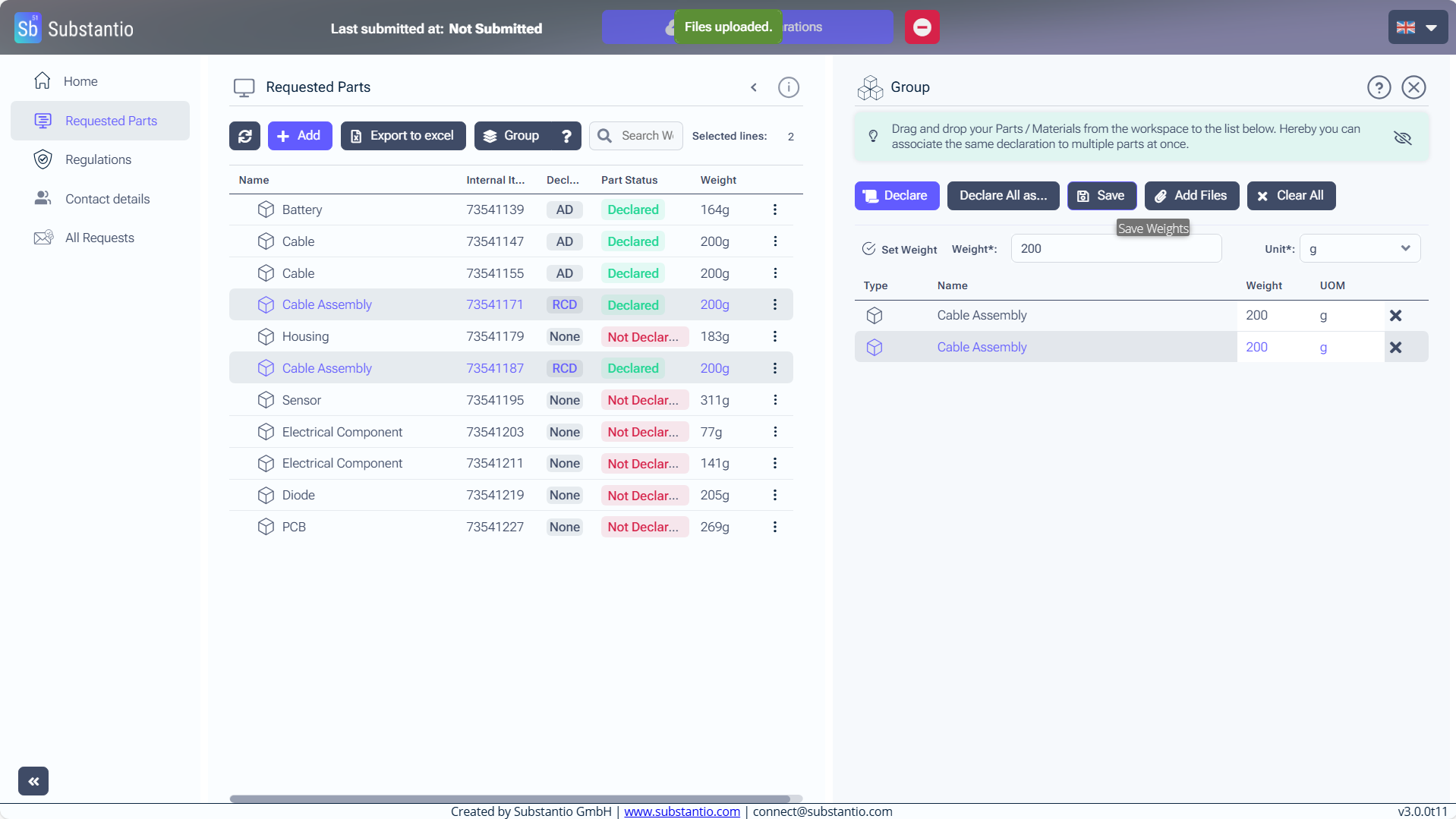
Save it again.
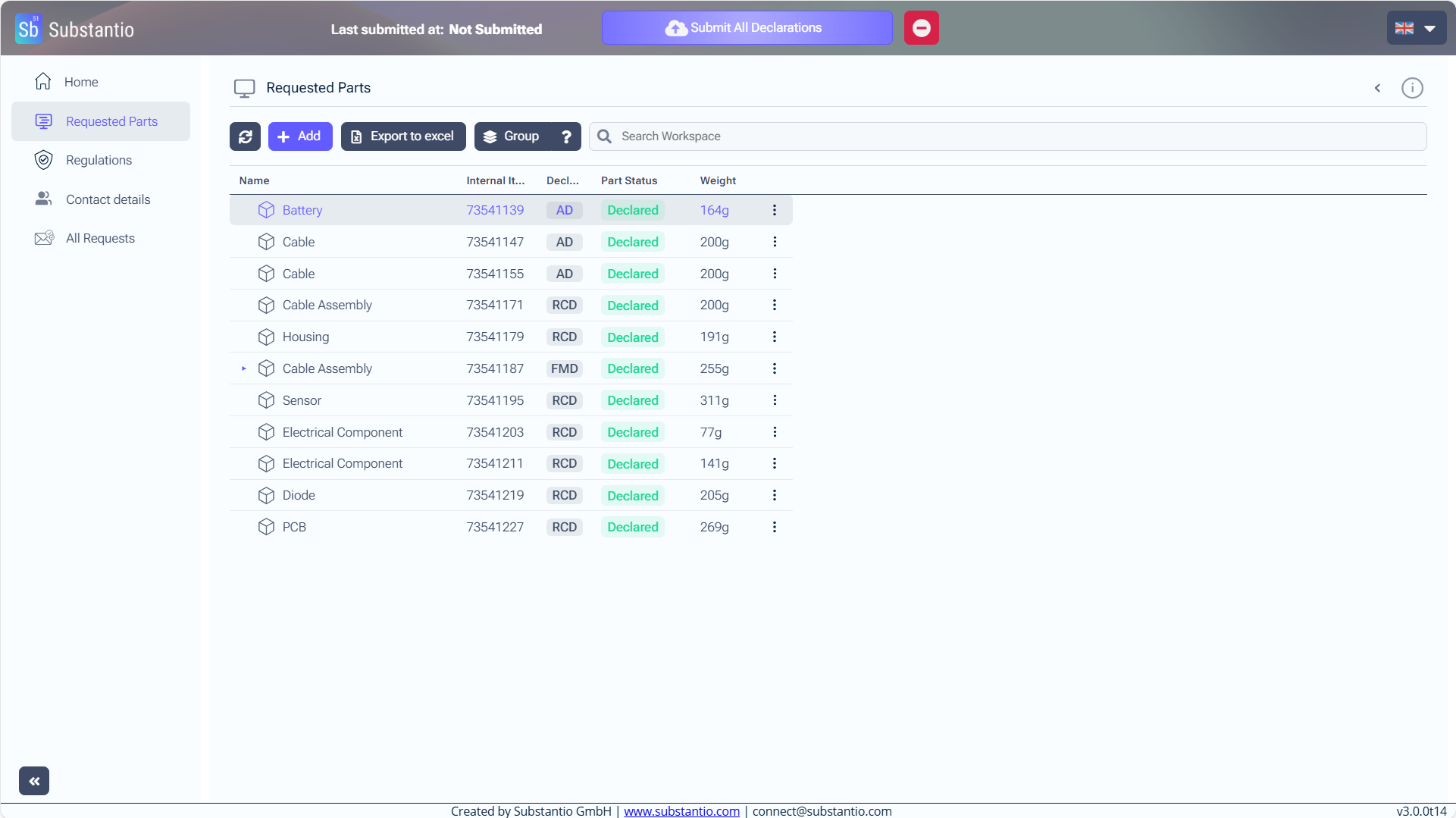
When you are ready with the declaration of all parts click the Submit All Declarations button at the top, to send them to your customer.

