7
/29
If you want to declare FMD you need to have a Bill of Materials with all materials and substances of your part.
Next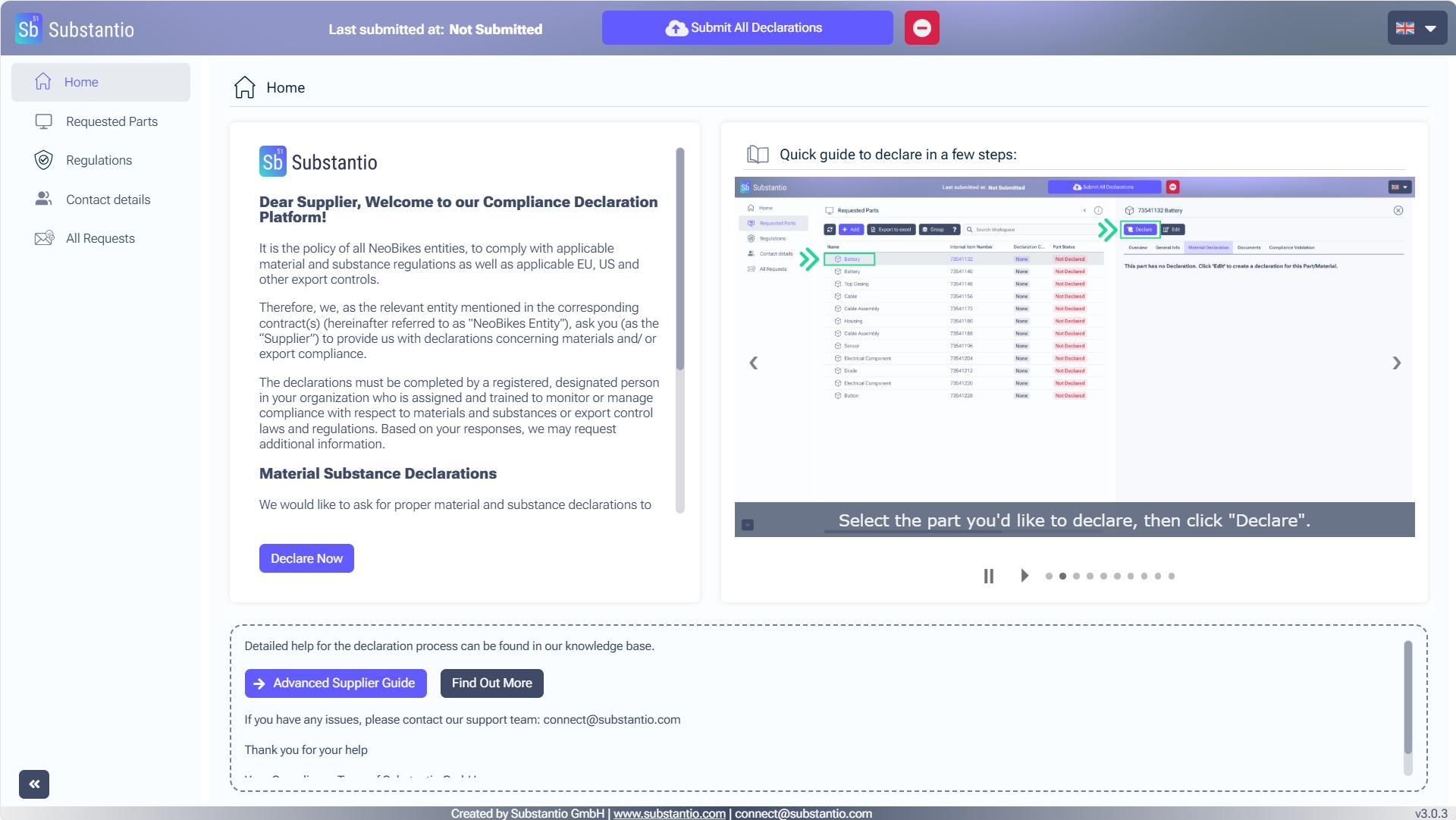
You accessed the Substantio platform via the link of your customer's email for substance compliance. Respond to the requests from your customer by clicking the Declare now button.
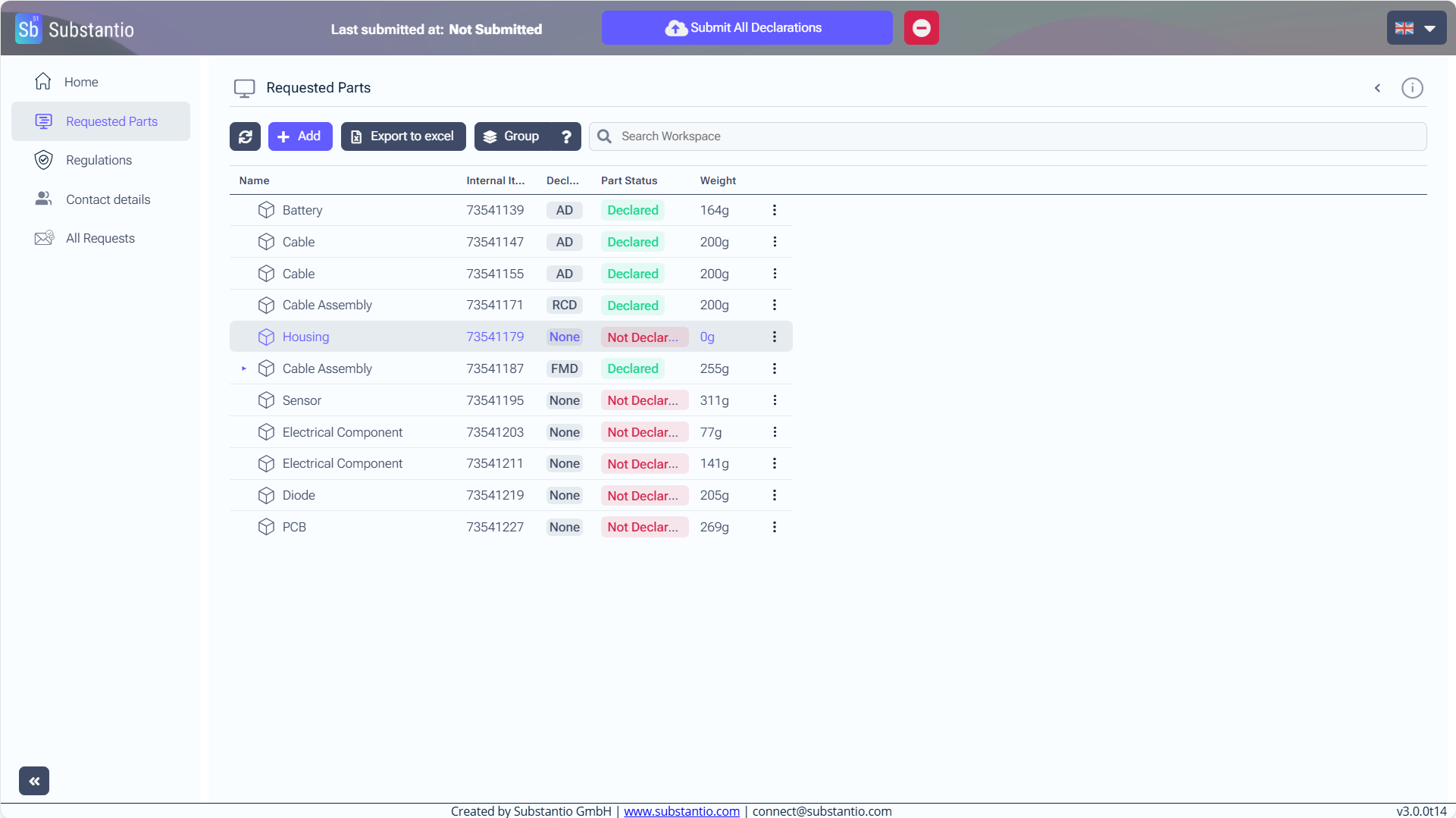
Select the part you wish to declare by double-clicking it. A details panel will open on the right side of the screen.
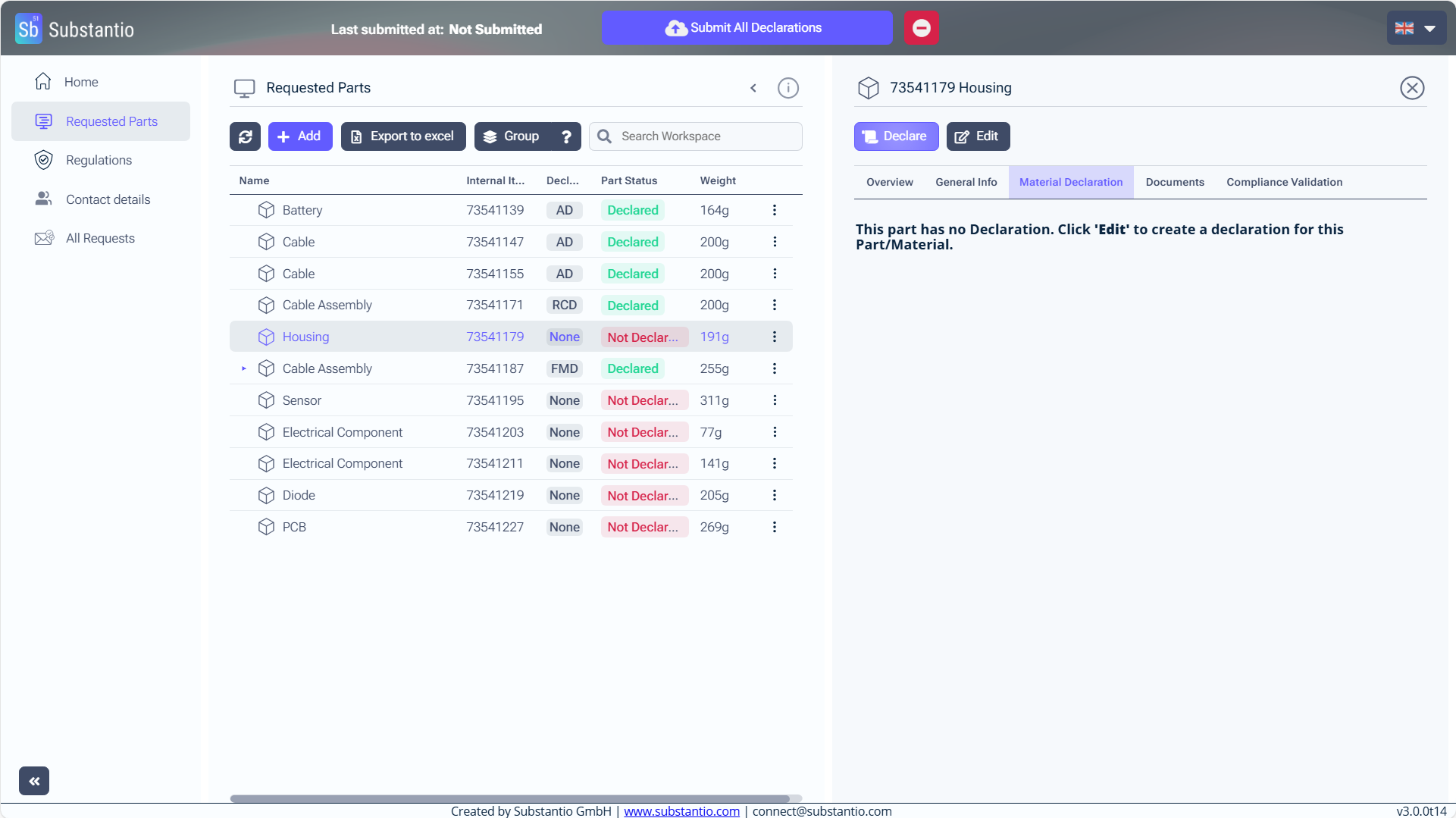
To start entering your data for the selected part, click the Declare button.
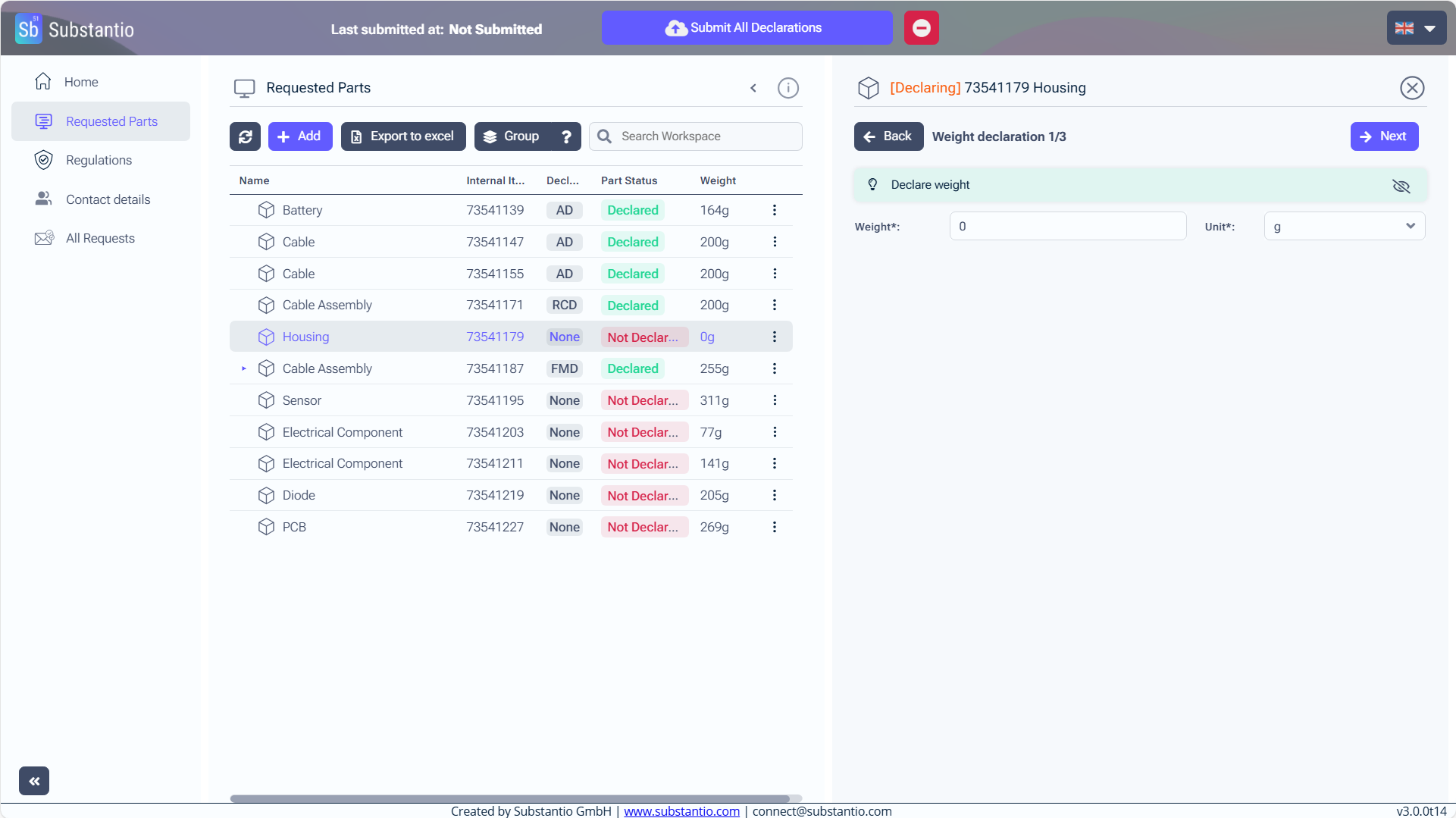
Insert the weight and unit of your part.
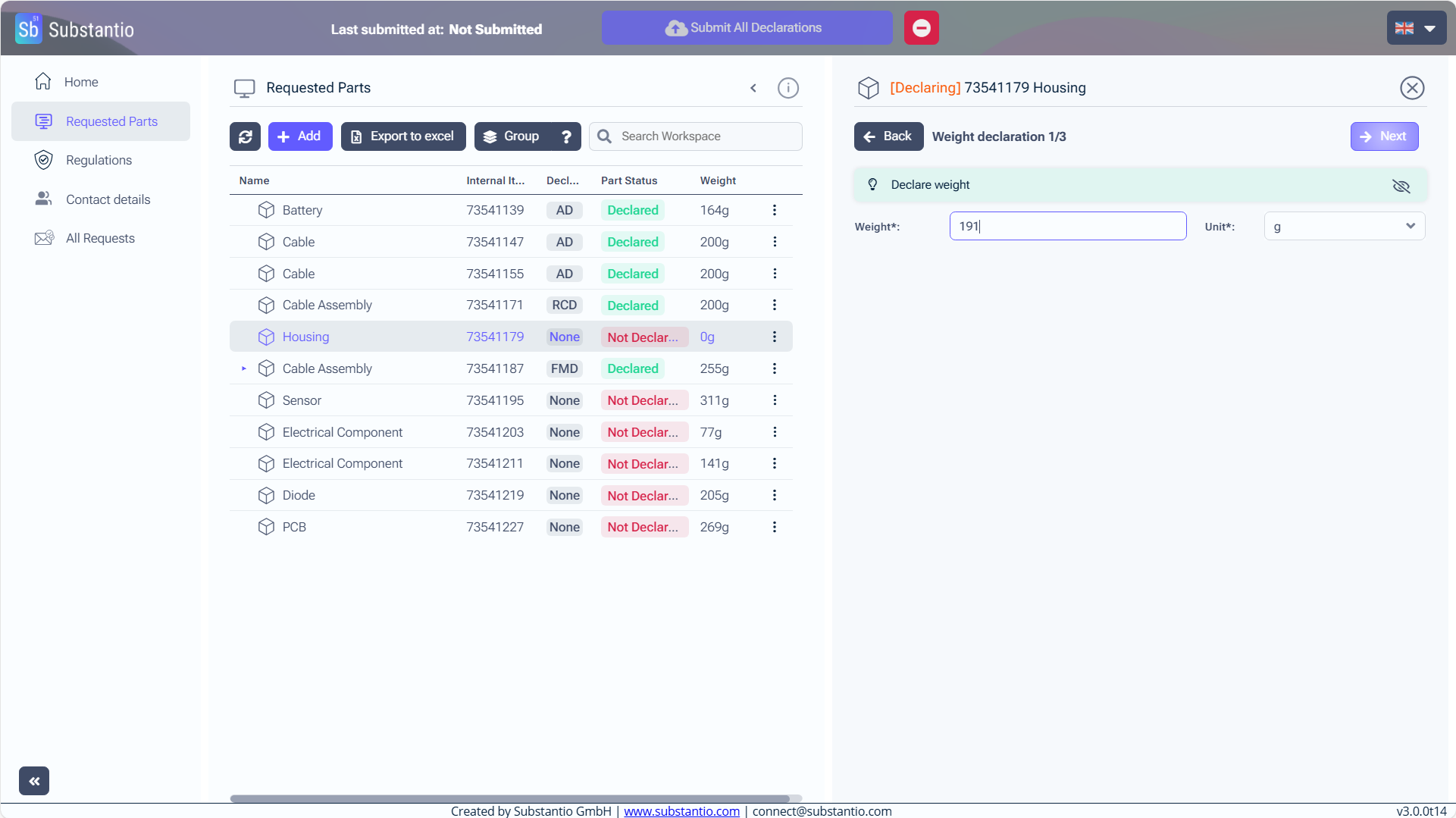
Go to the next step.
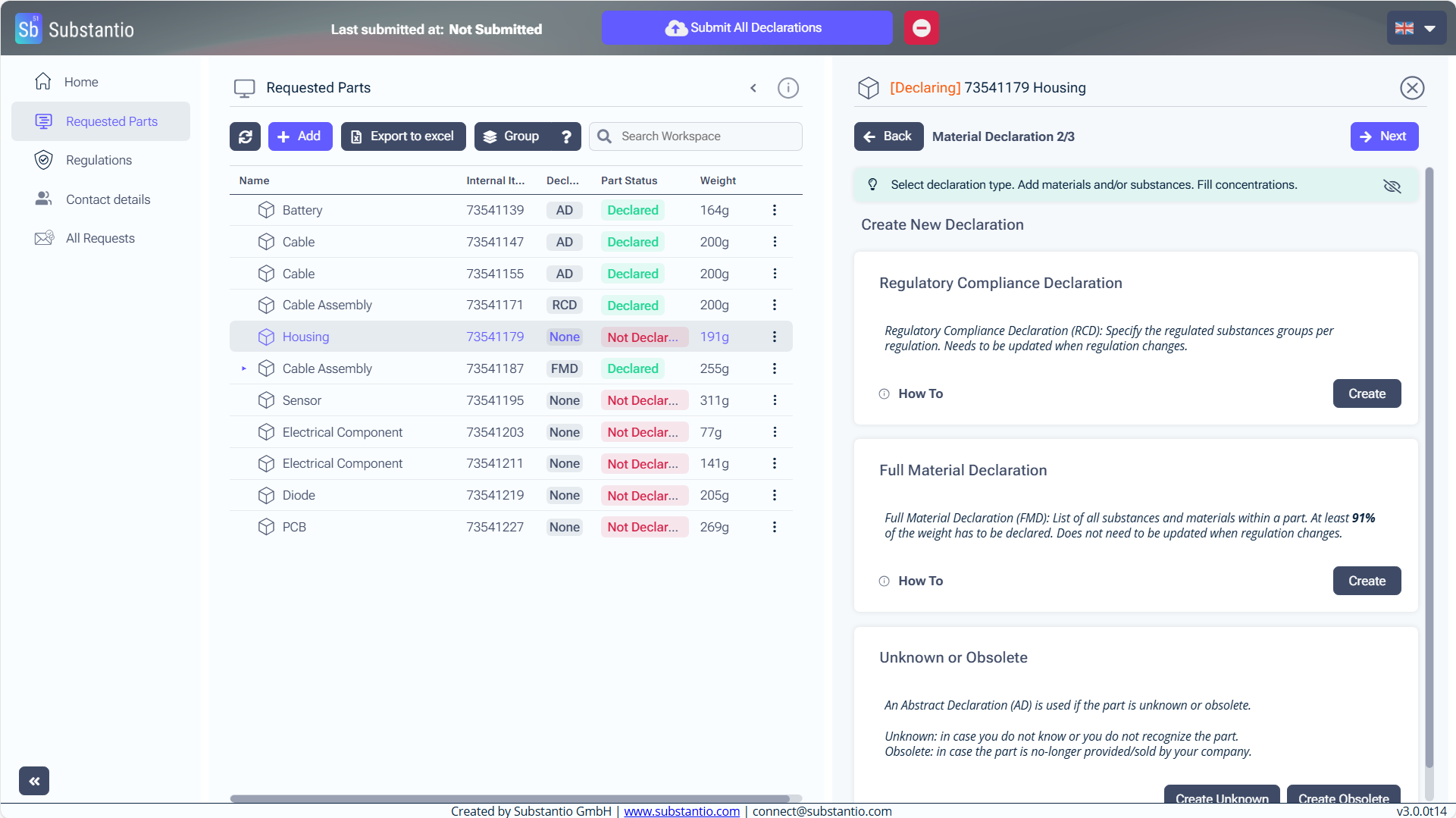
Click the Create button in the Full Material Declaration section.
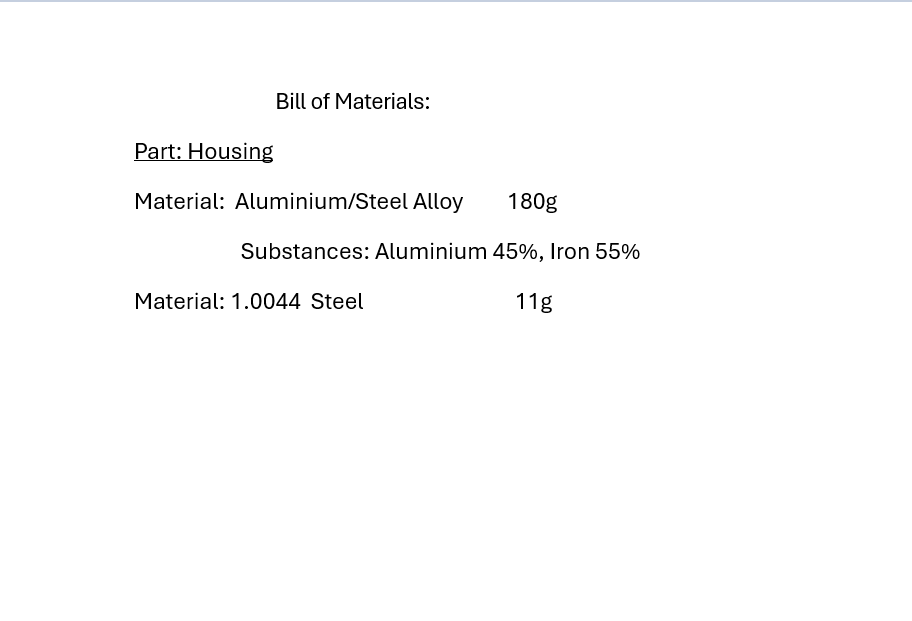
If you want to declare FMD you need to have a Bill of Materials with all materials and substances of your part.
Next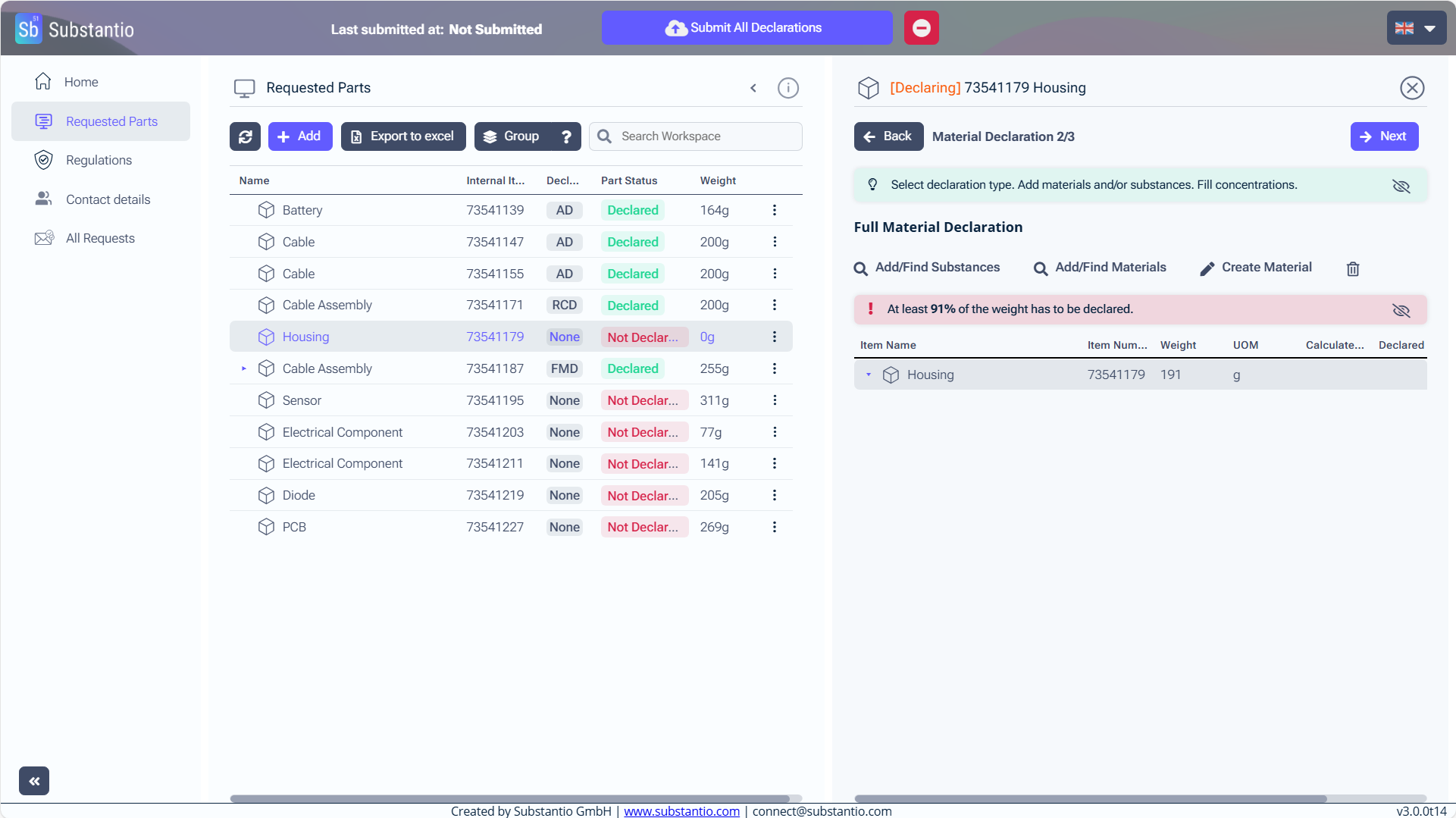
Choose the part.
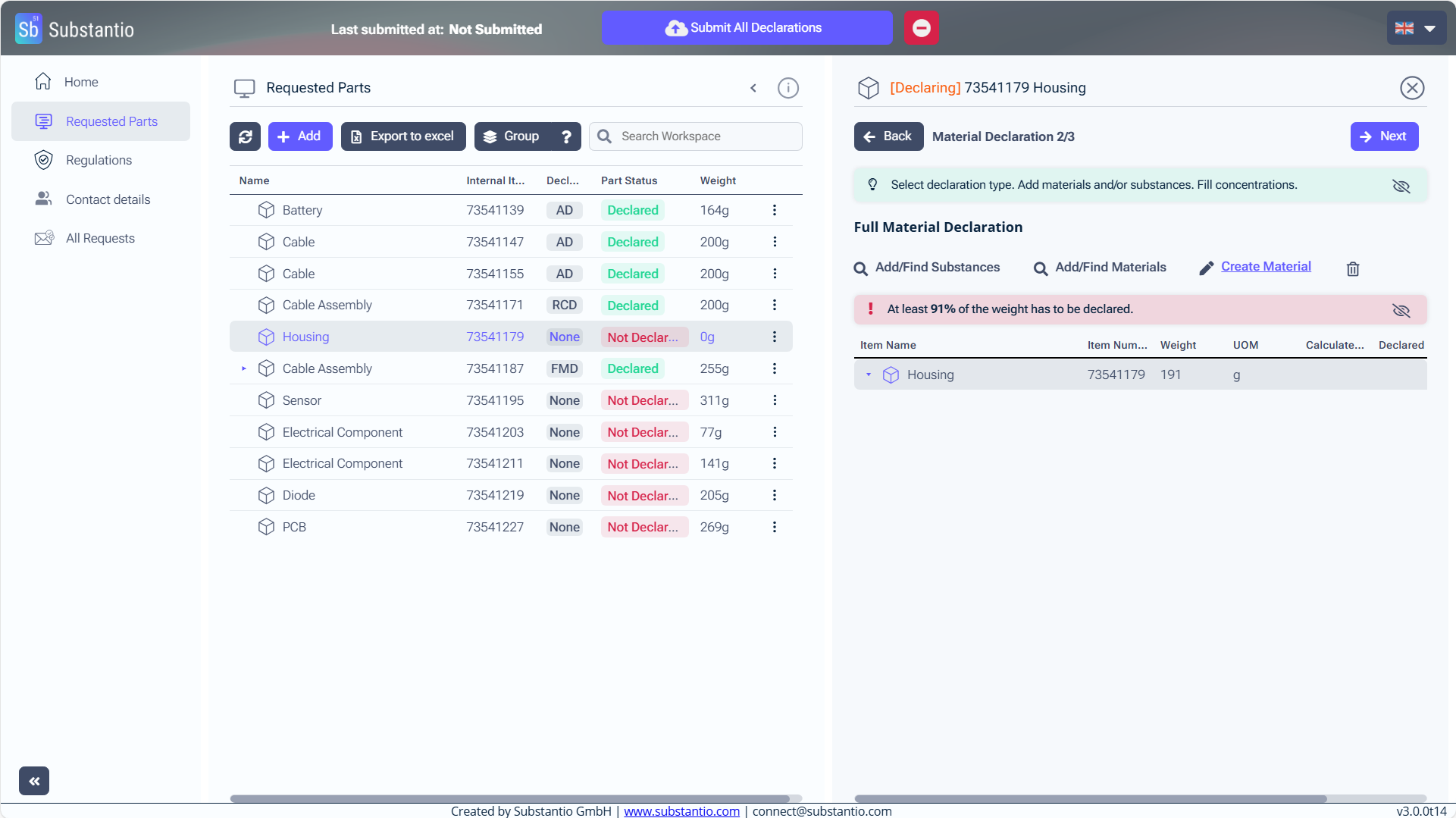
Individual materials must be created to build the item according to the bill of materials. Use the Create Material button to do this.
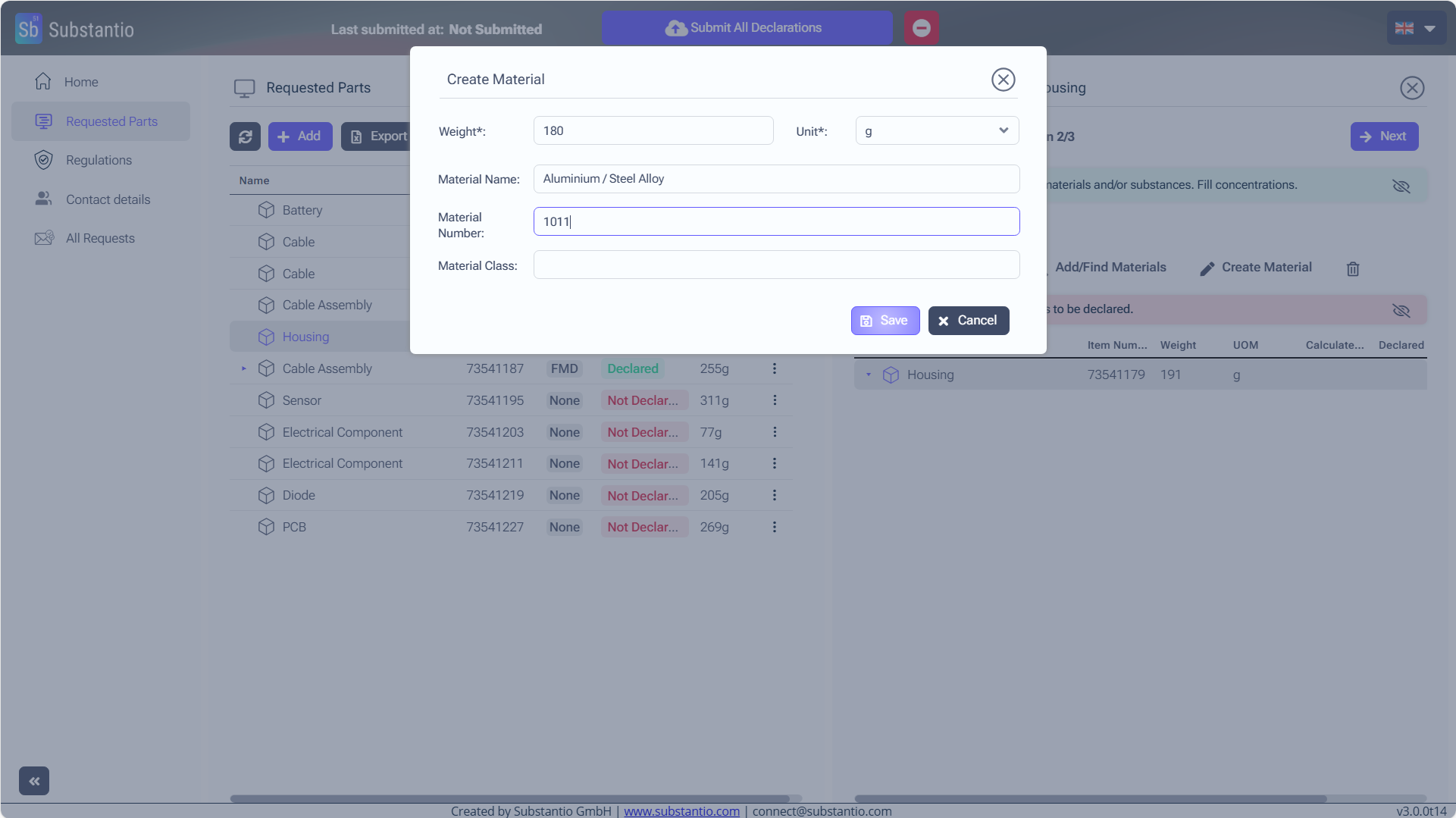
Enter the material name, its weight, and a material number. This sets your new material up.
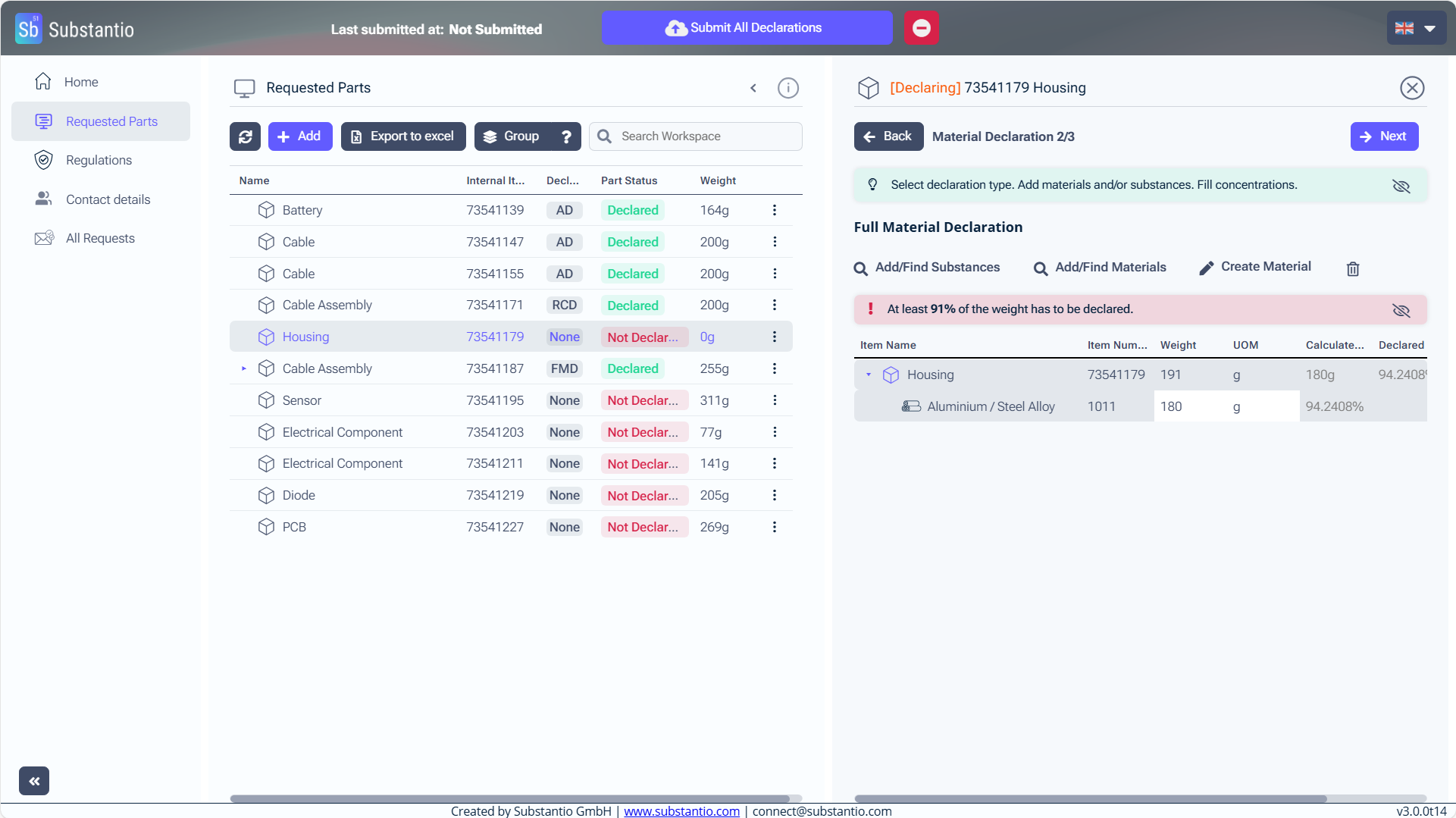
Click on the material you just created, to open it.
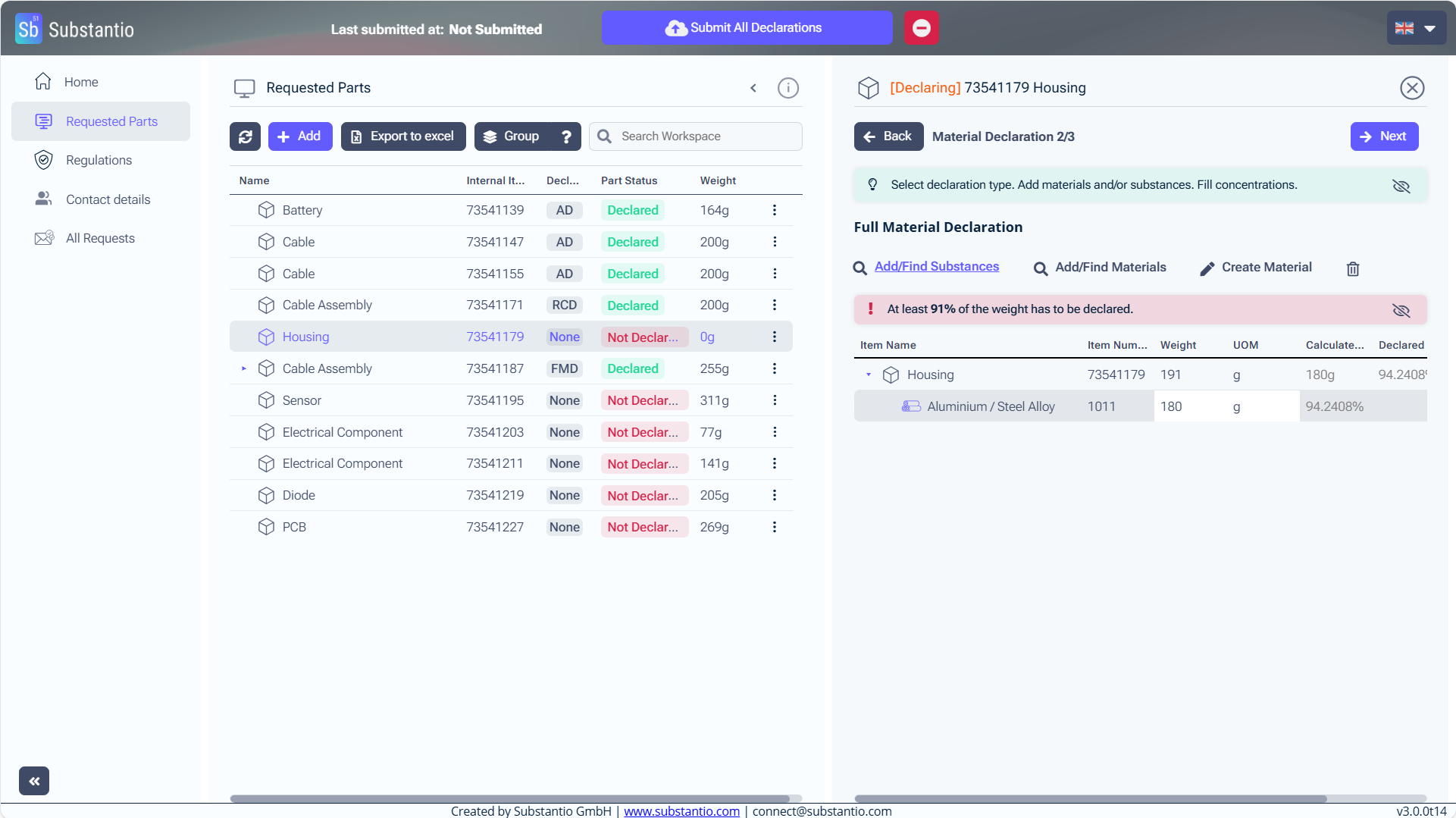
Now you can add substances to this material.
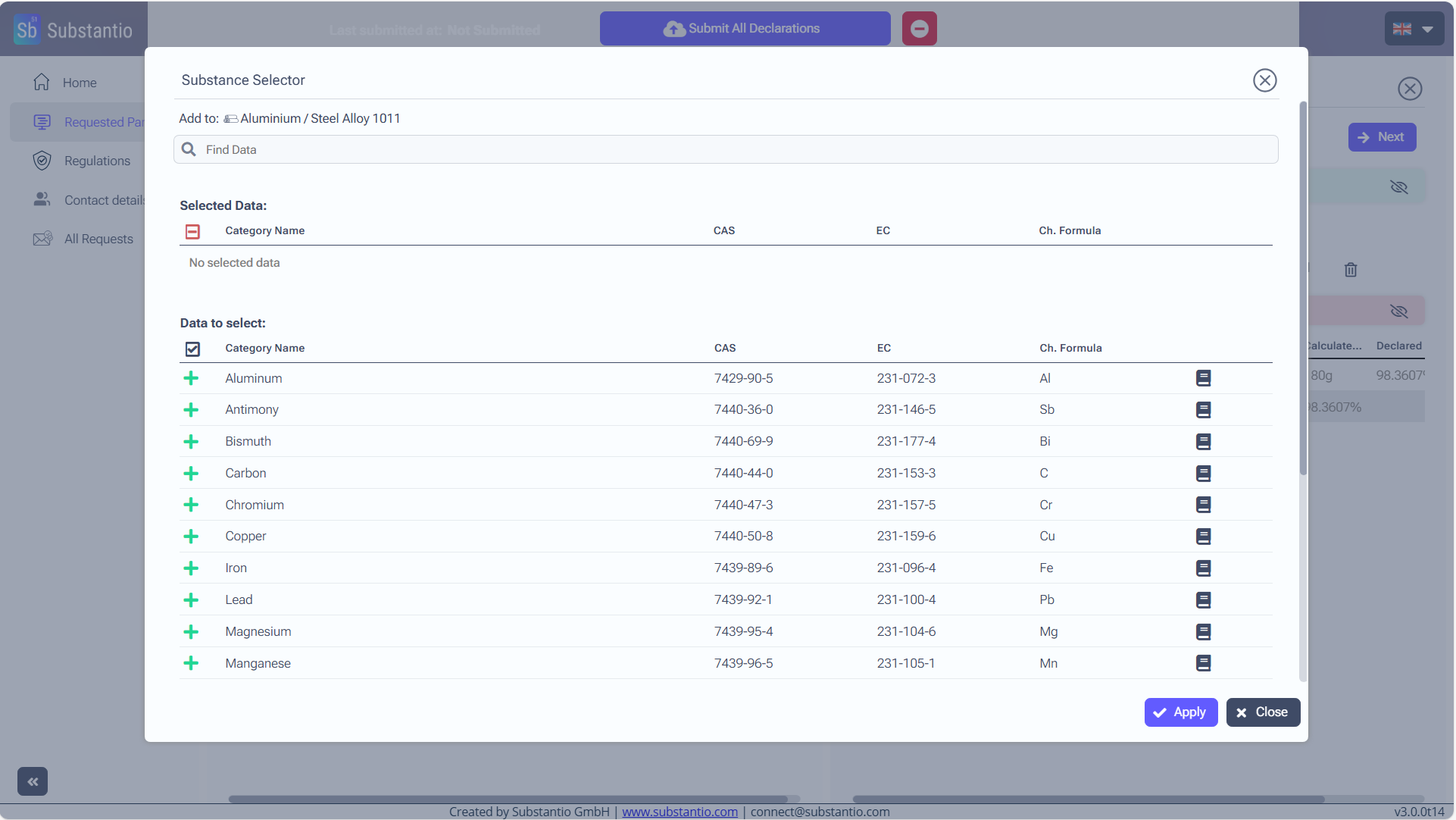
Select your substance by searching for its name or CAS-number.
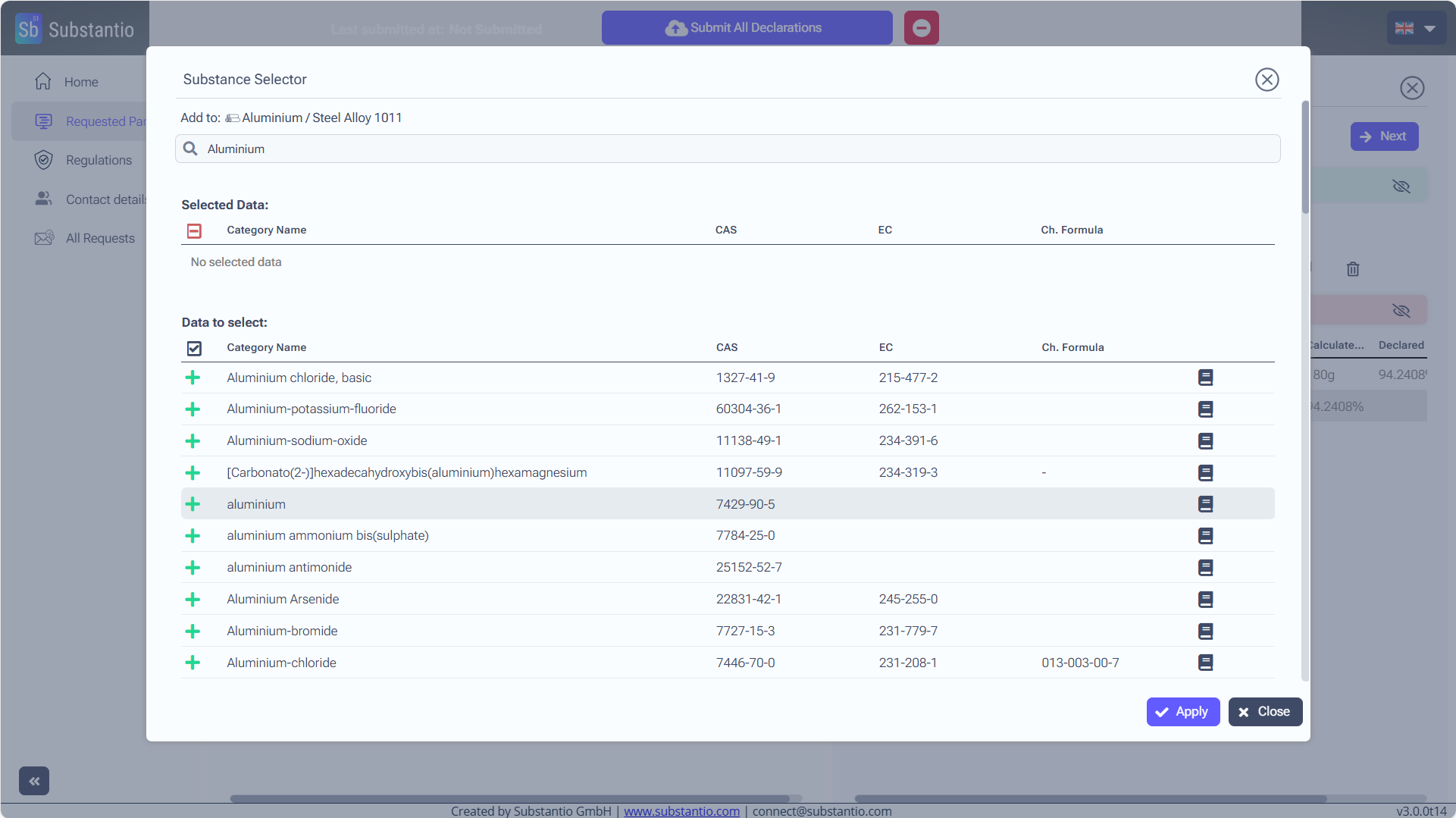
And click on it with the + to choose it.
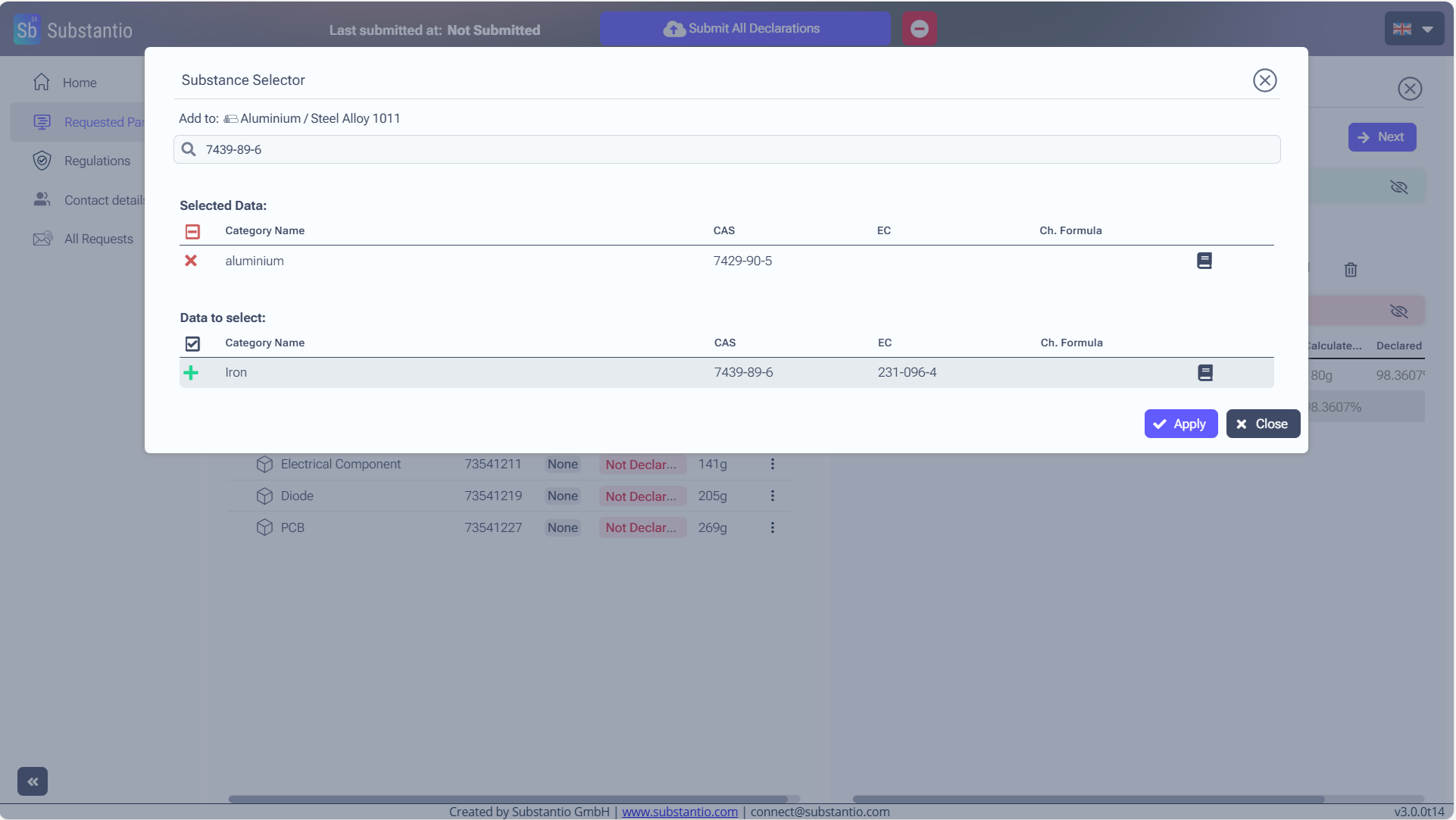
You can add all the substances which are in the material in one step.
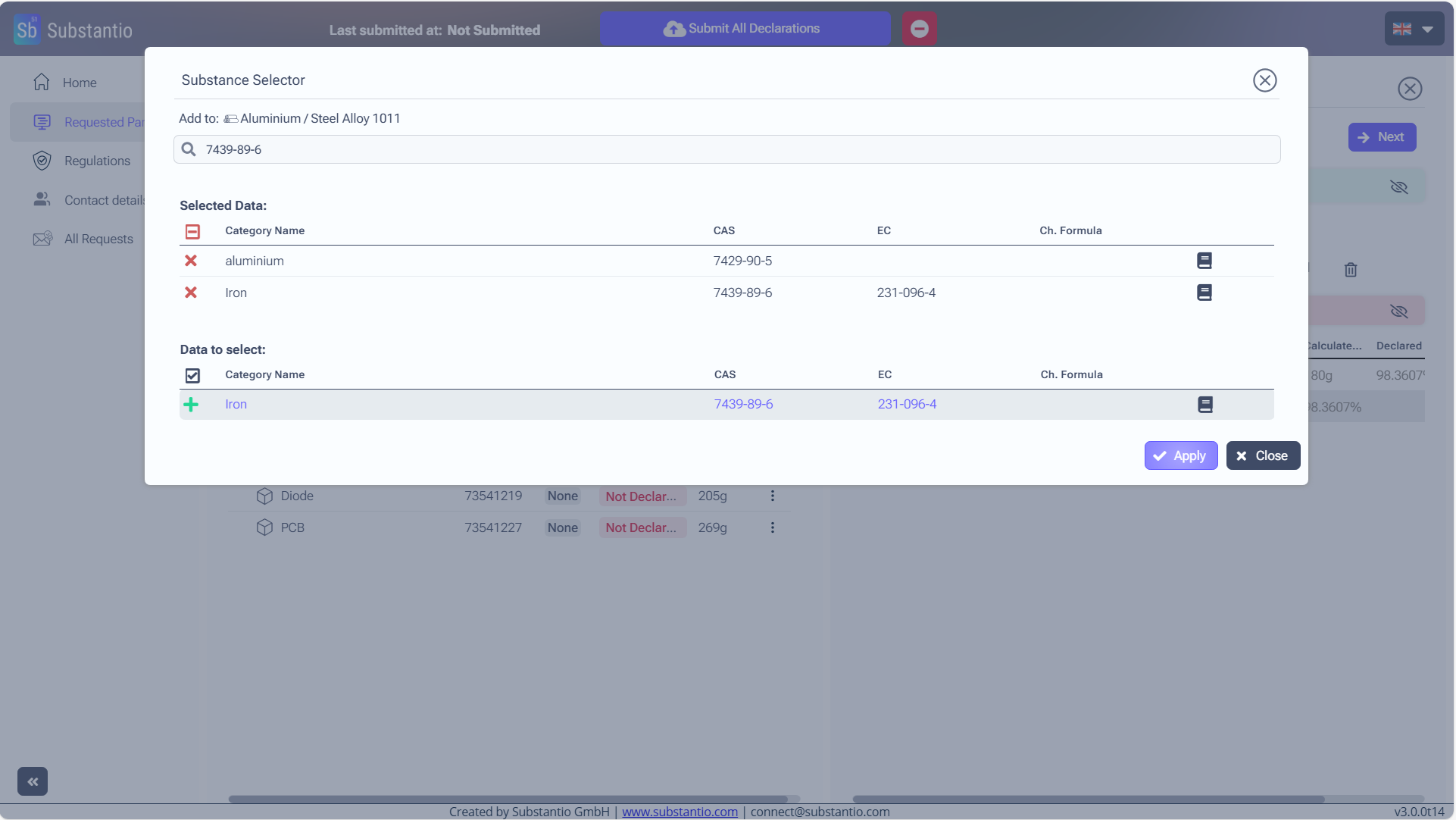
Now apply them to your material.
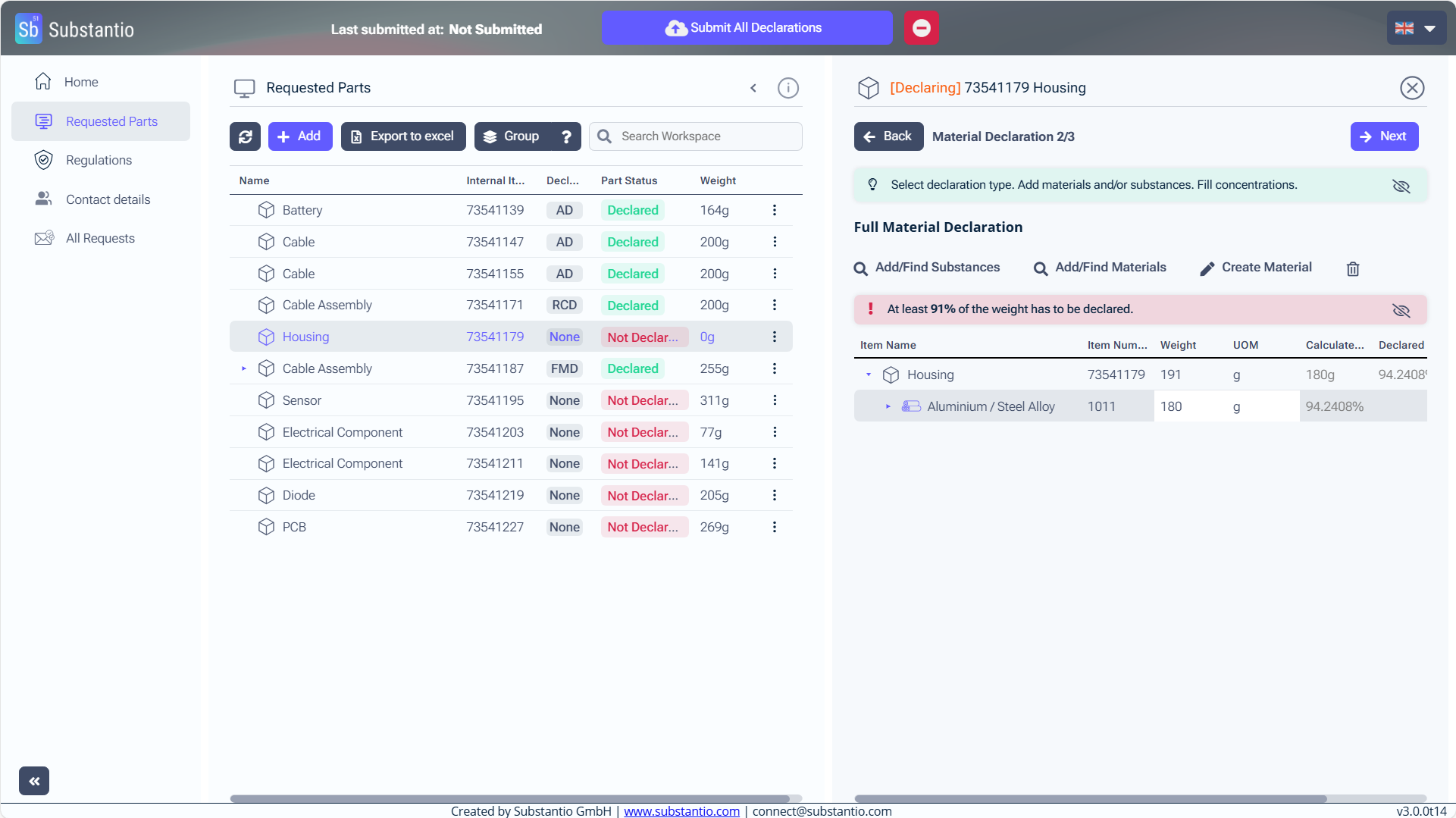
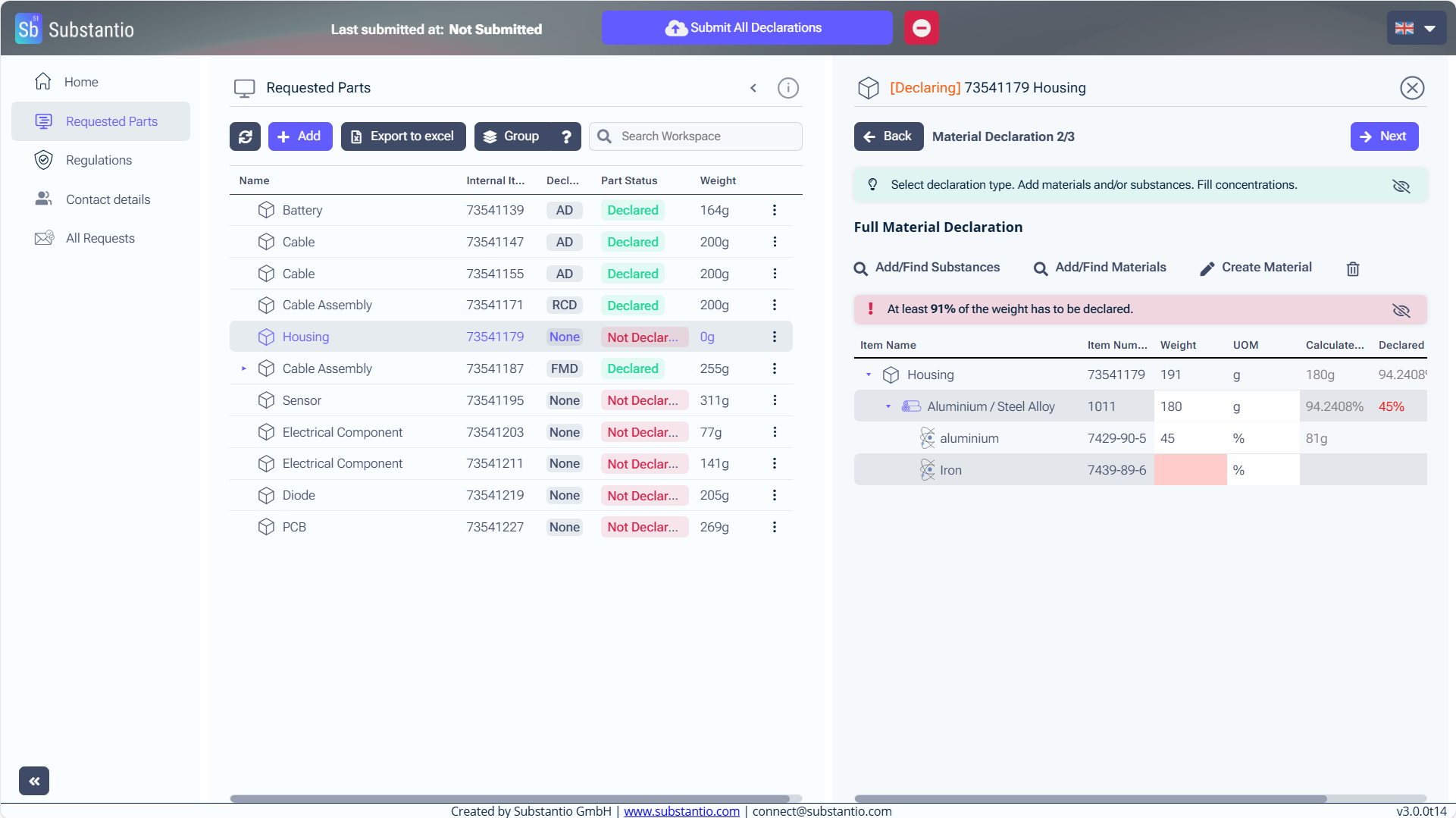
When you click on the material you created, the substances you assigned will be displayed below.
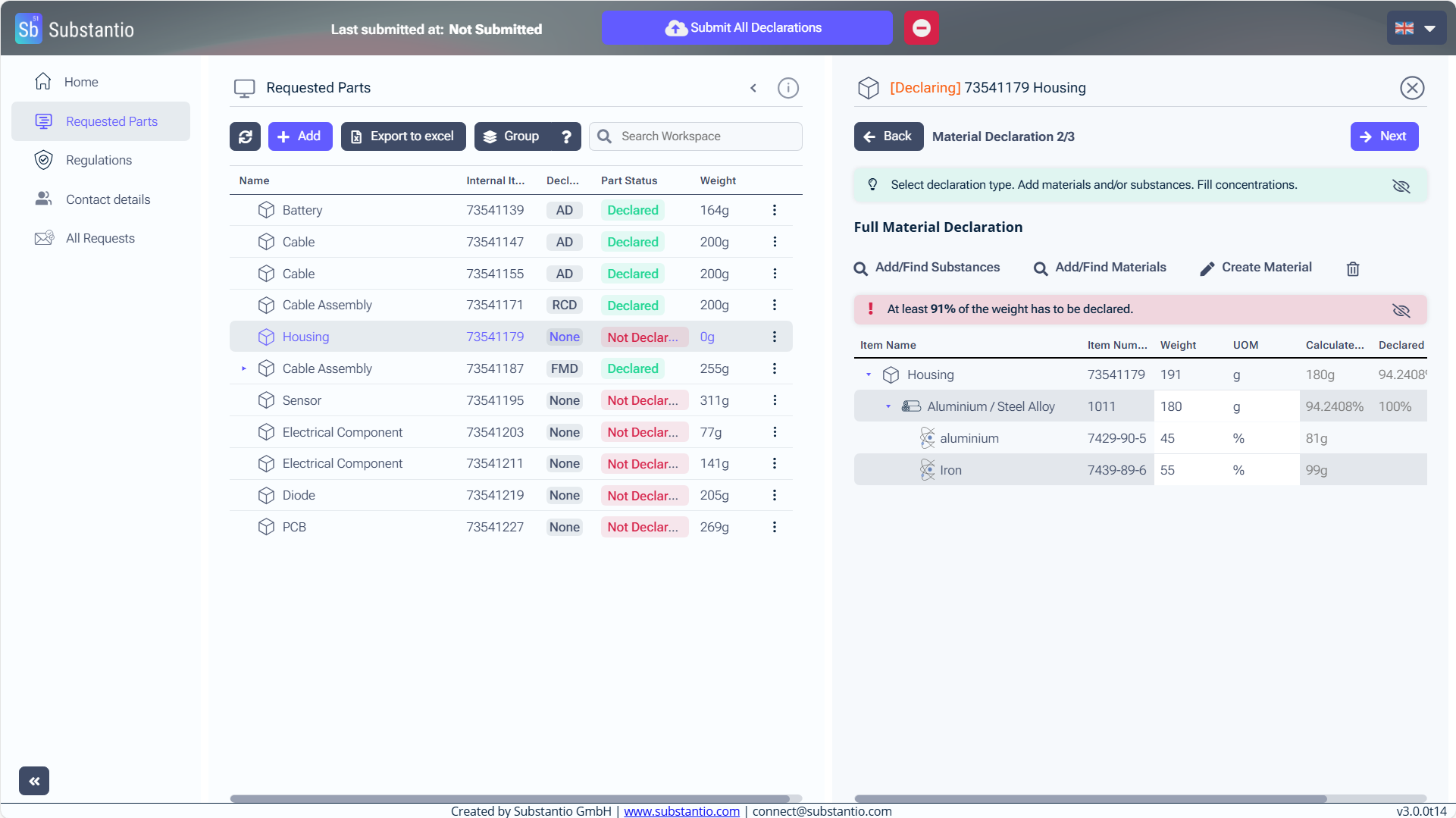
Now enter the percentage for the new substances.
To add more materials to your part, click your created material or the part itself, then click the Add/Find Materials button.
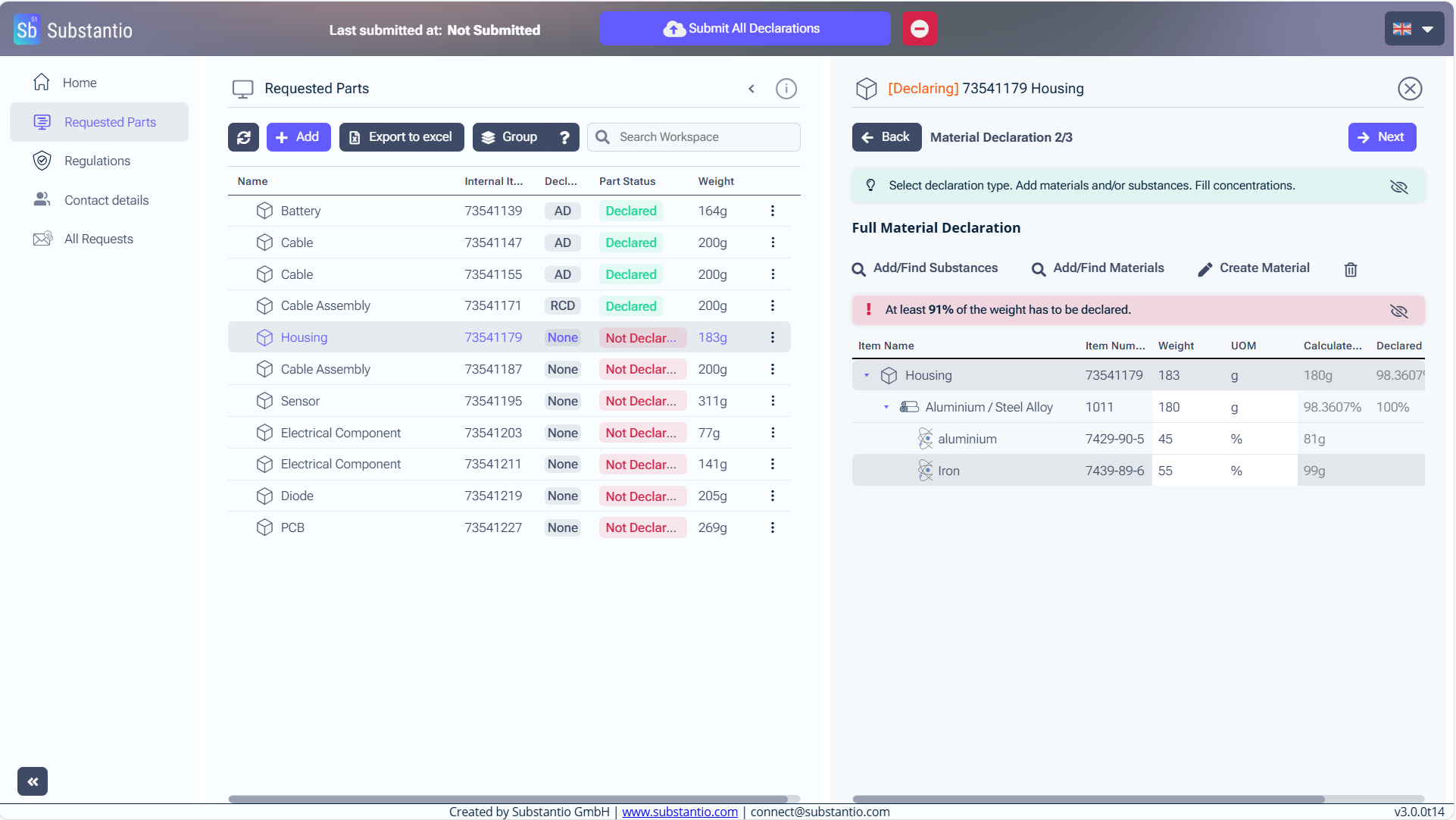
To add more materials to your part, click on the part itself, then click the Add/Find Materials button.
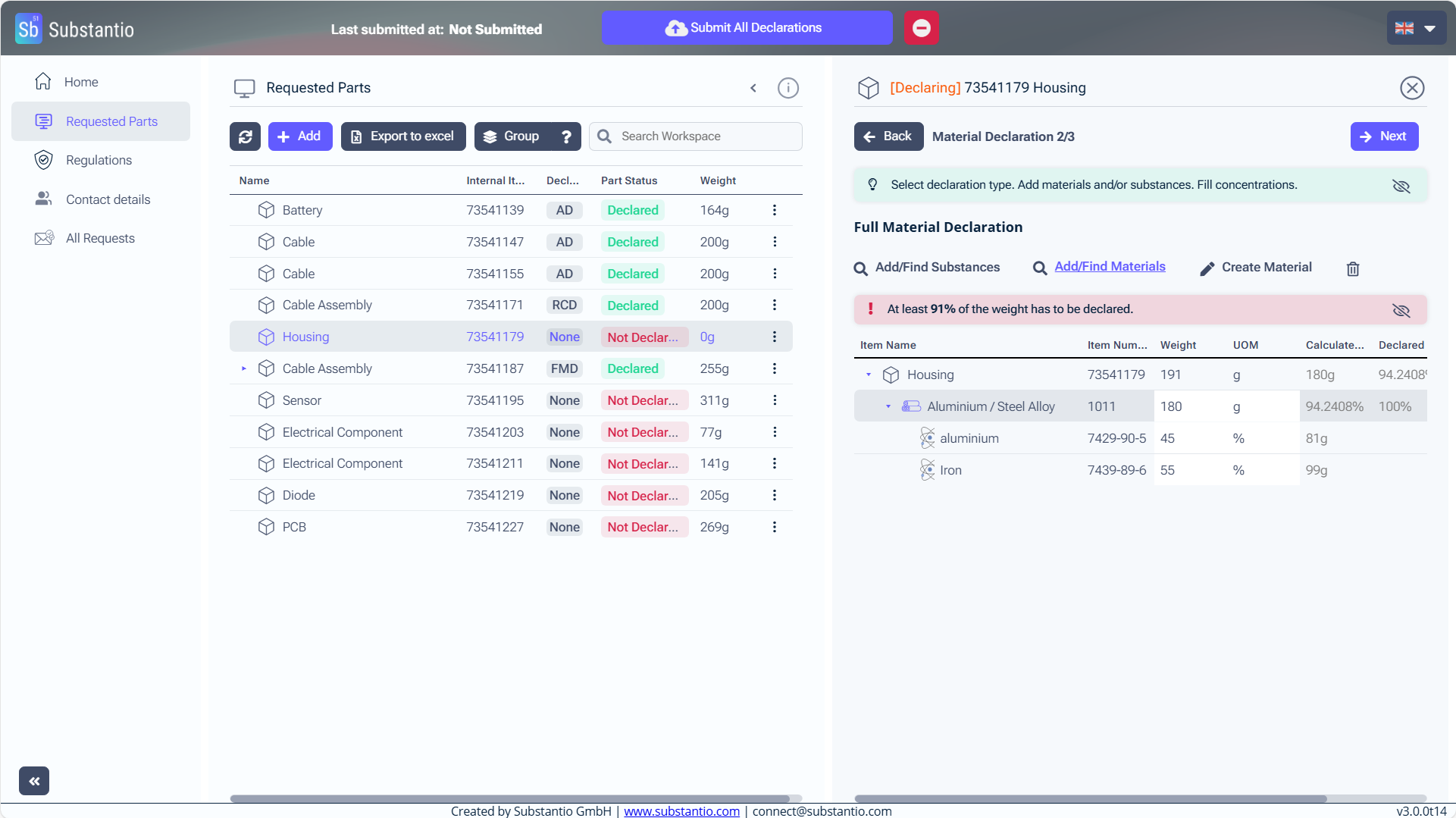
At the Add/Find Materials button you will find either pre-created materials such as aluminum or normed materials. To find them, click the button. (If the materials are not available, you will need to create your own again with the Create Material button.)
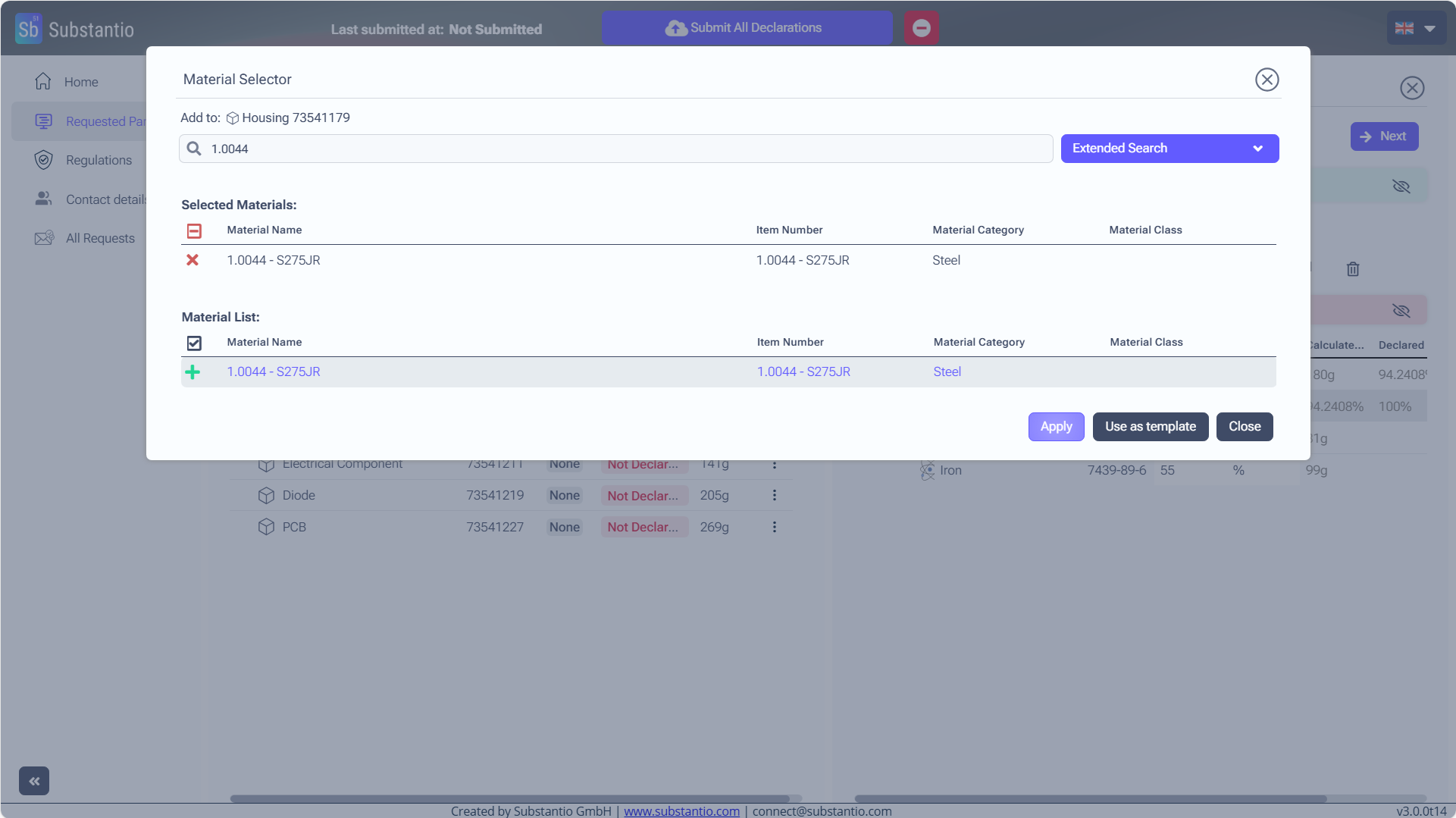
Type in the name and choose Apply. You can also find and select a material you already made.
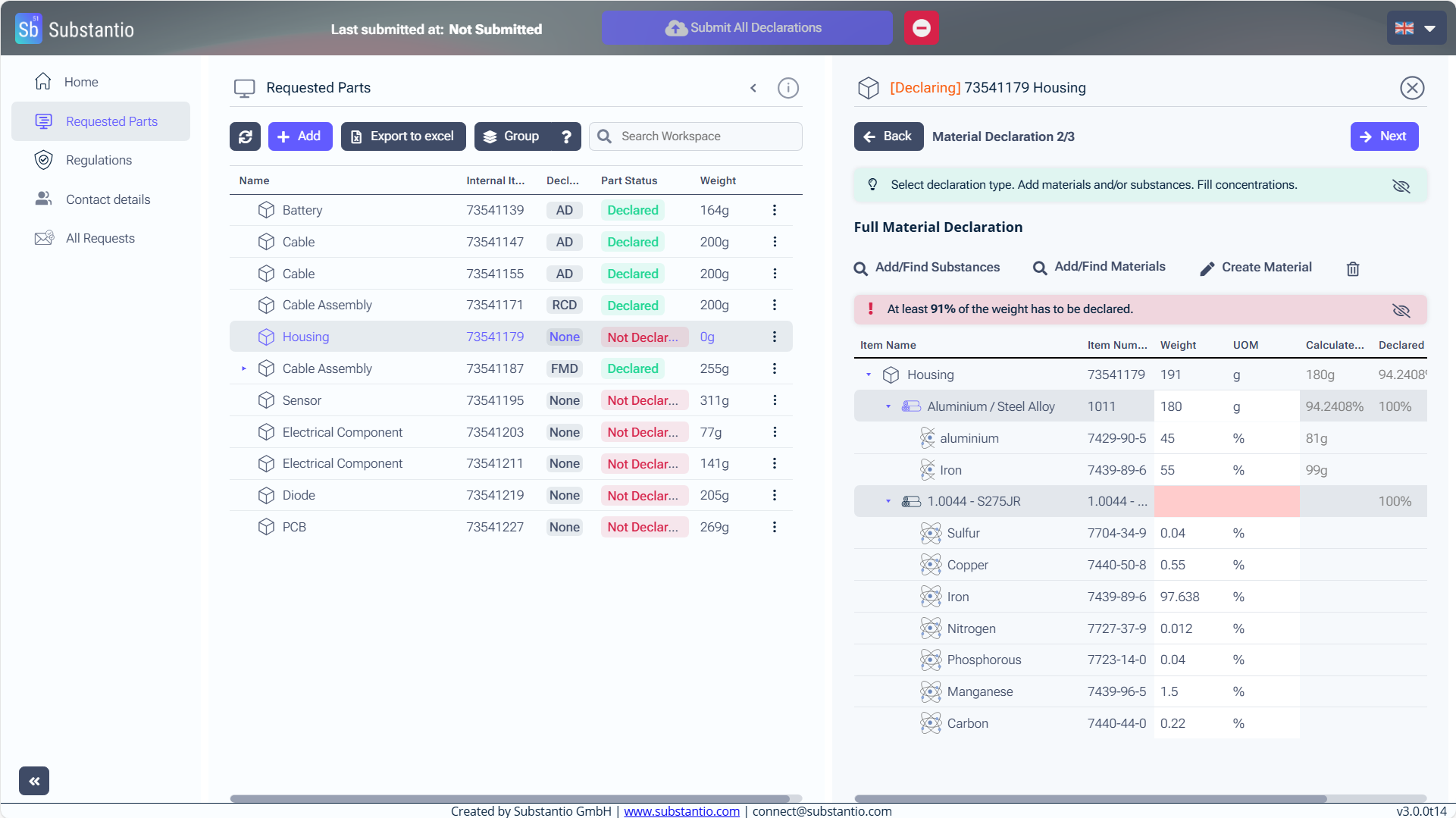
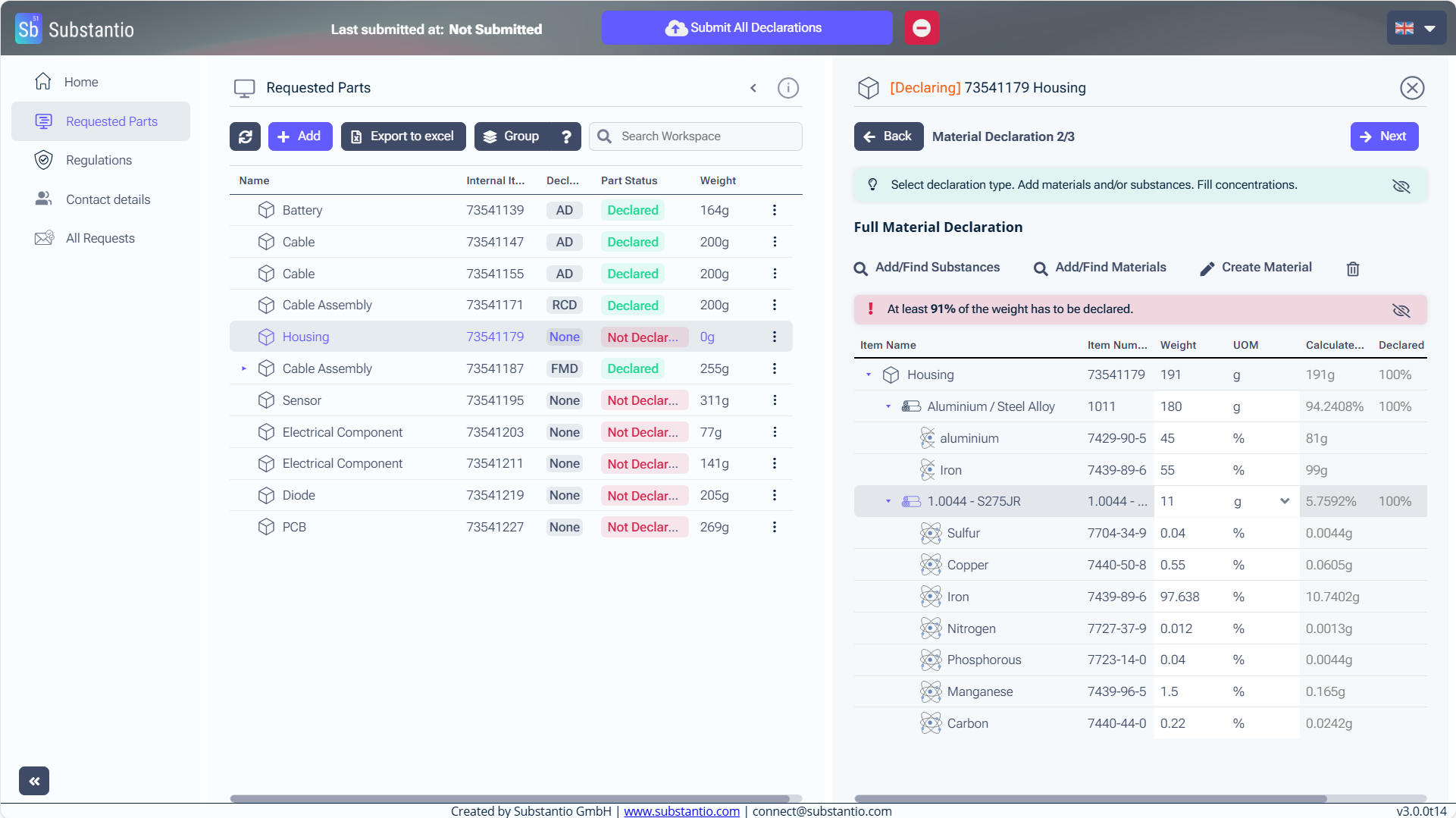
Enter the weight of this material in your part. The tool will automatically calculate what substances are in the material. (If you only know the percentage of the material in your part, you can also choose the %.)
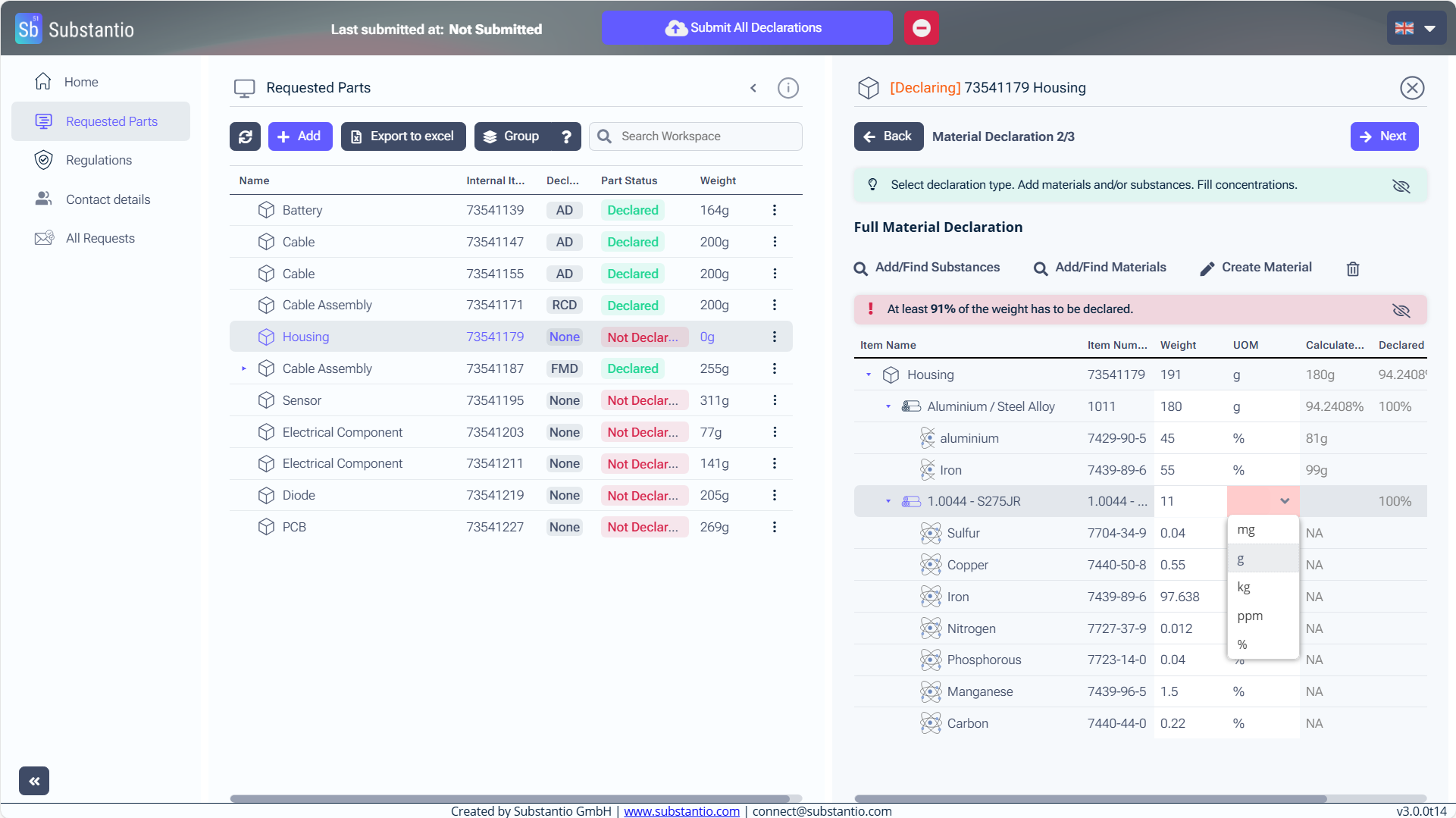
Make sure to choose the correct unit.
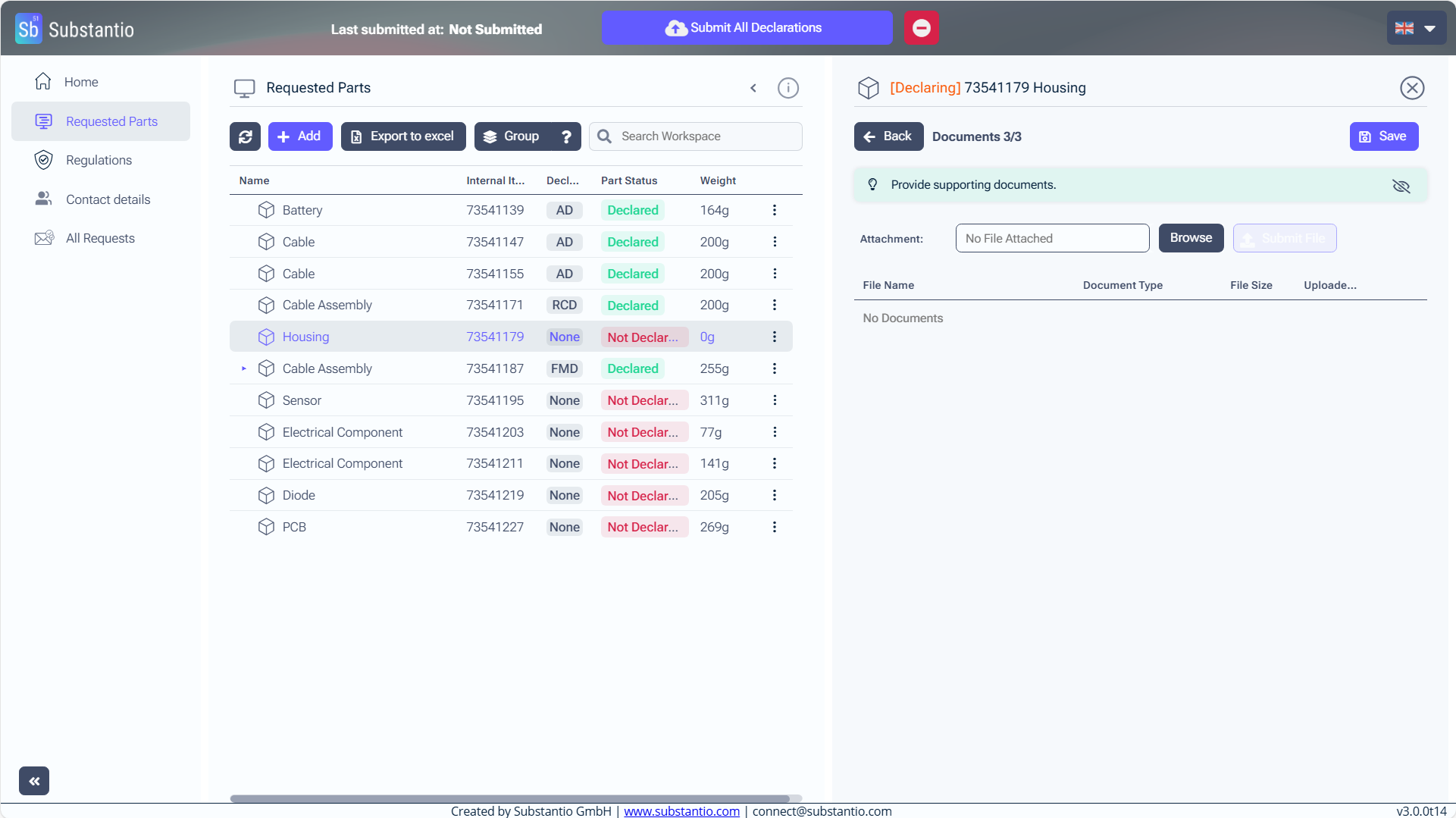
Please upload a conformity document to support your declaration. To do this, click the Browse button.
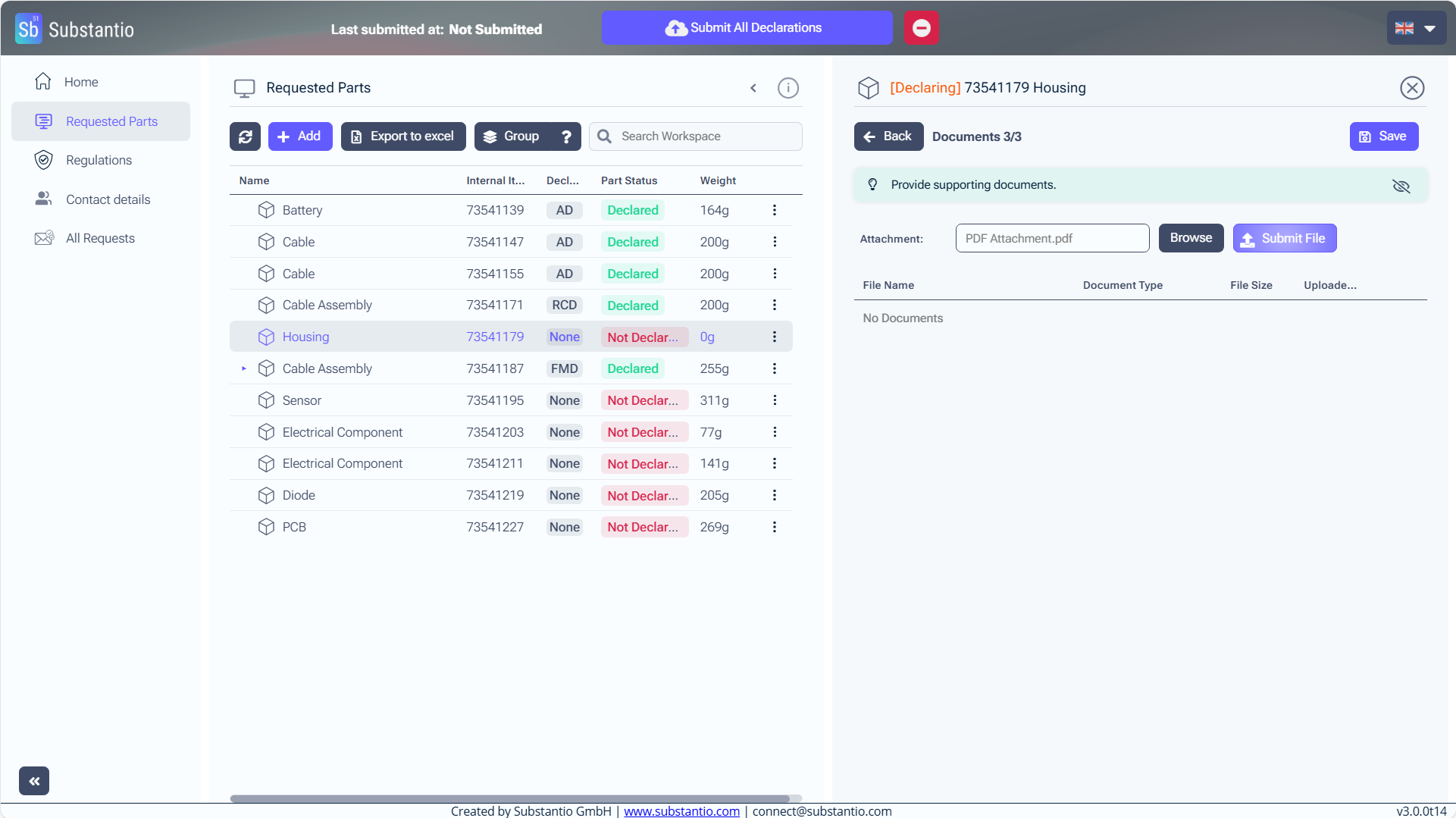
If you see the file loaded up in the Attachment area select the Submit file button.
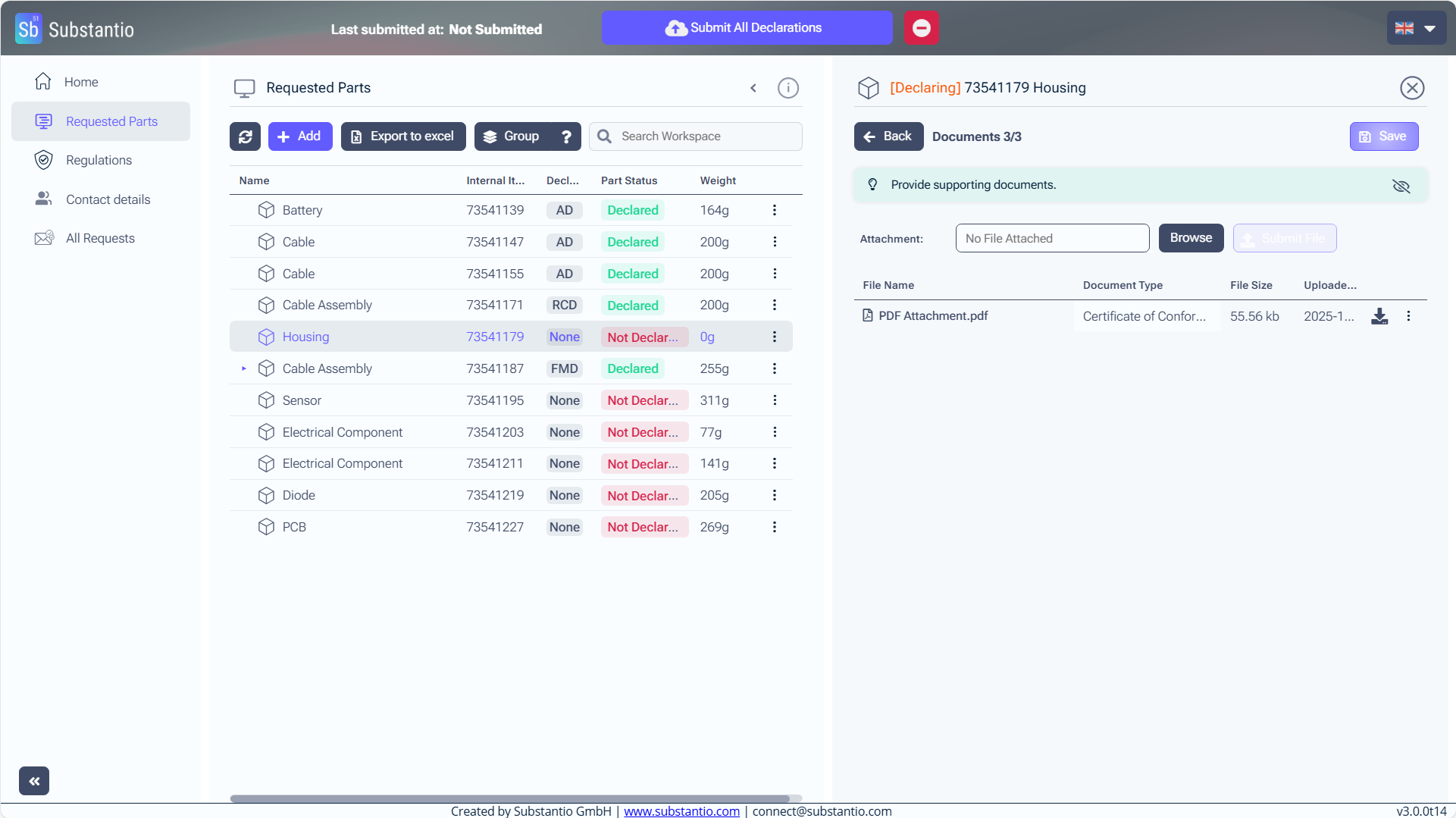
Save your progress to avoid losing any information.
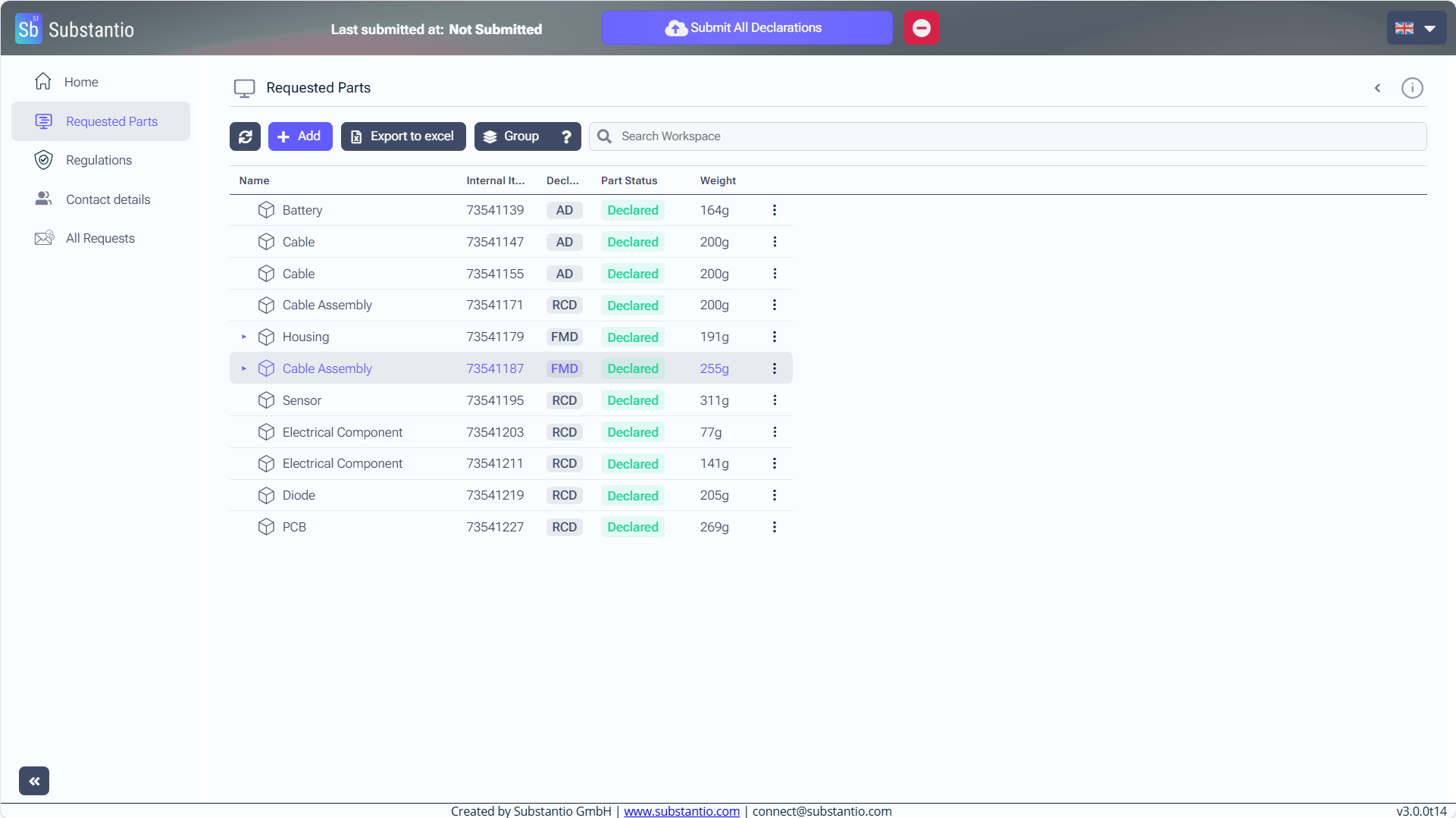
When you have finished declaring all parts, click the Submit All Declarations button at the top to send everything to your customer.

